Showing posts with label FTM2017Publish. Show all posts

Saturday, September 28, 2019

Undocumented Fact Report Management

I understand that many users don't care about Sources and Citations. Over the years, I have learned how important they are. I have also learned how to manage that issue. I want ALL Facts with a Citation, even those Facts that I create and the I use for my purposes to maintain the file.

Working with two (2) new files, in the past three years, I learned to run the Undocumented Fact Report Daily. By doing so, and I can keep this issue under control. That is FIX the issue, based on the work that I did that day.

I took those two files and merged them into my Master database. That experience is a whole other topic. Because for the past two or three years I was in the habit of running the Undocumented Fact Report I ran it for the first time in my Master database. What I ended up with was a 169 PAGE Report. Shocked, to say the least.

To run this report, go to the Publish Workspace, select the Source Report in the Collection Tab, select Undocumented Facts, then Create Report.


When the "Create Report" button is selected, I want to make sure ALL Individuals are included.


Then I realized one problem that really brought the importance of this report. A change, many versions ago, about the "Sex" Fact had been changed requiring a Citation. Many Records either state that as a fact or can infer that fact, and should be documented. Family Names / Given Names are not always obvious. So we were given the Citation field for that Fact.

That second image is the clue /  reminder to me as to why there were so many pages of Undocumented Facts. I have some clean up work to do. I had to develop a Plan to deal with all of these Undocumented Facts. What I was NOT going to do, is clean them all up right now.

As you may know, we can Edit the Profile, from the Report, by double clicking on the Name (that is bolded) and the Person View will appear.


The Sex Fact does not have a Citation, but the Name Fact does have a citation, This is a quick and easy way to resolve this problem, Copy the Citation from the Name Fact, and Paste Link to Source Citation. The Copy source citation is the ICON to the Right of the "New" and left of the Edit (Pencil) ICON. That is the Family Tree Maker Clipboard (not Windows Clipboard)

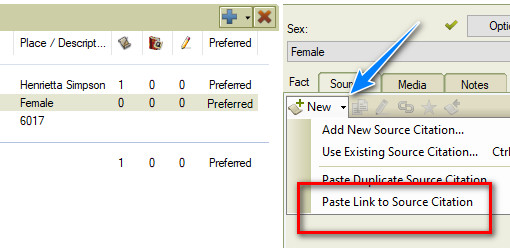
Then select the "Sex" Fact, and Past Link to Source Citation.


That process will take care of those Facts that did not require a citation from previous versions. Easy but time consuming and needs to be done.

BUT, the next profile had other Facts that did not have Citations. From my analysis since I started this clean up project, over the many versions of Family Tree Maker, some Citations were lost and / or unlinked from Facts. So I needed a PLAN.

My plan is to use the Filter Feature to help me manage those profiles that have one or many Facts without a Citation. To do that, I created a "No Documentation" Fact. That way, I can Filter In or Filter Out, anyone with the No Documentation Fact. The name of the fact is not important, that was just the one I chose.

Keeping in the Undocumented Fact Report, I would ADD that Fact to every person in that report AND put a Citation on that Fact. Here is my citation (Reference Note)
Worthington, Russ, [ ADDRESS FOR PERSONAL USE, ], File Citations; This is a "No Documentation" citation, where there are no citations on Facts.
As I started to go through this process, three things were seen.

  1. No Citations on any Facts in that profile
  2. Only ONE Fact without a Citation
  3. A number of Facts without a Citation
Number 1 was may be a large problem, as there is not clue, on that screen to tell me where that information came from. More time involved, but in the People Workspace, Person View, looking at other information, especially a spouse, parents, or children. Clearly not in the report.

It became clear, that this phase of the project is to Mark All Profiles with a Citation issue. 

Number 2 and 3 are a little easier, in that I have at least ONE Citation on other Facts. I can review those citations to see if that record addresses the Fact(s) that are not documented. The Only one fact, should be an easy fix.

This is time consuming, but here is where the Filter In / Filter Out feature comes in very handy.

Lets say I added the No Documentation Fact to the First Page in the Report. I can now go back to the "Individuals to Include". Select ALL, Filter OUT, select the "No Documentation Fact", Any Data, and those profiles with that Fact will be removed from the report.


For me, this does a couple of things, Lets me focus on the easy fixes, or the ones that will take more time, and I can resolve that one fact that doesn't have the citation from previous versions of the program.

In looking at the Undocumented Fact Report, it became obvious which Profiles had that one fact, not documented. It included on the Name and the Fact.

I can fix them right then and there, as noted above.

Once all of the Undocumented Facts are identified what the No Documentation Fact, I can then get back to research and when I come across a Profile with that FACT, I can deal that that undocumented fact then, because I can see it in the List of Facts.


I marked the No Documentation Fact as Private, so only I can see it. In this example, I do not know the persons Name, (5 underscores), but when I look at the full profile, I see that this is a Spouse of someone in my database. I can look at the Citations for the Spouse, to pick up the Citation for this person, that has NO Citations on either Fact.

The No Documentation in the Fact Description field, may be an easy fix, or may be  not so easy.

My goal is to KNOW who has one or more Facts that are not documented. Using the Filter In / Filter Out feature, and get that Undocumented Fact report to Zero, then I can go back to my research. AND I can also go to the People Workspace, and use the Filter In Feature, to Filter IN all who have the No Documentation Fact, and further include, if I want, the No Documentation, Undocumented Fact, or Undocumented Facts in the description.

NOW, once I have all of the Facts documented in the Profile, I can DELETE that No Documentation Fact from that Profile. Now running the Undocumented Fact Report is important to be run frequently, with the goal of No / Zero profiles on that report (again, filtering out the No Documentation Fact).

Lesson Leaned: Run the Undocumented Fact Report daily
____________________________________________________________
Copyright © 2019 by Cousin Russ

Thursday, August 9, 2018

User Question: Multiple Marriages in an Outline Decendant Report (ODR)

A User Question:


How to indicate a second spouse on the Descendants Outline Report?

First, check the Companion Guide in the Help Menu, page 188

Help Menu, Search Tab, select Publish, Relationship Report, Outline Descendant Report.

The bottom line, is that Family Tree Maker does that for you. The indication is the "+" as the same "level" as the Husband (in this case)


_______________________________________________________________
Copyright © 2018 by H R Worthington

Saturday, July 28, 2018

Managing the Data Error Report - Part 4

Final Post on Managing the Data Error Report This is really Part 4, not part 5. User Error Results of the process discussed in the previous 3 videos. Comments in the Community https://plus.google.com/u/0/b/104046972028906209620/+FtmuserBlogspot/posts/j1tkQ6wZva6 or on the Blog [ blog post link ]


_______________________________________________________________
Copyright © 2018 by H R Worthington

Wednesday, November 15, 2017

How to manage a large Marriage Report ?

A FTM2017 (for the Mac) was having difficulty managing a large Marriage Report, where relationships needed to be updated.


_______________________________________________________________
Copyright © 2017 by H R Worthington

Monday, May 22, 2017

Cemetery Report using the Historic Place Name feature

Going to take a "road trip" to Pennsylvania to visit cemeteries where I know to have people buried there. How do I create a List of Cemeteries and who is buried in each?

The trick starts with the use of the Historic Place Name feature [ Place detail (historical name, address church, cemetery, etc): ] in the Resolve Place Name screen.

Here is the Cemetery Name: 

Birmingham-Lafayette Friends Meeting, West Chester, Chester County, Pennsylvania, USA

This is the entry in the People Workspace, Person View


The Place Name is entered as listed above. In the Right Panel, with that Burial Fact Selected the Pencil "edit" ICON appears. That is to Resolve the Place Name.


Clicking on that brings up the Resolve Place Name Edit screen


Using the up pointing arrow, on the Left, the information to the first Comma, is moved to the upper field, "Place Detail", and the City, County, State, and Country are searched for and selected. 

This process takes full advantage of the Map feature. It shows where the cemetery is and who is buried there. But, I am going to the State, not just this cemetery, so I need a report.


Go to the Publish Workspace, Person Collection, Custom Report. Individuals to Include (on the right) and this pop up window appears. In the Find Individuals screen, FILTER IN => select ALL Facts and scroll down to Burial.


Now, in the field below Burial, select ANY DATA


and the default "Equals"  changed to Exists. That mean anyone who had information in the Burial Fact will be in the list. 


In my case, there are 642 entries. 


I don't want everyone, I only want those in Pennsylvania. 


I select the <= Filter Out, burial fact, select Place, Does not Contain Pennsylvania.


That gets me down to 246 people, buried in Pennsylvania.

Still in the Publish Workspace, Select the Items to Include ICON>


which will open the items to include in the Report. I removed the Birth, Marriage, and Death Facts  (the Red X) and added (Green +) Burial. The only information I want to Include only preferred Facts. I then selected the Burial FACT and only have a check mark in the Place and again the Include only preferred Facts


I want the report to be sorted by Cemetery. At the bottom of that panel is where the 1st Sort is by Burial Place then by name.

Where is a sample of what that report would look like.


_______________________________________________________________
Copyright © 2017 by H R Worthington

Friday, April 14, 2017

What's YOUR Plan for FTM2017 ?

While we await the Software MacKiev team continue to test FTM2017, have you thought about Planning what are YOU might be doing to prepare for it's release ?

Used with permission from Software MacKiev

Actually, I thought I would share mine, based on what I have seen on the support.familytreemaker.com website.

  • Make an inventory of ALL of my Family Tree Maker FILES on my computer
  • Make an inventory of ALL of my Linked Ancestry Member Trees (AMT)
  • I have a Desktop and a Laptop so, on that 2nd item, Identify WHICH computer is linked to which Ancestry Member Tree
  • I have done this, but my inventory needs to be updated
  • Within the FILES, I need to identify what Version of Family Tree Maker last opened that file
  • For the older files, do I have THAT file in FTM2014.1 ?

So, getting the inventory of what I have to work with. EXCEL works for me. I have NOT done anything to these files at all, just gathering my inventory

When I open or close of my FILE, I do NOT just Exit or use the red X in the upper right to close the Program down. File Close, and File Exist.

  • Review the Inventory and MARK which FILES can be ARCHIVED, meaning I already have a Back Up AND it's in FTM2014.1 already
  • Inventory ALL of the BackUp files. Making a distinction between a manual BackUp and an Automatic BackUp. (the filename will include Auto Back Up, unless you removed that). The Automatic BackUp does not include Media Files
  • Open Each of your "new" working list in FTM2014.1, one at a time
  • Go to Tools, Compact AND BackUp that file, ALL check marks
  • Mine will be to an External Drive

Now, ARCHIVE ALL of those files you marked to be inventoried BUT those files that you have in FTM2014.1, Hopefully, to an external drive, JUST IN CASE.

  • In the Plan Workspace, use the Link to View the AMT from that Link
  • Check the number of Profiles between the File and the Tree
  • Check the number of Gallery Items in your Tree, and the number of Media Files in the Media Workspace

You can skip those steps if you do NOT have a Linked AMT. But you want to make sure that the File on your computer links to the Ancestry Member Tree.

Next, review, in the Plan Workspace, under "Start a new tree" and select Download a Tree from Ancestry. Check that list against your Inventory of Files (on your computer) and Trees (on Ancestry). See if you are missing any files. If you are missing a file, use the Export button, to download the Tree from Ancestry. MARK that file in your inventory. Suggest that you do something about that File LAST. I am guessing that you will have some clean up work to do.

You have your Working Files and it's Media Folders all in one place and you know what you have. You have a BackUp of EACH of them, on that external drive that can be restored if needed. You should be good to go.

Now, if you still have some time left, do a spot check of File, Restore from BackUp. This would be a file and folder that you can delete. When you are offered what the File Name should be when you restore, I add -Restored at the end

Master_2014-1_1510-2017-04-13-Restored

The Back file will have everything but -Restored so all you have to do is to add that. That makes it easier to Delete File and the Media Folder. For me, I will Archive that as well to my Archive External Drive.

Now you can prioritize the order in which you want to bring these files into FTM2017.

Things to think about:

  • Make another BackUp and use  a SMALL file to test out the FamilySync™ feature
  • Look at the information in EACH of the Workspaces
    • Plan
    • People - Tree View
    • People - Person View
    • Places
    • Media
    • Media - by Category
    • Source
    • Citations
    • Publish
    • Publish - Saved Reports if you have them
    • Publish - Books, if you have created any
    • Look in the Help Menu for any NEW items in the Help Menu

Notice, I didn't say anything about New Features. What you are looking for is any problems in your File that you might have found during the new FamilySync™ feature. Remember, you have a BackUp..

  • Make ONE, small change, in that "test" file, maybe the real file and do a SyncNow
  • Review as you did before.

Think of this as a test file and don't panic. Remember, if you follow my suggestions, you have at least Two (2) Back Ups.

IF there is an issue, don't ask me, don't go to FaceBook, go IMMEDIATELY to


and let them know, EXACTLY what you did, what you saw, Verify in the Help, About Family Tree Maker and the Version number, include the last four numbers that you will see (FTM2014.1 .... 1510)

You could report a Bug on that website, you could have a Chat with them, but let Software MacKiev know that you have a problem. Posting those problem here or on Facebook is not the right place to get help.

This may look like a lot of work, and it is, but for me to plan this out, ahead of time will help me in the long run.

Because I teach creating and using Files and Trees, I have a lot on my list. Probably 25 or 30. At the End of this project, I will clean all of that up. Then I can get back to my research
_______________________________________________________________
Copyright © 2017 by H R Worthington

Print Friendly