A question was left on the Blog about the use of the Also Known As, Fact. Here is my answer:
_______________________________________________________________
Copyright © 2017 by H R Worthington
Showing posts with label Reports. Show all posts
Showing posts with label Reports. Show all posts
Wednesday, October 4, 2017


Monday, August 24, 2009
Multiple Marriages and Remarriage
How do you enter Multiple Marriages, where the first (or other) spouse was remarried.
Please note that this example is where there was a marriage. However, other FACTs can be selected to clarify the type of Relationship the two individuals had.
Peggy Marriage was married 3 times. See the number next to the spouse ICON.

Going to the People Workspace, Person Tab, FACTs page, the three marriages are listed. The Date of the Marriage and the fact that, in this example, the marriages ended in Divorce (with dates). They are listed in the Shared FACTs for each relationship.

The date of the new marriage was added and marked as Preferred.

What will this look like in a Genealogy Report (Collection Tab), Register Report (Detail Tab), in the Publish Workspace?
By default, the Preferred only FACTs are selected. The three marriages are reported, BUT the first marriage is not. Removing the Check Mark, in the Items to Include ICON, will resolve this.

Figure 227
The result shows the complete set of relationships and the fact that there was a child from the first relationship.

Figure 228

Please note that this example is where there was a marriage. However, other FACTs can be selected to clarify the type of Relationship the two individuals had.
Peggy Marriage was married 3 times. See the number next to the spouse ICON.

Figure 223
Going to the People Workspace, Person Tab, FACTs page, the three marriages are listed. The Date of the Marriage and the fact that, in this example, the marriages ended in Divorce (with dates). They are listed in the Shared FACTs for each relationship.

Figure 224
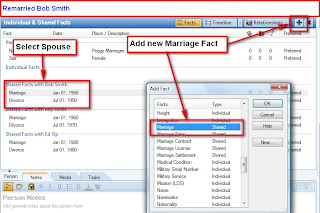
To add a new Marriage to the First Spouse, click on the Green Plus sign and a New FACT screen will appear, where Marriage is selected. Note that the cursor is on the First Spouse (Select Spouse)

Figure 225
The date of the new marriage was added and marked as Preferred.

Figure 226
What will this look like in a Genealogy Report (Collection Tab), Register Report (Detail Tab), in the Publish Workspace?
By default, the Preferred only FACTs are selected. The three marriages are reported, BUT the first marriage is not. Removing the Check Mark, in the Items to Include ICON, will resolve this.

Figure 227

Figure 228
References:
Adding a Spouse in Family Tree Maker 2009 & 2010
Adding Multiple Spouses on Family Tree Maker 2009
Adding a Spouse in Family Tree Maker 2009 & 2010
Adding a Spouse in Family Tree Maker 2009 & 2010
Adding Multiple Spouses on Family Tree Maker 2009
Adding a Spouse in Family Tree Maker 2009 & 2010

Sunday, June 28, 2009
Library Visit - Family Tree Maker Version 2009
In an earlier Blog entry, Library Visit - Family Tree Maker Version 16 Custom Reports were generated to take to a library to do research, but the use of a computer was not available. This entry will review what can be done with Family Tree Maker Version 2009.
In the previous blog, this is what was stated:
I take with me three reports created by Family Tree Maker Version 16.
These specific reports a different in Version 2009. However, the Custom Report format is different. And, instead of 3 or more reports, one can be generated.
To start, the Publish (1) Button is depressed and you will be taken to the Publish Work Space. The first screen is the Collection (of reports) screen. In this case, the Custom Report is a Person Report (2). There are 6 possible Person Reports, and Custom Report is selected and generated.
In the previous blog, this is what was stated:
I take with me three reports created by Family Tree Maker Version 16.
- Birth Report, for a specific Location, Sorted by Name
- Death Report, for a specific Location, Sorted by Name
- Marriage Report, for a specific Location, Sorted by Name
These specific reports a different in Version 2009. However, the Custom Report format is different. And, instead of 3 or more reports, one can be generated.
To start, the Publish (1) Button is depressed and you will be taken to the Publish Work Space. The first screen is the Collection (of reports) screen. In this case, the Custom Report is a Person Report (2). There are 6 possible Person Reports, and Custom Report is selected and generated.

Figure 161
There is an "Items to Include" ICON, when the default or last report is displayed. Normal Name, Birth, Marriage, and Death Facts are there by default. Since this is the Same file that was used in Version 16, much of the information in this file, came from a Cemetery Visit. To Add the Burial FACT, the Plus Sign (2) is clicked on, and another pop-up window is opened where Burial is selected (3).

Figure 162
The Report name was changes to New Jersey (1). To limit the Individuals for this report to New Jersey, Select Individuals (2) is clicked. In the window that opens, Filter In (3) is clicked, which will bring up another window. There is a lot of flexibility, as with previous versions. In this case, we want Burial FACT as a Place, and enter "New Jersey, USA" as the location.

Figure 163

Figure 164
This three page report lists details of everyone buried in New Jersey.
For more information please click on the following links:
Custom Report in Family Tree Maker 2009
Individual Report in Family Tree Maker 2009
Place Usage Report in Family Tree Maker 2009
Choosing Facts to Include in a Report in Family Tree Maker 2009
For more information please click on the following links:
Custom Report in Family Tree Maker 2009
Individual Report in Family Tree Maker 2009
Place Usage Report in Family Tree Maker 2009
Choosing Facts to Include in a Report in Family Tree Maker 2009
Subscribe to:
Posts (Atom)