Spent some time revising how I handle all of my Task List / ToDo List Items. It was a follow up from the process mentioned earlier in this series.
Bottom Line, It's Working
_______________________________________________________________
Copyright © 2018 by H R Worthington
Showing posts with label Tasks. Show all posts
Showing posts with label Tasks. Show all posts
Sunday, July 29, 2018
Saturday, July 28, 2018
Managing the Data Error Report - Part 4
Final Post on Managing the Data Error Report
This is really Part 4, not part 5. User Error
Results of the process discussed in the previous 3 videos.
Comments in the Community
https://plus.google.com/u/0/b/104046972028906209620/+FtmuserBlogspot/posts/j1tkQ6wZva6
or on the Blog
[ blog post link ]
_______________________________________________________________
Copyright © 2018 by H R Worthington
_______________________________________________________________
Copyright © 2018 by H R Worthington
Friday, July 27, 2018
Managing the Data Error Report - Part 3
Did some clean up and want to see how the Data Error Report is doing.
Comments in the Community
https://plus.google.com/u/0/b/104046972028906209620/+FtmuserBlogspot/posts/6HSxkvcMHHK
or on the Blog
_______________________________________________________________
Copyright © 2018 by H R Worthington
Comments in the Community
https://plus.google.com/u/0/b/104046972028906209620/+FtmuserBlogspot/posts/6HSxkvcMHHK
or on the Blog
_______________________________________________________________
Copyright © 2018 by H R Worthington
Managing the Data Error Report - Part 2
Part 2 - did some update to the file and want to see if I have any new Data Entry Report issues to record
Comments in the Community
https://plus.google.com/u/0/b/104046972028906209620/+FtmuserBlogspot/posts/bJgyJ1gAVGv
or on the Blog
http://ftmuser.blogspot.com/2018/07/managing-data-error-report-part-2.html
_______________________________________________________________
Copyright © 2018 by H R Worthington
Comments in the Community
https://plus.google.com/u/0/b/104046972028906209620/+FtmuserBlogspot/posts/bJgyJ1gAVGv
or on the Blog
http://ftmuser.blogspot.com/2018/07/managing-data-error-report-part-2.html
_______________________________________________________________
Copyright © 2018 by H R Worthington
Thursday, July 26, 2018
Managing the Data Error Report - Part 1
Will demonstrate how I now manage the Data Error Report, Part 1
I have figured out a way to Manage the Date Error Report. First, to identify the Potential Errors, Secondly, Give me the ability to SEE that the profile has an Error, Thirdly to Have a ToDo List to work from, by a specific Error Message Group.
I had not been dong a good job of managing these errors at all, until I used the Data Error Report when helping others. (read smaller FILES).
After spending a couple of days, I have 823 Tasks / ToDo Items to work from.
Part 2 will be, so now what. I identified the Errors, found the reason for the Potential Error, Resolve that error in the database, the make sure the Potential Error has been resolved.
I will add a few people to this database, as see if There are NEW Errors. I will also then, clear some of the ones I have identified.
Comments in my Google+ Community
https://plus.google.com/u/0/b/104046972028906209620/+FtmuserBlogspot/posts/dHFHseKFaoX
or on the Blog
http://ftmuser.blogspot.com/2018/07/managing-data-error-report-part-1.html
_______________________________________________________________
Copyright © 2018 by H R Worthington
I have figured out a way to Manage the Date Error Report. First, to identify the Potential Errors, Secondly, Give me the ability to SEE that the profile has an Error, Thirdly to Have a ToDo List to work from, by a specific Error Message Group.
I had not been dong a good job of managing these errors at all, until I used the Data Error Report when helping others. (read smaller FILES).
After spending a couple of days, I have 823 Tasks / ToDo Items to work from.
Part 2 will be, so now what. I identified the Errors, found the reason for the Potential Error, Resolve that error in the database, the make sure the Potential Error has been resolved.
I will add a few people to this database, as see if There are NEW Errors. I will also then, clear some of the ones I have identified.
Comments in my Google+ Community
https://plus.google.com/u/0/b/104046972028906209620/+FtmuserBlogspot/posts/dHFHseKFaoX
or on the Blog
http://ftmuser.blogspot.com/2018/07/managing-data-error-report-part-1.html
_______________________________________________________________
Copyright © 2018 by H R Worthington
Saturday, April 21, 2018
Use of Task ToDo List Categories
This is a follow up on this blog post - https://ftmuser.blogspot.com/2018/04/... - where I shared the results of a Facebook Poll on the use of Categories. This Video is how I use the Task or ToDo List Categories
This file is a new file and will show how I use the Task List in the Plan Workspace to help me stay focused on creating this new FILE.
_______________________________________________________________
Copyright © 2018 by H R Worthington
This file is a new file and will show how I use the Task List in the Plan Workspace to help me stay focused on creating this new FILE.
_______________________________________________________________
Copyright © 2018 by H R Worthington
Tuesday, May 1, 2012
To Do / Task List
I may have posted about this before, but I will do it again.
This is a follow up to:
Very little has changes from that Blog Post. This is an update / reminder on how I am continuing to use this Feature.
I normally don't like To Do Lists. But I have found that I can't live without it. Too much "stuff' to remember "to do". For example, I have about 3 people that I wanted to locate in the 1940 Census, but they were not where they "should have been". In one case, I think it's a matter of the Enumerator miss recording a household. So, I want to "remember" to wait until the Indexing is complete for this state, and let the Web Search engine find them.
There are lot's of options on how you want to use and manage the To Do or Task list.
I keep my general notes or project Tasks as Hi-Priority. Normally all at the top, so they are obvious to me. The Middle Priority are for People. The missing 1940 Census people are listed there. These Tasks are created from the People Workspace, Person View.
I make the Low Priority, the tasks that I have completed. They are marked as Priority, but I don't delete them. I want to make sure I don't create a Task that I have already created and completed.
The Task or To Do list is in the Plan Workspace, right there when you open the program.
This is part way down my 300+ ToDo List. It marks the difference between my Hi Priority Tasks and the Middle Priority Tasks
You can see the Name of the person with the Task, in the lower part of the screen. Selecting that person, and clicking GoTo, will take you to that person. Very handy.

You can create categories that meet your need. For example: I have a Clean Up category, a Locate Source Category. Most of my Clean Up are hi priority right now, while the Locate Source was created when I found someone were a Fact didn't have a Citation.
This is find and dandy, but some times I want to print a sheet, and Check things off as I go. Will enter the completion later.
Going to the Publish Workspace, Person Collection is a Task List Report.

As with most reports, there are options. Information to show, or not to show.
This piece of the report is must like the view in the Plan Workspace, that is the Hi and Mid priority settings. The Clean Up report that I created has fewer items showing my the handy Check box to mark up when I am done.

Back to how I marked my missing 1940 Census person:
In the People Workspace, Person View, near the bottom is the Notes, Media and Task tabs.
Clicked on New and a window pops up, and I entered my To Do list for the 1940 Census that I am missing.

________________________________________________________________
Copyright © 2012 by H R Worthington
This is a follow up to:
Family Tree Maker 2009 - Tasks
Very little has changes from that Blog Post. This is an update / reminder on how I am continuing to use this Feature.
I normally don't like To Do Lists. But I have found that I can't live without it. Too much "stuff' to remember "to do". For example, I have about 3 people that I wanted to locate in the 1940 Census, but they were not where they "should have been". In one case, I think it's a matter of the Enumerator miss recording a household. So, I want to "remember" to wait until the Indexing is complete for this state, and let the Web Search engine find them.
There are lot's of options on how you want to use and manage the To Do or Task list.
I keep my general notes or project Tasks as Hi-Priority. Normally all at the top, so they are obvious to me. The Middle Priority are for People. The missing 1940 Census people are listed there. These Tasks are created from the People Workspace, Person View.
I make the Low Priority, the tasks that I have completed. They are marked as Priority, but I don't delete them. I want to make sure I don't create a Task that I have already created and completed.
The Task or To Do list is in the Plan Workspace, right there when you open the program.
This is part way down my 300+ ToDo List. It marks the difference between my Hi Priority Tasks and the Middle Priority Tasks
You can see the Name of the person with the Task, in the lower part of the screen. Selecting that person, and clicking GoTo, will take you to that person. Very handy.

You can create categories that meet your need. For example: I have a Clean Up category, a Locate Source Category. Most of my Clean Up are hi priority right now, while the Locate Source was created when I found someone were a Fact didn't have a Citation.
This is find and dandy, but some times I want to print a sheet, and Check things off as I go. Will enter the completion later.
Going to the Publish Workspace, Person Collection is a Task List Report.

As with most reports, there are options. Information to show, or not to show.
This piece of the report is must like the view in the Plan Workspace, that is the Hi and Mid priority settings. The Clean Up report that I created has fewer items showing my the handy Check box to mark up when I am done.

In the People Workspace, Person View, near the bottom is the Notes, Media and Task tabs.
Clicked on New and a window pops up, and I entered my To Do list for the 1940 Census that I am missing.

________________________________________________________________
Copyright © 2012 by H R Worthington
Friday, November 27, 2009
Version 2010 - Errors on GEDCOM Import
Family Tree Maker
Version 2010
Error Message on GEDCOM Import
One of the options to create a New Tree is Importing a GEDCOM file. That GEDCOM file may be from another program or a download from a Ancestry.com Member Family Tree.
See:Plan - New File - Download from Ancestry.com
If, during the importing of a GEDCOM file, errors are encountered, the final screen of the import process will provide a Error Log file.
New in Version 2010:
Clicking on the Error Log button on that screen, information will be provided on the errors. Such as:
GEDCOM Import
File: C:\[user account information]\Family Tree Maker\Family Tree 11-09.ged
Created by: Ancestry.com Family Trees (2009)
Errors
Line 12 : error InvalidDate: Unrecognized date for the Residence fact: 2006-present
Line 227: error 4 : Invalid tag: MARR. Line ignored.
Line 11145: error InvalidDate: Unrecognized date for the Education fact: abt 1895-1910?
Line 13282: error InvalidDate: Unrecognized date for the Adoption fact: 1970?
This information may not be of much help. With Version 2010, this information is not placed on the To Do / Task list.

The Error messages are briefly described, who the error was associated and that it was an Import Error. Clicking on the line will take you to the individual involved for resolution.
Looking at the error messages, there is an indication of a number of the Facts that there is a "?" in the date field, or the word "or" was in the date field.
The Error Log can be opened with most word processors, including Notepad.exe and is filed in: C:\[user account information]\Family Tree Maker.
Helpful Knowledge Base Articles on this topic:
What is a Gedcom?
GEDCOM files and how they are used
Uploading my file from Family Tree Maker to Ancestry.com
Importing an Existing File in Family Tree Maker 2009 & 2010
Resolving File Import Errors in Family Tree Maker 2008 or 2009
Wednesday, June 3, 2009
Adding LiveRoots.com Search Engine
In an earlier Blog, I described how to Add another Search Engine from the Web Search Tab.
I have started to use another search engine on the LiveRoots.Com website. For me, it helps to search various Subscription based and Free based websites from one website.
In figure 142, below, I have two individuals with the same name and similar birth date.
I have started to use another search engine on the LiveRoots.Com website. For me, it helps to search various Subscription based and Free based websites from one website.
In figure 142, below, I have two individuals with the same name and similar birth date.

Figure 142
The task is to determine if these are two individuals or one individual. In previous posts on this blog, it does appear that there were two Hiram Deats, in the same area of New Jersey, born about the same time. Not able to find any information on the normal search engine to determine the answer to this problem.
Using the Blog entry at the beginning of the Blog Entry, I added http://liveroots.com to my Personal Favorite Site list. Figure 143 is the result of adding that site to my Favorite list.
The task is to determine if these are two individuals or one individual. In previous posts on this blog, it does appear that there were two Hiram Deats, in the same area of New Jersey, born about the same time. Not able to find any information on the normal search engine to determine the answer to this problem.
Using the Blog entry at the beginning of the Blog Entry, I added http://liveroots.com to my Personal Favorite Site list. Figure 143 is the result of adding that site to my Favorite list.

Figure 143
#1 shows the new Favorite. #2 gives the information of the Individual that I am searching for. Entered the Name in #3. Clicking on Search Button in LiveRoots.
#1 shows the new Favorite. #2 gives the information of the Individual that I am searching for. Entered the Name in #3. Clicking on Search Button in LiveRoots.

Figure 144
The results shows a number of from a number of websites. There is an indication of where the "hit" was from and IF the website is a subscription based website or not. Again, the information in the Family File is still showing.
Following the links in the results, let to a free website at Find-A-Grave with a picture of a headstone. This page provided
The results shows a number of from a number of websites. There is an indication of where the "hit" was from and IF the website is a subscription based website or not. Again, the information in the Family File is still showing.
Following the links in the results, let to a free website at Find-A-Grave with a picture of a headstone. This page provided
| Birth: | unknown |
| Death: | Nov. 22, 1887 |
 Aged 77 years, 7 months and 10 days. | |
Now this really didn't answer the question BUT it did provided a Death Date and more detailed Birth Information that can be determined using the Date Calculator.
Another items to add to the ToDo list. Added the New Information there to follow up with.
Bottom line here, is that I don't have to move out of Family Tree Maker to do a broader search on the Internet.


Wednesday, October 1, 2008
Family Tree Maker 2009 - Task List
In the Web Search #1 Blog, there were two hits / listings for the 1860 Census for Hunterdon County, New Jersey. Both listed Hiram Deats, born about 1810. That was the only information known at the start of this project. The previous blog shows how to perform a Web Search and Web Merge or another result on the initial list of hits.
This Blog will show how to create a Task List or To Do List. At the top of the list of results are seen in Figure 33:
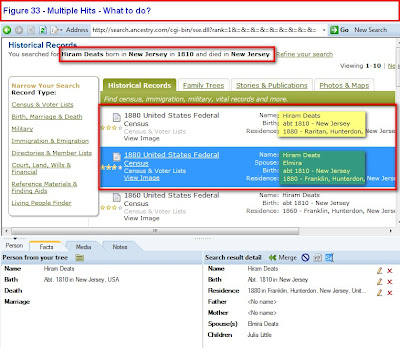
Figure 33
Both results look similar. When looking at the 1860 Results screen, clicking on the View Image or details of the household (Figure 15) did not show or indicate the relationship between the Head of Household and the member of that household. Since, at this point, the Spouse of Hiram Deats is unknown, it is difficult to really determine which results was this Hiram Deats. Both hits were in Hunterdon County, both were born about 1810 in New Jersey. Not to want to complete the Web Merge with having enough information, but not wanting to ignore or overlook this result, AND not having enough time to do some more research, a Task, or To Do entry is created as a reminder.
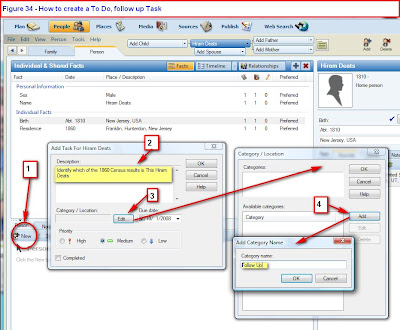
Figure 34
Returning to the People, Person page and clicking on the Task button, opens a new screen in the bottom part of the center panel. Clicking on #1 (New) opens a New Task for .... (in this case Hiram Deats). A reminder of what the task is about is entered into #2. In this case, "Identify which of the 1860 Census results is This Hiram Deats" was entered. The Priority of the Task can be assigned, and an assigned Due Date can be entered, AND the task can be assigned a Category. Knowing that there may be more than one category going forward, one is created or selected. Not having any categories created yet, The Edit (#3) was clicked, which opened another window, Category, opened. Having none there, the Add (#4) button was clicked. "Follow Up" was entered. Clicking the OK on that screen created a new Task, for the Plan screen the next time Family Tree Maker was opened. It serves as a reminder that this needs to be resolve before the correct 1860 Census record could be entered.
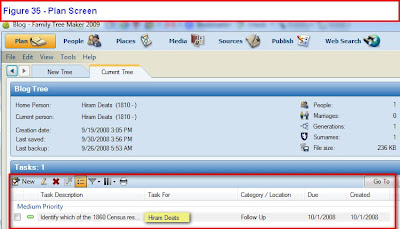
Figure 35
This is the Plan screen that is the reminder, for Hiram Deats, to identify which of the 1860 Census record is the household that includes Hiram Deats.
This Blog will show how to create a Task List or To Do List. At the top of the list of results are seen in Figure 33:

Figure 33
Both results look similar. When looking at the 1860 Results screen, clicking on the View Image or details of the household (Figure 15) did not show or indicate the relationship between the Head of Household and the member of that household. Since, at this point, the Spouse of Hiram Deats is unknown, it is difficult to really determine which results was this Hiram Deats. Both hits were in Hunterdon County, both were born about 1810 in New Jersey. Not to want to complete the Web Merge with having enough information, but not wanting to ignore or overlook this result, AND not having enough time to do some more research, a Task, or To Do entry is created as a reminder.

Figure 34
Returning to the People, Person page and clicking on the Task button, opens a new screen in the bottom part of the center panel. Clicking on #1 (New) opens a New Task for .... (in this case Hiram Deats). A reminder of what the task is about is entered into #2. In this case, "Identify which of the 1860 Census results is This Hiram Deats" was entered. The Priority of the Task can be assigned, and an assigned Due Date can be entered, AND the task can be assigned a Category. Knowing that there may be more than one category going forward, one is created or selected. Not having any categories created yet, The Edit (#3) was clicked, which opened another window, Category, opened. Having none there, the Add (#4) button was clicked. "Follow Up" was entered. Clicking the OK on that screen created a new Task, for the Plan screen the next time Family Tree Maker was opened. It serves as a reminder that this needs to be resolve before the correct 1860 Census record could be entered.

Figure 35
This is the Plan screen that is the reminder, for Hiram Deats, to identify which of the 1860 Census record is the household that includes Hiram Deats.
Wednesday, September 17, 2008
Family Tree Maker 2009 - Tasks
On the Plan or Opening Screen, is a list of Tasks to be done in this file and some notes that I want remind me of what or why somethings are in this file.
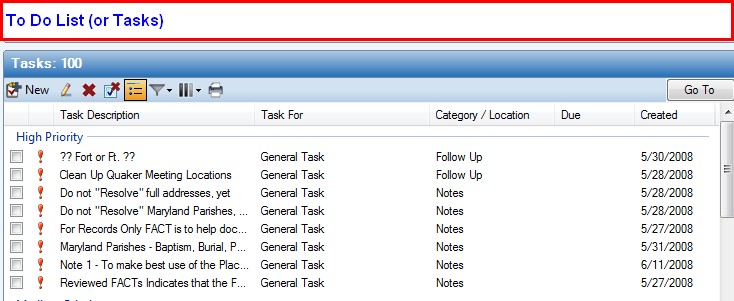
- FTM 2009 Task List
When the Task is created (topic and details later) there is a choice to place a priority on the task or note. This is the High Priority List in this file. This contains the Task Description, the Task For, Category / Location, Due, and the Date Created. Remember that this is just a summary.
Here is what is indicated here:
- Task Description - A brief description of the Task or Note. For example, the first one is "?? Fort or Ft. ??" . It is marked as Follow Up in the Category / Location column. This is a note for me to make a determination on how I want to "name" a military location, like Ft. Dix, New Jersey, in the Location or Description fields.
- Task For - In the screen above, the Task For is a General Task. In another part of the full Task List, might contain the identify (and link) to a specific individual that needs to be followed up on.
- Category / Location - In this example, I have Follow Up or Notes. The Notes are for my general notes on why certain things appear in the data base. For example, I have a number of Place Names that have not been resolved. There are two entries that start "Do Not Resolve" as a reminder as to the plan to resolve this Place Names. (more later)
- Due - A Date can be entered here. The Date of Completion will be entered when the Task Is completed.
- Date Created - The date when the entry was created.
My use of this feature is to remind me what I am doing and why AND a ToDo List that need to be followed up on. In an earlier Blog Entry, the full opening (Plan) screen showed that there are several Family Files that are being used. Each file, when opened, will bring up its own ToDo List.
Subscribe to:
Posts (Atom)