Showing posts with label BackUp. Show all posts

Friday, January 14, 2022

User Question: Media Files

Response to User Question:

There are a number of questions but I will attempt to answer each of them here.

Where to Add New Media:

Where should I Add New Media (ex Photo) first? To..... 1) Person or 2) Media workspace w source & citation?

That depends:

I work on Media files in the Media Workspace. BUT, I also ALWAYS have a Citation on my Media Files. And I create Citations FIRST. So to answer your question, based on What I do, I start in the Sources Workspace, Create / Craft the Citation and ADD that Media File to the Citation. 

I started updating my media with sources & citations but notice that linking the photo to a person, person's name or other fact does not add to the Person media on the bottom left panel.

When I have the Citation, now with the media file, I then LINK to the Profile, Normally, just to the Person, not any Fact. (using a photo as the example). I would only link a media file to a Fact, if that media item was a document, saved as a Media File.

I don't and any media files in the People Workspace, Person Tab. (your bottom left panel). I want that media file with a Citation. In the Media File, Description, I also Paste the Citation. If it is a group photo, for example, above the Citation would me Left to Right: .... type of information describing who is in the photo.

Should I always add media to the Person lower left panel? I feel all media associated with a person should appear here then when you click on a fact in the upper panel the media will also appear in the right panel associated with a source/citation.

You certainly can do what you want, I can only share what I do.

What is this lower left panel's function?

Lower Left Panel, on what screen? 

Is that panel just for my viewing?

If you want to look at a Media File, Media Workspace and select the Media file and if you double click it will become larger. Not exactly sure what you are asking. 

I read that if you wish to have your family file backups smaller then do not add the Media by copying but rather choose the LINK option. Keeping my family file smaller and utiilizing a separate media folder on my computer is preferred.

It depends on what you want that back up to do, later on. Yes, if you do not include Media the FBC file will be Smaller, like an Automatic Back Up. No Media files.

Again, my opinion. I want ONE File for ALL of the Media Files for that one Family Tree Maker File. < filename > Media. The Media files in the Folder, will ALWAYS BE Copies, for me. The original media files will be in separate folders on my computer. The only Media files that I don't have elsewhere on my computer are Record Media files from Ancestry.

Is sounds like you are trying deal with diskspace in your question. I MOVE all of my Back Up files, including Media Files, from my Hard drive to an External Hard Drive. Both my hard drive and external drives are backed up to the Cloud automatically.

I tested with 2 different media by ADD NEW MEDIA to a PERSON one by top option (copy) and 2nd by bottom option (link) and cannot see what is really happening. I have read everything on your blog and the Family Tree Maker Companion Guide but nothing seems to show me this specific situation.

Sorry, don't understand. Try my suggestion then see if that gets at your question. Use a one or two person test file.

The link vs copy option seems to come up in a few situations when dealing with Media and the choice may be different depending on where/how it the Media was first added. If I understand what happens with one piece of new media then cleanup of existing media will be simpler.

As I said earlier, I ALWAYS use the Copy option, NOT Link. The Link allows you to use a Media file somewhere on your computer. When you do a Back Up, that Media file will NOT be included. The link will be there and there is a "find missing media" utility, but I want EVERYTHING for that file, using the Compact and Back Up feature, in the Tools Menu, where the Back Up includes the Media Files.

Lynn
FTM2019 (started researching in 1999 ... on an off again)

All of the above lets me sleep at night, knowing that if something happens to my computer or family tree maker database, I can recover quickly. Oh, and yes, it has happened to me. 


____________________________________________________________
Copyright © 2022 by Cousin Russ

Monday, October 28, 2019

What? No Citations ?

I have a Family Tree Maker file that I had researched 10 to 15 years ago. Many versions of the program ago, but a friend asked me for some information from that file.

I had opened it several times over the years, but was very disheartened to notice that ALL of my Citations were gone. ALL of them. I went to my oldest back up, same deal.

I did have an external drive crash, had recovered it, but still no back up's with Citations.

This is one reason why I recommend "testing" your back ups.

So, what do I do ? I have this very important person asking me questions about folks in this database. I, of course, wanted to be able to say yes or no to questions, but be able to provide Source Information.

After some dialog, mostly that I didn't have answers to the questions, I thought about what I should do, This database has about 1250 profiles, with some good information. Some Dates, some places, many relationships, but no Citations.

I should mention, that this line has some stories that I know about, and have a cousin connection, in my Master File, but that cousin connection also happens to be in THIS FILE. That is one of the reasons that I had looked at this file some time ago. I need to get this file, up to my standards.

Here is my PLAN:

Get this file Online to see IF what I have, will generate HINTS from Ancestry?
7,039 Hints
5,595 RECORD Hints

The data that I have, Names, Dates, Places AND Relationships are doing what they should be doing, Generating Hints.

I totally use these hints for all of my research, that I can Online, to gather enough information to know what I need to look for, and where, when a visit to a repository / archive it required.

I did a couple of Web Merges, to make sure that I would get the expected results, that is GOOD Hints. The one's I have tried, all were accurate, presented no conflicting information (so far). So the theory that the file and linked Ancestry Member Tree would give me good hints.

As I said earlier, I have created my standards for my file (now files). How I do things, manage Filenames, Citations, Place Names (historic and current), Research Log and ToDo Lists.

My first step is to Marks ALL Profiles with a Fact that I will use to show me that this Profile is NOT Documented. I use the Undocumented Fact Report on a routine bases (usually daily). That would be of no use on this file. So, ALL profiles will have this Fact, so when I run the Undocumented Fact Report, I can Filter OUT, all profiles that have this Fact. When all of the Facts for each profile is documented, I can Remove that Fact and run that report again.

While I am Adding that Fact to each profile, I am looking at the profile, mostly for Place Names. This file is so old, that we did NOT have a Resolve Place Name utility, so place names were not in the proper format. So while I am looking at the Profile, I will resolve those Place Names that I am able to (quickly). For example, I had 341 Unresolved Place Names and now am down to 224. Still a lot, but most of those unresolved place names will require a RECORD to correct the place name. There are many that are involved with Virginia / West Virginia historic place names. As I have posted before, I will double enter those place names to include the historic place name and the current place name for the Map feature.

Also, there are many place names from England and Ireland. I am not even trying to address those place names until I look at the records. Many of the 224 Place names all into that category.

ALL of my Birth, Marriage, and Death Dates, that only have the Year, I change to "Abt. YYYY". So, that clean up is being done. I have also deleted a number of Birth, Marriage, and Death Dates where I might have the Year, AND another entry for complete data and place name. I'll delete that Year only entry.

I have already run the Data Error Report with ALL Profiles what appear in that report are Marked with a Fact with that name AND a ToDo item for that profile. I know that the only way I will resolve most of those errors, is with a Record. They are ALL Marked and will resolve them when I am looking at records.

When I finish marking all of the Profiles as being not documented, I will invite this researcher to this Ancestry Member Tree to allow them to look at my data themselves. I have a "File Note" profile, in my database and in the AMT, where I add all of the information on how I handle this file. Why I do "stuff" in the file. Why did I do THAT ??? see the File Notes.

I already have a number of "stories" about the people in this File. I have visited a number of place where this "line" traveled through or to. One of the stories, that I have documented, is this line had an encounter with George Washington and his brother, as the family were neighbors of the Washington's.

I can't forget my Cousin Connection from my Master file, NOR can I forget the connection to my Mother's family, that may have a connection. I had forgotten that connection until I started to look at the file.

Finally, I am writing this blog post, as one of the things I am tracking, is how good or bad are the Hints we get from our online trees, from Ancestry. I have done this study several times in the past, and in the past I have experienced a high rate of success (90% - 95%). With all of the changes in Family Tree Maker and how we receive our Hints, I want to see how the hinting system is working today.

Lesson Learned:

1) Test your Back Up's

2) Don't Delete your "old" Back Up's.


__________________________________________________________
Copyright © 2019 by Cousin Russ

Saturday, October 5, 2019

FTM2019 - Before you Install

Some suggested steps to do, BEFORE you Install FTM2019.


The Links mentioned in the recording:

https://familytreemaker.com

Sign Up for Newletter

Family Tree Maker News, Offers and Other Emails
https://support.mackiev.com/078081-Family-Tree-Maker-News-Offers-and-Other-Emails

Launch Status
https://support.mackiev.com/462644-FTM-2019---LAUNCH-FAQ

FTM 2019 CO-PILOT PROGRAM
https://support.mackiev.com/143841-FTM-2019-CO-PILOT-PROGRAM

Sync Outages for FTM 2017 and FTM 2019
https://support.mackiev.com/336868-Sync-Outages-for-FTM-2017-and-FTM-2019
____________________________________________________________
Copyright © 2019 by Cousin Russ

Friday, January 18, 2019

Knowledge Base - FTM2017 for the Mac (update)


Here are some specific Mac Knowledge Base articles:


____________________________________________________________
Copyright © 2019 by Cousin Russ

Wednesday, January 16, 2019

Knowledge Base - FTM2017 for the Mac (update)


Here are some specific Mac Knowledge Base articles:


____________________________________________________________
Copyright © 2019 by Cousin Russ

Friday, November 30, 2018

There are Back Up's and there are Back Up's

Within the Family Tree Maker program there two major types of Back Ups, the Automatic Back Up and the Manual Back Up.

I am mentioned this, with my recent posts about the naming of our Media Files to hi-light the differences between your Back Ups and how you include your Media and other files into Family Tree Maker.

Here is an example of How and Where I same my genealogy files BEFORE I add them to my FTM2017 file.


The files in these folders may or may not be included in my database yet. They may be Documents, Images, other Media Files, but fielded by Surname, so I can find them again.

When you Add a file, into Family Tree Maker, you use the ADD button, in many places within toe program, either to a Person or a Citation. My previous Filenaming blog posts have been with those Media files, linked to Citations. My goal is to have a Citation on ALL Media files, so that I know where I got "that file" from.


This happens to be in the Media Workspace, but there are many places where to add a Media file into the program.

After you navigate to where the file is, like the list of folders above, we are given an option to Link To or Copy the file, into Family Tree Maker.


I ALWAYS use the COPY option. I do what for two reasons: 1) If something happens to either the original or the copy, I have a Back Up Copy of that Media file. If I do any editing of that Media file in Family Tree Maker, as an example, I have that Original Copy it the Genealogy Folder elsewhere on my computer, 2) when I Back Up my Family Tree Make FILE, the Media Folder, and all of the Media files in that folder are Backed Up, along with the Data (names, dates, places, facts, citations).

REMINDER: In Family Tree Maker, Media Workspace, that the CATEGORIES serve the same purpose as the Sub-Folders do in File Explorer.

Now for the different types of Back Up files in Family Tree Maker, the Automatic and the Manual. Both types of these Back Up files have the File Extension of FTMB. (bit confusing, until you look at the rest of the filename.

The Automatic Back Up

In the Tools Menu, Options selection


Is the Automatic Back Up option. What that means is that every time you close down the file (File, Close, is the RECOMMENDED way to do so), the program will create an Automatic Back Up.


The important thing to mention here is that it ONLY  Backs Up the DATA in that File. No images are included in this type of FTMB file. 

This is important to remember IF you have a computer crash and the only thing you did was an Automatic Back Up, and IF it was backed up on an External Drive or "In the cloud" (or OneDrive, Dropbox), the Media files are NOT included in that FTMB file.

If you do a File, EXPORT, for a choice other than GEDCOM, it Too will generate a FTMB file, but WILL include the Media files.

The Manual Back Up option, there are TWO types of Manual Back Ups. 1) when you compact the file, and 2) from the File menu.


Again, the Tools Menu, Compact file (my  recommended method)


Selecting the Backup file before compacting will cause Family Tree Maker to Back Up the file, before it Compacts and performs the extended analysis of the file.

An aside on this, that you have a BACK UP before the analysis begins, What IF there is a serious issue within the file and makes that file so that it can't be opened. This Back Up can be sent to the Support folks at Family Tree Maker to resolve, just provide them with the detatils.

I ALWAYS use the Compact AND Back Up option.

The difference here is that ALL of the "Copied" files, in the Media Folder for that file, are included in that Back Up. That Manually created back up can be taken to another computer, put on a flash drive and ALL of the Media and Data are in ONE FTMB file.

For this blog post, I am not going into the other options in the Manual Back Up process, like allow the Back Up to include the Syncing with an Ancestry Member Tree.

Here is an example of an Automatic Back Up File:


The filename and "AutoBackup.ftmb is listed, but note the file size


Look at the file SIZE difference AND that the Date is added. Family Tree Maker includes the DATE of the Back Up, in the Manual version. I modify the filename to include the TIME (at the end). I may make several back ups in a given day and want to be able to tell the difference.

There is also a Back Up option in the File Menu. That allows you to select, as does the Compact and Back Up option, what to include in that Back Up.


I use the "Custom Directory" Option, and direct that Back Ups to an External Drive.

LESSON:

  • Use the Copy option when Adding a Media file into Family Tree Maker
  • Use the Manual Back Up, along with the Compact File option

_______________________________________________________________
Copyright © 2018 by Cousin Russ

Friday, October 27, 2017

FTM2017 User Question - Adding Media Files

User Question:


In FTM 2017, when adding a picture, do you link to the media or allow FTM 2017 to make a copy and link from there?


My Answer:

Use the COPY option,when adding a New Media File to your FTM2017 file.

Reason: (and I have blogged about this before)

It's another COPY of your / my valuable images. When I take a photograph, scan an image, I do NOT want to touch that file again. I always want to work with a COPY of it. I might want to crop that image, resize it, change it's looks. I have messed up in that past, and I am guessing others have as well, but that is OK, because I am working with a copy.

The same goes when adding a new media file to Family Tree Maker. There is another reason from the above, and that is when you do a Compact and Back Up, the Media Folder, where that COPY is saved, will be included in that Back Up. Using the Linked option, will only include a LINK to that Media file.

IF you were to send a Back Up file, with Linked Media, those Media Files will not be included. When that sent back up is restore, those Media files will be missing.

Here is a link to a Blog Post on this topic

Why the difference in the Number of Media Files ?


_______________________________________________________________
Copyright © 2017 by H R Worthington

FTM2017 User Question - Where to start a FTM2017 File ?

User Question:

Would you rather start your tree on FTM 2017 and sync to Ancestry or start in Ancestry and sync back to FTM 2017?
My Answer:

It is my opinion that WE, the User of this or any other genealogy software, need to take responsibility for our research. That starts at the beginning. The short answer is start with your genealogy software, in this case Family Tree Maker (FTM2017). 

Further, that includes manually Backing Up our files, and from time to time, doing a test Restore from Back Up. The Tools menu, has a great utility to do this, Compact File. As I have blogged about many times before, using that utility will help maintain a good file. Testing that Back Up from time to time is a MUST.

Then the FamilySync™ feature comes into play. As I have blogged about before, in order to get Ancestry Hints, you must have an uploaded and linked Ancestry Member Tree (AMT). That AMT can be Public, Private, or Private and not searchable by Ancestry. User Choice.

That AMT then, can be another Back Up of your research. BUT, some of the information in your FTM2017 file is NOT included in that AMT. Privatized Media, for example, will NOT be uploaded to the AMT. Privatized Facts, Notes, Research Notes, Todo or Task Lists will NOT be uploaded to the AMT. If you use the Source Template Feature in FTM2017, those Sources and Citations will NOT be formatted correctly in the AMT.

All of that to say, my Best Practice is to Compact and use the Back Up feature, all check marks along the way. Backing up to an External Drive (NOT a Flash Drive, but External Hard Drive) is another best practice. If your Hard Drive crashes, which it will, your information is on an external drive. Also, doing a Restore from Back Up from time to time, once a month for example, is another Best Practice.

One additional Best Practice, for me, is to have my Hard Drive AND External Drives backed up to a Cloud Service, like BackBlaze. will back up your external drives as well. All done in the background. And, to a restore from there as well.


_______________________________________________________________
Copyright © 2017 by H R Worthington

Sunday, October 8, 2017

How to get a FTM2014 file from an Old Computer to FTM2017 on a New Computer

I was asked "How to I get my FTM2014 file from an Old Computer onto my New Computer with FTM2017 installed.

Here is my response:


_______________________________________________________________
Copyright © 2017 by H R Worthington

Monday, April 10, 2017

What to name Back Ups and SyncLogs ?

I have changed how I name my Back Up files and SyncLog files. I have a number of Family Tree Maker files and I Compact, Back Up and SyncNow several times a day, on one or more files.

I am now backing up to Dropbox from my Desktop PC, but had been from my Laptop. I keep the most recent Back Ups there, then about every month, I'll Move those files to my External Family Tree Maker drive.

In the Dropbox folder, there are two subfolders. One for Back Ups and the other for the SyncLogs. I ALWAYS Export the SyncLog to a PDF file, so that is where they go. I can do that now from both computer. 

If I have read the information correctly about FTM2017, then my Working files will also be in Dropbox.

I have my way of Naming the Family Tree Maker Files.  I have the basic filename, so I know which family that is. My main working file is "Master". I append that with the Version of Family Tree Maker AND the build number. For example: Master_2014_1-1510. With any updates, I go to the Select Tree, in the Upper Left of the Plan Workspace, and rename the tree there to the new / update that I may have installed. That command renames the file and media folder.

I have done this for a long time and archive them by the basic file name, to a basic filename folder on my External Drive. That lets me know what version of Family Tree Maker last worked on the file. Maybe it's over kill, but it is working. This "master file" I have had since Version 3.4, in the DOS days and have been very good to me.

Now, to the topic at hand. Up until now, I use the DEFAULT filename that Family Tree Maker gives me, that is YYYY-MM-DD, which is great. Not only do I know the file, the version of Family Tree Maker, The last 4 number of the Version Number (1510), but the DATE when the back up was done, for sorting purposes. I had just be adding a character after the DD.

My new policy is to add the 24 Hour (military) Time after the date. 2017-04-10-0001. or one minute after midnight.

So, when I do the Compact and Back Up utility, I see this. (2017-04-09-2345). The Custom directory points to Dropbox, FTM2014\Back_Ups


I check mark ALL of the options, and they are set by default that way, 

In File Explorer, its easy to MOVE the files from the Dropbox, Back Up folder to my External Drive and that filenames folder.

Oh, in case you are wondering, that External Drive is also backed up by my Cloud Back Up service.

The SyncLog is the same format. 

Although the SyncLog and Back Ups are in different folders, the date and time to both will be within a couple of minutes of one another so I can recover pretty quickly if something happens.

My SyncLog folder is kinda empty at the moment, but I will be ready when FTM2017 rolls out.

Just how I "do stuff"

_______________________________________________________________
Copyright © 2017 by H R Worthington

Monday, January 26, 2015

Family Tree Maker - Good File Maintenance

Trying to help a Family Tree Maker user, who was unable to restore a file, I thought that I should do a blog post on how I maintain my Family Tree Maker files.


_______________________________________________________________
Copyright © 2015 by H R Worthington

Wednesday, November 7, 2012

Consistency Check Reminders

One of the Blogs that I follow is that created by Tamura Jones, Modern Software Experience. Today his blog was on Consistency Check Reminders. I hadn't thought about that as a topic of this blog, but I agree with Tamura on what he wrote. Our genealogy software should provide us with options on this topic, as well as the Back Up mention at the end of the article.

Back Ups:

Family Tree Maker has always provided us with Back Up features. But Tamura went further then having a feature available, but reminders or user options to have the Back Up's performed.  FTM2012 does have options for us, plus offers us a Back Up reminder when preparing to perform some tasks within the program.

For example: the Tools, Compact File utility does offer a Back Up window / reminder before the compacting of the file is performed. Going to the Tools menu and selecting Compact File, this window will open.


Placing the cursor in that box will start the back up process. WE, the user, should take advantage of that.

We also have options on WHERE to put that back up. The Default is in the SAME folder where the Family File is located. Usually in My Documents, under Family Tree Maker. I do NOT put my Back Ups on the SAME Hard Drive where my Family File is located.


I put my Back Up's in a Custom Directory, on an External Drive. (my "J" drive)

We also have options in what we want to include in the Back Up. I always Back Up every thing. I am NOT concerned about disk space. I want to ensure that I can recover any problem with the file quickly and easily.

OH, I also run a Restore from Back Up, once a month, to make sure that the Back Up works.

If you look at the filename of the Back Up (FTMB), you will see that it included the DATE of the Back Up. It makes it very easy to see the most recent file to restore.

There are other operations, that may impact the entire file, where the Back Option is offered. I take advantage of that when offered.

Taking Tamura's statements to heart, FTM2012 also provides us with the Option to Back Up the file automatically, when we close the file, without actually having to do any mouse clicks. That option is in the Tools, Options menu, General Tab.


Putting a check mark in that box, which is the default setting, will cause the program to create a back up of the family file. Using the Automatic Back Up feature, will put a Back Up in the SAME folder as the family file and it will NOT include images. So, the size of this back up will be smaller the the Back Up mentioned earlier.

Consistency

The major thrust of Tamura's article, by my reading, was our ability to make our data consistent.

FTM2012 provide two versions or help in this area. 1) during Data Entry, and 2) a report, in this case the Data Error Report.

The Tools, Options menu has a Warnings Tab.


We have options on what data we want to have a Warning Screen appear, or not appear.
  • Double Dates
  • Title in Name fact
  • One or two digit years
  • Text in quotes (nickname) in the name fact
  • Copy media files to media folder
  • Auto populate Smart Stories
I keep all by the One or two digit years in the PROMPT ME mode. So, during data entry, if I were to put the nick name of a person, in quotes, into the Name Fact, I'll receive a warning, and cause me to confirm this is what I intended to do. I put a nick name into the AKA (Also Known As) Fact, so I want to be reminded that I have done something that would not be consistent with my data entry for the nick name.

IF I enter a 2 digit year, I will be warned to enter a 4 digit year.

For example: I entered 06/06/12 into the Date field. There is a Warning ICON on the Right of the Date field. It took my 12 to mean 12 AD, instead of 2012.


The warning says "Error: The data you entered has an ambiguous year" message.


Below the previous Waring screen are three more options:
  • Show alerts for unlikely birth, death and marriage dates
  • Show unrecognized place name indicators
  • Show informational alerts (i.e., changed name, changed home person...)
I find these very helpful. There are proactive warnings on data entry. They will appear as pop-up windows, or an ICON for the Place Name indicators. (will show shortly)

There is a Data Entry Report in the Publish Workspace.


The Person Reports and select the Data Error Report. Once the report is generating the Items to Include where the below window will open.


We have plenty of options of what we want in the report. I use this report frequently, but normally focus on certain bits of information at a time. For example, the Children being out of order.

So, in my mind, we have the proactive Warning messages during data entry, then a report to work from.

Place Name Consistency

This has always been a concern of mine. However, until FTM2012 (704), the struggle has been around Historical Place Names. That update has resolved that for me. I can visually see my "current" Place Names and the Historical Place Names at a glance.


For example: All Hallows Parish, is a historical place name, while the All Hallows Church Cemetery is in the town of Birdsville. The Cemeteries and the Plantation are in Annapolis, Anne Arundel County, Maryland.

The ICON with the Check Mark, is the visual indication that these place names have yet to be resolved. In each of these cases, I am researching what the place name should be. Upper Burlington County, New Jersey, doesn't currently exist. So, I need to view the DATES of the events that took place in Upper Burlington County, New Jersey to see if it is a historical name based on that time frame.


 If I understand the trust of Tamura's article, for me, FTM2012 offers me the features we described in his article.


_______________________________________________________________

Copyright © 2012 by H R Worthington

Friday, September 21, 2012

FTM2012 - Restore from BackUp, Including Restored Links to AMT

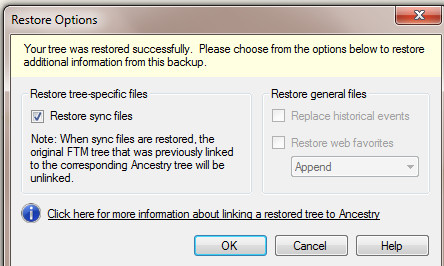
Family Tree Maker released a new patch (704) that includes the ability to Restore a file, where the original file had been linked to an Ancestry Member Tree (AMT). Until this patch, a new tree would have to be created on Ancestry, and all invitations would have to be re-issued and the New Tree would be created. This update, allows us to Restore the File, WITH the Option to re-link the restored file to the Existing AMT that was included with the file that was backed up.

I had done a File, Back Up to my existing FTM2012 file, which was linked to my AMT.

This is very helpful, if the computer crashes or some reason where the file has to be restored.

Go to File, then Restore.


 A new window is the opened requesting the file to be restored. I keep my back up files on an External Drive (J), I navigate to that drive and select the file (FTMB)


 Once selected, it will ask for the new filename to be used. That is entered. I save my Family Files in the 'default' My Documents / Family Tree Maker folder on my computer.


 The new file will be created AND the Media Folder associated with that file will also be created and all of the media files will be included.

The Restore Options provide "Restore sync files". Entering a check mark is the action to take.


 The Sync Process works as it normally does, using the TreeSync™ process. This action would be transparent to anyone you had shared that AMT with.

In my example, the filename is:

Master_2012-704.ftm

the AMT name is

Master_2012


_______________________________________________________________

Copyright © 2012 by H R Worthington

Sunday, March 1, 2009

Data Back Up Day - March 2009

Are you backing up your Family Tree Maker File?
Are you backing up your important files that are on your computer?

Many Genealogy Bloggers have a monthly "Event" to do a Back Up of their important information.

The Family Tree Maker program, no matter which version, have a Back Up utility / command. Most recent versions have the capability to Back Up your Family File to a CD, local Hard Drive, and to the Internet.

A couple of things to consider:

1) How Often?

2) Where to Back Up to?

3) What to do with the Media Used?

Each of these, WE, the users need to address. The first question is answered, for me, with a Question, "How Much time do I have to Re-enter what I have entered since the Last Time I backed up this file?" The answer to this question is important. The Once a Month Reminder for the Genealogy Bloggers is Monthly. But, what if I spend a weekend updating my Family File. I might back up that file at the end of each day. What if a Storm is coming? I usually back up my file IF I suspect that there might be a power outage. I'll just back Up that file then. Don't wait.

The second question is similar, but has the added question of "What if my Hard Drive were to crash?" This would indicate that I probably do not want to back up to the Hard Drive on my Computer. My choice is a CD.

Continuing in the What If question, what IF something happens to my home or room where my computer is? I will take my most recent back up and put it into my safe deposit box. I have also taken a copy of my Back Up CD to my daughter's house. The important thing is to send it somewhere else.

There are Online Back Up Services available as well.

One Important note about the Family Tree Maker program, specifically. Version 16 and earlier has an "Automatic Back Up" feature. Please, Please, Please, do NOT consider that feature a Back Up. The file that is automatically generated is a COPY of your Family File. If there is a problem with the Family File, it will be in this "copy".

For those of you who know the Three Character File Extensions that Version 16 and earlier use, the FTW file, it the Working Family File, the FBK file is the Copy of the FTW file and the FBC file is a Compressed Back Up of the FTW file. This last one (FBC) is a Back Up. The process of creating the FBC file contains some file maintenance in it.

As a rule, I run these two Famliy Tree Maker Utilities BEFORE I do the File, Back Up command:

Go to any Family Page and run these two Utilities:

CTRL+ALT+C = FileCompression

CTRL+ALT+SHFT+UpArrow = FileChecker

Are there any Errors? If the answer is no, continue with the File, Back Up.

If there are errors: Run this Utility from any Individual's Family Page:


CTRL+ALT+SHFT+LeftArrow

Please go to this website:

http://pastftm.custhelp.com/

Enter 1396 into the "Keyword Search" box and read that Knowledge Base Article. It should help you with this Error Message, and describe how to use the LOG file.

With Family Tree Maker version 2008 and 2009, there continues to be a Back Up command, and it does generate a complete back up. However, there is an option to include or exclude Media files. There will be a Blog Article on how to do this in the future.

There are several normal commands, where the program will ask IF you want to Back Up your file BEFORE continuing. I recommend that you take advantage of that Back Up.

As with the older versions, there is an automatic back up feature within 2009. That file (ftmb) is a back up, but it does NOT contain the Media folders.


As this posting is a more generic message, you might consider backing up more then just your Genealogy Program files (Family Tree Maker Family Files).

I back up my Desktop computer Weekly with Cobian Back Up 8 from http://www.cobian.se/

I also back up my Laptop, two different ways: 1) Microsoft's Windows Live OneCare, and 2) a Back Up utility that came on an External USB Hard Drive. Over cautious on the Laptop? You bet. I know that this PC needs to be replaced AND its "on the road" a lot. The OneCare Back Up is do an External Hard Drive off of my Desktop (via a network connection) and the other Back Up is to the portable USB Hard Drive.

What I back Up are ALL Files and Folders in my My Documents and My Photograph Folders.

One final recommendation. Check your Back Up's.

I test my Family Tree Maker Back Up files at least monthly. Again, there will be a specific Blog entry on how to do this in the near future. Briefly, its File, Restore from Back Up.

Coping files to a USB Drive are also helpful. BUT, I have had two fail on me, over time. So, I don't rely on these drives as my Back up.

Back Up Now !!!

Print Friendly