Showing posts with label FTM16. Show all posts

Monday, January 25, 2016

Family Tree Maker Version 16 to FTM2014

update.gif 2.5K

STATUS; Family Tree Maker Version 16 to FTM2014. 
The issue of missing notes, when importing a file from Version 16 into FTM2014 (Very Specific Version Number) has been duplicated by Ancestry. No word or commitment on a resolution to this problem.
IF you are trying to go from Version 16, I suggest you use FTM2012 first. If you also have FTM2014, then you can open the FTM2012 file with FTM2014. Verify your Notes are in FTM2012 before you open that same file with FTM2014.
IF you are a Version 16 user, and are thinking of moving to FTM2014, go to help.ancestry.com and use the FEEDBACK Button (it's green) on the right to let them know.

_______________________________________________________________
Copyright © 2016 by H R Worthington

Saturday, July 12, 2014

Changes Coming in October 2014 to Family Tree Maker

I saw the following on Facebook:
"We’re making updates that may impact your Family Tree Maker experience. Starting in October 2014, Ancestry Web Search within Family Tree Maker software will have reduced functionality or may not be supported by Microsoft Windows XP, Microsoft Windows Vista or Internet Explorer 8 or 9. Moving forward, Microsoft Windows 7 or 8 will be required for Ancestry Web Search functionality to work properly. "
I believe this to be true. But let me see if I can break this down a little bit further.


  1.  Version 16 & Earlier — The Web Search features in V16 will no longer be supported after July 31.  The V16 & earlier software will continue to run, but the web search functionality will not work.
  2. Windows XP — Ancestry is making changes that require newer versions of Microsoft Internet Explorer.  Because FTM uses an embedded IE browser, upgrading to a different browser will not help those customers.  Microsoft Internet Explorer on a Windows XP computer cannot be upgraded beyond IE 8, and Microsoft has discontinued support for Windows XP, so those computers will not be able to run this updated functionality.
  3. FTM 2008 – 2012 — These customers may also see the XP message even if they have upgraded their browsers.  Ancestry support can help them make a change to their registry that will get them past this message.

Like other recent announcements by Ancestry.com, these also do not surprise me. I am totally aware of many users and their love for Version 16. I was there, but with FTM2014 I can't go back. Absolutely no reason for me to look back, was I think FTM2014 is the best version to date.

If I find additional information, I'll pass it along, but I think I have read the information correctly.

Come on up to FTM2014. Don't worry about the earlier versions, just come on up. 

One user's opinion.

Russ
_______________________________________________________________
Copyright © 2014 by H R Worthington

Friday, March 28, 2014

Family View - Version 16 and FTM2014

I must be missing something. A long time user of Family Tree Maker much prefers the "old" screens vs the "new" ones.

I thought I would check the difference out, since I have reinstalled Vesion 16 my Windows 8.1 computer

Here is the Family View in Family Tree Maker Version 16


The same family in FTM2014


What is in Red is the SAME information and format as Version 16. However, I can see three more generations of Ancestors, making the Navigation so much easier. At least for me.

The only difference between the data in the two screens is that two people died between the last time I updated the Version 16 file and the FTM2014 file.

I find the navigation around FTM2014 so much easier, far fewer mouse clicks, but that's just me.
_____________________________________________________________
Copyright © 2014 by H R Worthington

Wednesday, February 8, 2012

Family Tree Maker User Home Pages

RE: Family Tree Maker User Home Pages, for Version 16 and Earlier:
From Ancestry.com:

User Home Pages on Genealogy.com were created over 10 years ago. We have tried to give our loyal customers the best possible experience, but after 10 years, technology changes and it’s not always possible for us to continue to support these older products. Most software companies discontinue support for their older technologies at some point, and unfortunately Genealogy.com Home Pages have reached this point.

For more information about Family Tree Maker 2012 and TreeSync, please click here . We think you’ll find the experience even better than User Home pages and older versions of Family Tree Maker.
  • While User Home Pages had a limit of 2,000 people, trees made in Family Tree Maker 2012 and Ancestry.com have no limit. You can even sync them together so changes made in one tree will automatically update to the other!
  • You can update your tree on the go using our free iPhone, iPad , and Android apps, and the changes will automatically update your tree on Ancestry.com.
  • If you want to collaborate, you can share your tree with other family members, and choose whether they can simply view it or allow them to update it.
We hope the following table will explain the benefits of your upgrade, and ease the transition into our latest technologies.


User Home Pages
Family Tree Maker 2012 synced with Ancestry.com
Questions? These articles will help your transition!
Limited to 2,000 individuals
No limit to the number of individuals you can add
Ability to upload charts and reports
Attach charts and reports to people, and they will sync to Ancestry.com
Available to search engines
Available to search engines if you choose to make your Ancestry tree public
Difficult to collaborate with others who have pertinent information on their Home Page
Ancestry Member Connect lets you collaborate with the largest online
genealogy community to learn more about your shared family history
No ability to add record images
Search Ancestry’s databases for records and attach them to people in your family tree to provide documentation for your family history


If you have any questions, our customer support staff would be happy to help! Please click here for a list of contact numbers and hours of operation for your area.

Wednesday, July 29, 2009

Data Base Clean Up - How to handle Names

My friend, Randy Seaver, of the Genea-Musing Blog has made another Challenge.

Are there standards for names in family trees?

I am quoting his blog so that responding to his Database Clean up is easier. He asks great questions. I am guessing that each of us have asked our selves the same questions. In fact, last eveing I was a Family Tree Maker, Version 2009, and some of these same questions came up. So, it's time for my take on them.

He starts:

"[For those wondering why I'm still working in FTM 16, it's a long story. Mainly it is because I am real comfortable with it and can work fairly quickly in it, and then I can import the native FTW file to FTM 2009 and RootsMagic.]

My guess is, each of use has done this, especially moving from Version 16 to Version 2008 or 2009. For me, it was the question of Which Version was easier to do the clean up. When I made this conversion, I checked or both versions with Copies of my Working Family File. I wanted to work with the Same Information with both Versions.

Actually, I started my clean up in Version 16, but quickly discovered Version 2009 was easier. Now, I was NOT dealing with the Name issue, I was working on the Place / Location entries. Since Randy was only addressing Names, I will post my thoughts on each question.

Before I start, I suggest two things. Back Up your Family File. Don't go forward until you do.

Second, make a Copy of the file to check out how you want that file to look like when you are done. Especially with the Names, run some test Reports and look at some Test Trees, to see if they look like what YOU want them to look like. In other words, look at the Output to help you determine how you want to do the Input.

Only my opinion and it's what I did.


Randy Continues:

"I would really like to create a genealogy database that I can be proud of, with standardized naming conventions and the like."

That is a Great statement. I can buy into that. Not being a professional genealogist, nor a "wanna be" professional I can only say what I understand what the 'standards' might be. Of interest, is the Comment made on Randy's Blog by Rebecca, referring to a standard that was proposed by Gary Mokotoff. It can be found on this website:

http://www.iijg.org/home/standards.html

I had not read it until today. What I will say below is not what has been proposed.>

Randy continues:

"When I looked in my index list for the names, I found that I have been very inconsistent with my naming conventions, including:

* (unknown) - I have some persons named (unknown) because I don't know either their first or last birth names. This is different from persons with no names at all who are listed as I deleted them because they had no connections to any other person in my tree. Should I use underscores like _____ for an unknown name? Should I use FNU for "first name unknown" and LNU for "last name unknown?"

Here is my take, and the reason why I suggested looking at Reports and Trees to see how you like the results. Try each of them.

For me, I have used 5 Underscores: _____ . Reason, I can live with the Reports and Tree format. The benefit is when you share your findings, I have found that people, knowing he information will "fill in the blanks".

When you look at Indexes or lists of names, they stand out very clearly what you have unknown Name information. It a reminder to fill in the blanks.


* known first name and unknown last name. I could use underscores or LNU.

* unknown first name and known last name. I could use underscores or FNU.

I use the 5 Underscores for Both. But, please see if you like what that looks like.


* Persons found with more than one first name in the records. Or a diminutive like Harry for Henry, Bob for Robert, Bert for Albert or Herbert, Molly for Mary, Abbie for Abigail, Peggy for Margaret, Sally for Sarah, etc. I've been putting these in as "Henry/Harry" (without the quotes) and getting a notice from FTM that there's an unrecognized character.

For Family Tree Maker, and that's the only program that I work with, has a Field for AKA, or Also Known As. The good news here, is that in most trees or reports, you can Specifiy IF you want the AKA to appear. That field will also be exported in a GEDCOM file. That is for Randy's Bert or Albert or Herbert question.

As for the "what was the real name", where you find in a your research, Family Tree Maker has the option to have more than one Name FACT.

In the example from last night. One document had Michael, another had Michael J. Which to I use. My answer is Both. Two Name FACTs.

The tricky part here is Selecting the Preferred Name Fact. Again, when reports or trees are created, Family Tree Maker has the option to see ALL of the FACTs or only the Preferred FACT. In the Example I have in my file, that I was using last evening, I found 4 different ways the name of the individual was presented in my Source information. Base on the other information and relationships, I could determine that the four names were the same individual.

Of course, there are Source-Citations on each of the names in my file.

Taking this one step further, and understanding of who is going to look at your research, in a tree or report is important. Lets say that everyone in the family knew a gentleman by "Uncle Harry". However, his full real name was Henry. The full NAME FACT would be Henry, but the AKA was Harry, or Uncle Harry. This is a case when the AKA field would be used in my file. Harry is in the AKA field, and the AKA is printed in the tree or report.


* Persons found with a first name in one record and an obvious nickname in another. I've been doing the same thing as the diminutive, e.g. "Henry/Skip." These are usually nicknames and I've seen them input as Henry "Skip" with the nickname in quotes.

I mentioned this above. My further comment is how do YOU want it to look in the Software begin used. In Family Tree Maker the quotes and slashes are not required, but can be entered. As Randy mentioned above, there will be an error Warning to deal with. I don't use those characters since I have control how the Name is displayed.

* Widows (and divorcees too) that marry again. I have a lot of "Mary Jones (widow Smith)" in my database because Tom Brown married Mary Smith in the records and she was the widow of Mr. Smith. Even worse, I have many of these loose widows without a known maiden name. I shouldn't be inputting her as "Mary Smith" because I don't know her maiden surname. Should I be inputting "Mary _____ Smith" or "Mary MNU Smith?' Or just "Mary _____," "Mary MNU" or "Mary LNU" and connect her to an unknown "FNU Smith."

In Family Tree Maker, it is expected that the Birth Surname is entered for the females. Having said that, from the example above, the unknown birth name or maiden name, I handle it like I handle any unknown name.

Within Family Tree Maker, again, you have the option to present the name, in reports or trees. When the married name is desired, the Contents, Items to include, has the ability to "Use married name for Female".

While we are here, the Name format option also includes the ability to "Display last name in all caps".

There is something that needs to be addressed here. In my family file, I have a married female, who did NOT, legally, take. This latter option might cause a problem. In the same file, there is a female who was married, then divorced. In the divorce papers, she took back, legally, her maiden, or birth surname.

This may present an issue for certain other family members, in printed trees and reports. Entering the data consistently and the use of the Name options are important to know and understand.

In either case, the use of the NOTES section is important to make use of.

In the Proposed Standard, by Gary Mokotoff, he makes a very important point. "Married women are identified by their maiden name, that is, their legal name ..." (page 4, paragraph 1.2). A little further down that paragraph, he discusses an immigrant, that upon entry into the U.S., the "changed her given name ... ". The key term here, for me, is "legal name".

Another entry on this Blog was on Searching Census Records, within Family Tree Maker for females:

Census Search for Females

The above use of the "_____" has little impact on the Surname. When I trying to use "unknown" as a name, there was a tendency to overlook the word "unknown" in the name field. I my experience, it was a little more obvious that an unknown name was being searched for.


* I've also seen the string "--?--" in genealogy periodicals and books for unknown names.

This standard suggests the use of the "?" for unknown portions of name (Paragraph 1.4). I tried that, but found when reading a report or looking at a tree, it was confusing to some of the readers.


Randy concludes:


"I note that the Rootsweb WorldConnect databases have:

* 60,920 entries for surname - LNU
* 11,052 entries for surname MNU
* 92,331 entries for surname - Unk
* 5,232,913 entries for surname Unknown
* 181,428 entries for surname (Unknown)
* 20,305 entries for surname --?--
* 124,687 entries for surname _____
* 1,166,278 entries for surname ?
* 8,117 for surname ?????
* 78 entries for surname Whoknows
* 64 entries for surname Dontknow
* 37 entries with surname Mystery
* 1,493 entries for surname Who
* 35 entries for surname Who?


Are there any standards for inputting these names into a genealogy database? Who has the authority to deal with this? Have there been extended discussions about these issues that I've missed in books, articles, blogs, message boards or mailing lists? What do you do in your genealogy software database?"


Again, one of the comments provide a proposed standard.

This topic comes up frequently on the Various Family Tree Maker message boards and email lists. There has only been discussions, and not one has seen a Name "standard". Not being part of any of the professional organizations, I wouldn't know if a standard is being worked on. I haven't seen a specific discussion, where a conclusion or recommendation was presented and agreed to.

As a User of Family Tree Maker, I can only offer how I use the Program, with my logic on how to handle the issue at hand. Just be consistent in how you handle these issues.

In Family Tree Maker, on the People, Family screen, the Left Panel provides some display options:

  • Use AKA if available as a middle name: If an alias is included in quotes after the middle name , both the given name and AKA (Also Known As) are listed in the Index.
  • Use AKA if available as an additional entry: If an alias or nickname has been entered for an individual, both the given name and AKA are listed in the Index.
  • Use titles if available: If a name includes a title, both the given name and title with name are listed in the Index.
  • Use married names for females: Lists married females by their married name instead of the maiden name.
To open the Options: Dates/Names dialog box in Family Tree Maker 2009:
Click Tools > Options > Dates/Names.
The Knowledge Base website also has:

Two First Names: FTM: How do I enter someone who has two first names?

There is a Tool to convert a Name that had been entered in All Capital letters. The "standard" is the use of Upper and Lower cases, and it referred to in Paragraph 1.8 (Syntax. All portions of the name will be presented in upper/lower case.) This tool will help with this transition.

Convert Names Tool in Family Tree Maker 2009


Another name Knowlege Base article is:

FTM: How do I enter missing or unusual surnames?


PS - for Randy. You might want to look at what the Find and Replace feature will do for you, IF you choose to make any changes. BUT, don't forget to BACK UP your Family File BEFORE you state.

Thanks for listening.

Friday, July 17, 2009

Marriage Notes, Version 16 to Version 2009

Where did my Marriage Notes go when I moved from Family Tree Maker Version 16 to Version 2009?

Marriage notes in Version 16 (and earlier) could be found on the Marriage Line, with the Date and Location. There are three ICONS that are there.


Figure 178


When the the Edit Marriage window opens, click on Notes, and the marriage notes will appear.


Figure 179

With Version 2009, there are two ways to see the Marriage Notes. First from the People work space, and the Family View, with one of the spouses selected.

Figure 180


In the Right Hand (RH) Panel, the 3rd ICON is the Notes for that individual. In this example, there are a number of Individual Notes, but scroll down to the bottom of that screen and you will see the Relationship, and the Relationship with entry and the Marriage Notes are listed there.


Figure 181

You can also see the Marriage Notes, from the People workspace, Person tab, and on that screen, select the Relationship tab. Go down to the relationship you want to see. In the RH Panel, select Notes. The marriage notes are there.


Figure 182

This tree is on an Ancestry Tree.

Saturday, June 27, 2009

Library Visit - Family Tree Maker Version 16

From time to time, you may visit a Genealogy Research Library or a Library where you can not take your computer. You may or may not know what type of information that they have, but you want enough information with you to take advantage of what might be there in your research.

When I am in this situation, I take with me three reports created by Family Tree Maker Version 16. These same steps can be used with previous versions as well.

  1. Birth Report, for a specific Location, Sorted by Name
  2. Death Report, for a specific Location, Sorted by Name
  3. Marriage Report, for a specific Location, Sorted by Name
It may also be helpful, depending on how many people are in that Location, these same three reports sorted by Date.

There may be other reports that may be helpful for you, but using the technique below, you should be able to generate a report that is useful for you.


From the Family View screen, you click on View (1), Select Reports (2), and Custom (3).


Figure 150

This will bring up a Default Custom Report (Name, Birth, and Death Date). or the last Custom Report that you had created.

In order for the Sort to be done by Name, I want the Names to be sorted by Surname.

From the Contents Menu, Selecting Items to Include, will bring up the Fields and Format of those fields in a new window. The current Name format (from the Default report) has First, Middle, and Last Name. Hi-lighting that entry in the Right panel of that window (1), then selecting Options (2), will bring up a new window (3), where you select Last, First, Middle.


Figure 151

Wanting to focus this report on the Name, Birth Date, and Birth Location, the Death Date field needs to be removed. Return to the Contents, Items to Include, hi-light the Death Date field and clicking the < Button.


Figure 152

Now, we want to add the Birth Location, return again to the Contents, Items to Include, select the Birth Location Field and push the > Button.


Figure 153

As you complete these steps, you will see what the current report will look like. At this point there are too many people in this report. Most likely, including Individuals who have no events in this specific location.

To reduce or refine the list, return to Content, Individuals to Include in Report ....
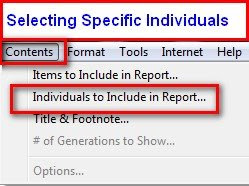

Figure 154

That will bring up a small window, where you select Selected Individuals and click on Individuals to Include.
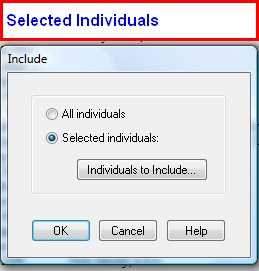


Figure 155

The new window will indicate that no one has been selected. If there ARE names in the Right Panel, use the << Button to remove everyone from the Right Panel.

Selecting Find > will allow you to select only those that meet certain criteria. The Help menu is very helpful at this point. For this example, Everyone with a Birth Location in New Jersey is what is wanted. Click on Find, in the Smaller window, there is a downward pointing button, you can select any of the FACTs that are listed. In this example, Birth Location is what is wanted. In the Right side of that window "New Jersey, USA" is typed. Looking at the complete report, from Figure 153, New Jersey, USA is what was there, and the individuals that were to be included.
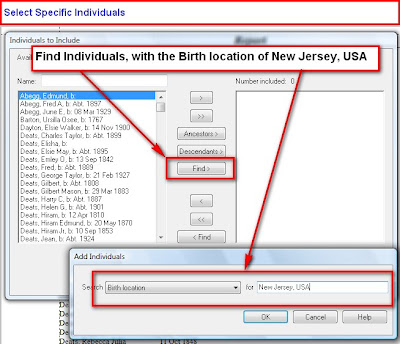


Figure 156

Those individuals who meet this criteria will be listed in the Right Panel. Notice the number of Individuals at the top of the list. In this example, there are 14 people with the Birth Location of New Jersey, USA.


Figure 157

The Custom Report looks like this:
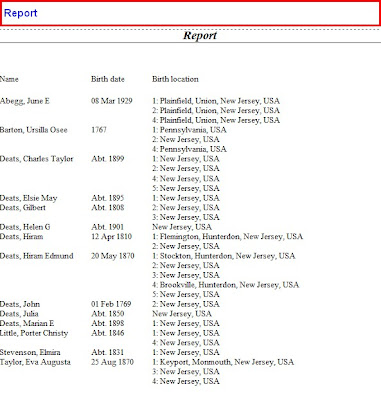

Figure 158


There is a choice, when you select the Items to Include, to only show Preferred Only FACT. You will notice in Figure 158 that there are multiple Birth FACTs for these individuals. Some have Dates while others have multiple locations. Since the report is only One Page, a Sort by Date is not required. Please note that you have a Sort by option available with two choices. Sort by Birth Date, then Sort by Name would be the 2nd report, if required.

In this specific file, a lot of the information was taken from Headstone Information after a visit to a Cemetery. There is very little Death Location information in this file, for these individuals. However, Burial Location information is within this file. This file also has very little Marriage Date and Location information, that report would not be generated. However, changing the Birth Date and Birth Location to Death Date and Death Location; and then Death Date and Death Location to Marriage Date and Marriage Location would be used to generate the other two reports.

Important: remember to clear the Individuals in the Right Panel of the Individuals to Include screen before selecting that Find, Death Location, or Find, Marriage Location criteria, as shown below.
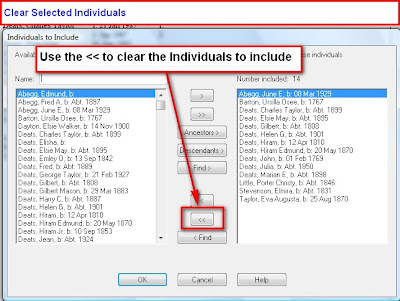


Figure 159

From the Headstones, the Death Date information was available, and the Burial Location was also know, those are the FACTs that were selected in Content, Items to Include: (Death Date and Burial Location). The Individuals to Include where those with New Jersey, USA in the Burial Location field.
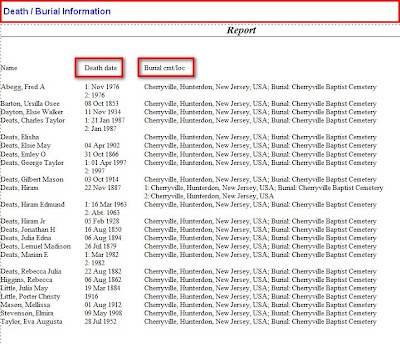


Figure 160

When this report was first displayed, the Page Break lines indicated that the lines were too long. Clicking on File, Page Set Up and selecting the Landscape mode, allowed the report to print on one page.

There is enough information in these two reports, for this trip, to have a successful research trip.

For more information, please click on the following links:


How to Select a group of Individuals?

FTM: How do I sort the custom report?


Posted by Picasa

Wednesday, October 29, 2008

Transfer Old Computer to New, Version 16 to 2009

So, I have a new computer and want to move my Version 16 (or earlier) of Family Tree Maker, to my New computer with Version 2009. How do I do that?

On the New Computer, Install both Family Tree Maker Version 2009 AND Version 16 (or earlier). The reason is that Version 2008 and 2009 will NOT read or open a Back Up file from Version 16 or earlier.

The method suggested here will ensure that any Scrapbook Items in Version 16 or earlier will be moved to the new PC then opened by version 2008 or 2009. The new versions do NOT read and open the Family Tree Maker Compressed Back Up (FBC) files. This is a work around for that issue. Also, it will provide a known working Back Up file, on the CD used to transfer the file.

First, Open Family Tree Maker Version 16 (or earlier) on the Old computer. There are two Utilities in these versions to help maintain the file. Go to any Family Page and run these two Utilities:

CTRL+ALT+C = FileCompression. This does some file maintenance, re-index the file, remove any unused file space.

CTRL+ALT+SHFT+UpArrow = FileChecker. When you see the "Start" button in the pop up window, click Start. If there are any errors in the file, they will be reported.

IF there are errors reported, run this Utility from any Individual's Family Page:

CTRL+ALT+SHFT+LeftArrow = FileChecker with Fixer. This utility will attempt to resolve any errors report.

Please go to this website:

http://pastftm.custhelp.com/

Enter 1396 into the "Keyword Search" box and read that Knowledge Base Article. It should help you with this Error Message, and describe how to use the LOG file.

Once this has been performed,


Figure 55

Click on File [#1], the Back Up [#2]


Figure 56

Select Writable CD Drive. Make sure that you have a CD in your drive. At the end of that process:


Figure 57

Now move to the New computer.

First Install Family Tree Maker Version 16 onto that new PC. Remember that Version 2008 and 2009 will NOT read the Compressed Back Up (FBC) file that was created by version 16. Now do a File, Restore from Back Up in Version 16. That will create a Family File (FTW) on your new PC.

Close Family Tree Maker Version 16.

Install Family Tree Maker Version 2008 or 2009 onto the New PC. It should normally open that existing Version 16 Family File and create a New, Version 2008 or 2009 Family File. All Family information and scrapbook items will be imported into 2008 or 2009.

If that does not happen, then continue.


Figure 60

Click on File [#1], Open (not shown) and select the Family File [#2] that you just put onto the new PC.

Please read previous posts on this Blog to continue from here.

To help with the File Name Extensions used in the Blog, go to the Knowledge Base Website article 1719

Knowledge Base Article 1507
will provide more details on Backing up a Family File.

Knowledge Base Article 2647 will provide more details on Restoring from a Back Up in Version 16.

Monday, September 29, 2008

Can not import file from Version 16 to Version 2009 - UPDATE

This Blog entry is an update to one previously posts, with another way to Identify the Individual causing the problem on Import from Version 16 into Version 2009.

This blog entry is to help document a problem that was observed and resolved. The issue is that a Family File that was created in Version 16 could not be Imported into Version 2009. However, that same file WAS able to be opened in Version 2008.
When attempting to open the Version 16 Family File, a noticeable slowness in the Analysis process was observed, then the Error message: #1 - Import Error failed because an unknown error occurred.


Figure 26

Moving the Error Message revealed that the process stopped at Individual 358.
The normal process would be to run the Control (CTRL) + Alt + C (CA+C) File Compression utility would be run in Version 16 on this Family File, from any Family Page, and the CTRL+ALT+SHFT (Shift) + UpArrow (CAS+UpArrow) File Checker Utilitiy would be run. In this case, there were NO Errors. At this point, since there are no errors in the file, the need was to Identify the Individual #358.

The Reference Number feature of Family Tree Maker will help you identify this individual. Since Version 16 is open click on Edit, Find Individual. A Find Individual window will open. #1 points to the Search Pull Down Menu. Select Reference Number (#2). Then enter the Individual number as indicated in number 2 of Figure 26 in the Right field (#3) on the window and click on Find Next.


If you do NOT have the Reference Number feature turned On, you will see:


Figure 31

To Turn the Automatic Reference Number ON, click on File, Preferences, the Reference Numbers Tab and put a Check Mark next to Individuals. You may also want to put a check mark into Marriages as well.


Figure 32

Return to the top of this article and repeat the steps. The result will be the individual's record that has a problem. If the Individual is found, please continue to the information below Figure 28.


Alternate Solution if the first doesn't work.


From Version 16, a GEDCOM file would need to be created to Identify that Individual. The File, Export File, Entire File and selecting a GEDCOM (GED) formatted file was created.
Opening the GEDCOM file in a word processor, using the Find Command, and entering 358, identified that individual.


Figure 28

(note: there is no Figure 27)

For the sake of privacy, the names are not on this screen. Reopening Version 16, a Family Group Sheet for that individual should be printed. Deleting that Individual from the Version 16 Family File. This file was then re-opened in Version 2009. Reentering the data from the Version 16 Family Group Sheet completed the import of that file.


The cause of this record (Individual information) is unknown by this user.

A big thank you to a coupe other Family Tree Maker User's who have used both of these methods to resolve this problem.

Friday, September 26, 2008

Can not import file from Version 16 to Version 2009

This blog entry is to help document a problem that was observed and resolved. The issue is that a Family File that was created in Version 16 could not be Imported into Version 2009. However, that same file WAS able to be opened in Version 2008. When attempting to open the Version 16 Family File, a noticeable slowness in the Analysis process was observed, then the Error message: #1 - Import Error failed because an unknown error occurred.


Figure 26

Moving the Error Message revealed that the process stopped at Individual 358.
The normal process would be to run the Control (CTRL) + Alt + C (CA+C) File Compression utility would be run in Version 16 on this Family File, from any Family Page, and the CTRL+ALT+SHFT (Shift) + UpArrow (CAS+UpArrow) File Checker Utilitie would be run. In this case, there were NO Errors. At this point, since there are no errors in the file, the need was to Identify the Individual #358. From Version 16, a GEDCOM file would need to be created to Identify that Individual. The File, Export File, Entire File and selecting a GEDCOM (GED) formatted file was created. Opening the GEDCOM file in a word processor, using the Find Command, and entering 358, identified that individual.


Figure 28

(note: there is no Figure 27)

For the sake of privacy, the names are not on this screen. Reopening Version 16, a Family Group Sheet for that individual should be printed. Deleting that Individual from the Version 16 Family File. This file was then re-opened in Version 2009. Reentering the data from the Version 16 Family Group Sheet completed the import of that file.


The cause of this record (Individual information) is unknown by this user.

Print Friendly