Friday, December 3, 2010

Family Tree Maker: Improving Performance

Posted on the Family  Tree Maker Blog:

Posted by Tana L. Pedersen on November 29, 2010 in Family Tree Maker


We all wish we had an unlimited amount of time to work on our family history. But since none of us do, it can be frustrating when the software you’re using seems to get in the way instead of helping. If Family Tree Maker starts running more slowly than you expect, here are six steps you can take to increase the software’s performance:

Verify that your computer meets the minimum system requirements

Make sure that your computer meets or exceeds the minimum requirements. You can find them listed in the packaging and documentation that came with your software. Also, keep in mind that the more information you enter, the greater the amount of free hard drive space and available RAM you will need.

Make sure you are using the latest version of the software

Periodically, Family Tree Maker releases updates that fix various software bugs and issues. Make sure that the Family Tree Maker software is up-to-date by going to the Help menu and choosing Check for Update. A message alerts you if you need to update the software.

Run the Compact File tool

The Compact File tool re-indexes your file, removes unnecessary data, and optimizes your tree’s performance. You can learn more on this blog post.

Check your tree for duplicate individuals

Duplicate individuals can increase the overall size of your tree and make running reports, creating charts, and navigating your tree inefficient. Periodically you’ll want to make sure you’ve merged or deleted any unnecessary people. You can find detailed instructions on merging individuals in the Family Tree Maker Knowledgebase.

Work offline

If you have a day where you’re simply entering information and not using the Web Search or virtual maps, consider temporarily disabling your Internet connection within Family Tree Maker. This can really speed up your system, especially if you’re working in a large tree.
To work offline, go to the File menu and select Go Offline. To reenable Internet access, go to the File menu and select Go Online.

Disable Fastfields

Fastfields speed up data entry by automatically filling in repetitive data as you type. For example, if you type “San Jose, California” into a location field, then go to another location field and begin to type “San,” Family Tree Maker will recognize the similarity and suggest “San Jose, California.” Disabling this feature can increase performance, especially in large databases.
To disable Fastfields, go to the Tools menu and select Options. Deselect the checkboxes in the “Use fastfields for section” and click OK.


Copyright © 2010 by H R Worthington

Friday, November 12, 2010

Family Tree Maker 2011 - Program Updates

Family Tree Maker 2011 - Program Updates

Service Pack 1 contains a number of user requested and reported updates and fixes.

The following fixes and updates are included in this service pack:

  1. General performance improvements throughout the program
  2. Performance improvements to Web merge
  3. Re-enabled right-click functionality in Web Search
  4. New option added to Options dialog to enable/disable enhancing merged images from Ancestry.com
  5. Resolved issue of media not being merge properly during Ancestry.com Web merge
  6. Resolved issue where user is unable to modify reference notes in Sources workspace
  7. And much more...
Click Here for a more detailed view of the enhancements and bug fixes included in this service pack.

Auto-installation

  1. Connect to the Internet.
  2. Start Family Tree Maker 2011.
  3. You should receive a notification that an update is available. Click the "Update" button.
  4. Run the .exe file.

Microsoft Windows Vista and Windows 7 users may need to complete the following additional steps to auto-install the update:

  1. Close Family Tree Maker if it is open.
  2. Right-click the shortcut for Family Tree Maker 2011 and select "Run as administrator."
  3. You will be asked to confirm that FTM.exe should have rights to access the computer. Click "Allow."
  4. The notification that an update is available should appear at this time. If not, please complete the remaining steps listed below.
    1. Click the "Help" menu item at the top of the program.
    2. Click "Check for Updates…"
    3. The program will check for an update and notify you if one is available.
  5. If no notification is displayed then please do a manual install as described below

To manually install the service pack:

  1. Close Family Tree Maker
  2. Download the patch here (.zip) or (.exe)
  3. Unzip the file (if the .zip file is downloaded)
  4. Run the .exe file
Please note: When installing the executable patch, you may be asked to locate the file to patch. You can select either the Family Tree Maker shortcut located on the desktop or the ftm.exe file which should be located in the C:\Program Files\Family Tree Maker 2011 folder.

To verify that the update worked do the following:

  1. Open Family Tree Maker 2011
  2. Click the "Help" menu item at the top of the program
  3. Click "About Family Tree Maker…"
  4. On the Product Information tab there is a version number. If the update was successful the version number will be 20.0.0.376
  5. If no notification is displayed and your product version number is not 20.0.0.376 then please do a manual install as described above
Technical support is also available. See our contact page for support options.
Copyright © 2010 by H R Worthington

Tuesday, November 9, 2010

BUILD A BetterGEDCOM

PRESS RELEASE - I am posting this as it may be of interest to other Users of the Family Tree Maker program and Ancestry.com. Many of us, users of both Ancestry.com and the Family Tree Maker want to Share our research with family members, other family researchers, and relatives we may not even know.


BUILD A BetterGEDCOM
A grass roots initiative to improve data exchange among genealogists

Tuesday Nov 9, 2010. Alexandria, VA. A group of genealogists and programmers have established a workspace called Build A BetterGEDCOM for developing better data exchange standards to facilitate sharing between researchers using a variety of technology platforms, genealogy products and services.

"Genealogy software users are painfully aware that sharing data with other researchers is difficult since the existing GEDCOM (GENealogy Data COMmunication) file transfer script hasn't been updated in 14 years. In the meantime genealogists have incorporated tools with expanded capabilities reflecting changing technology," says Russ Worthington, a genealogy software power user and popular genealogy lecturer.

In developing a wiki site for pulling together genealogy software programmers, website developers and end users, genealogy blogger DearMYRTLE explains "The focus is cooperation. We seek solutions that will enable regular researchers like me to share genealogy with cousins regardless of the genealogy program they've chosen to use. The current GEDCOM file exchange strips out much of my hard work, leaving only some of the data I've typed in and attached to each well-documented ancestor. We experience similar problems when uploading and downloading our genealogy data with popular genealogy websites. If all genealogy product developers agree to a BetterGEDCOM format, such problems will be overcome."

The BetterGEDCOM wiki site is open to all, and is located at http://bettergedcom.wikispaces.com.

"BetterGEDCOM will be independent. This means no single entity who has an interest in our work will be the single driving force. Likewise, no work that anyone has done will be the defined starting place or the de facto basis of our work." says Greg Lamberson, the technician who developed initial pages at the BetterGEDCOM wiki. "We also seek to account for language and cultural differences as we develop data standards for recording family history information in text and multi-media formats. Input from BetterGEDCOM participants the world over is a vital component of this initiative."

"BetterGEDCOM will seek ISO recognition or recognition by other international standards bodies," continues Greg. "This has never been done in the genealogical community. This means we will have to be a community effort with participation by a substantial part of the genealogical technology community. Also, unlike previous efforts, having standards actually codified will provide developers a framework to resolve ambiguities, conflicts or other problems that may develop in using the standard as well as a way to correct or amend the standard as needed."

"Indeed everyone seems to be ready for something new," says Greg. "Every person I have talked to agrees that now is the time for action. The BetterGEDCOM project invites all to participate so that we may achieve meaningful results."


-- end --

CONTACT:
Pat Richley-Erickson

Copyright © 2010 by H R Worthington

Thursday, November 4, 2010

ANCESTRY.COM UNVEILS NEW FAMILY TREE MAKER FOR MAC

ANCESTRY.COM UNVEILS NEW FAMILY TREE MAKER FOR MAC

 
#1-Selling Family History Software Now Available in Mac Version
 
SAN FRANCISCO, Calif., November 4, 2010Ancestry.com today announced the launch of Family Tree Maker® for Mac, the new Mac version of the world’s No.-1 selling family history software. Family Tree Maker for Mac provides an easy way to save and organize your family tree conveniently on your Mac computer and has a variety of tools that can help you share your discoveries with family and friends.
 
“Family Tree Maker for Mac has been a long-requested feature from our customers.  We are committed to delivering the same powerful experience on the Mac that millions of Family Tree Maker customers have been enjoying for the past 20 years,” said Eric Shoup, Senior Vice President of Product for Ancestry.com. “We couldn’t be happier to provide yet another way for our members to interact with Ancestry.com and discover, preserve and share their family history.”
 
Family Tree Maker for Mac combines intuitive tools with robust features and flexible options, making it ideal for family history novices and experts alike.  A dynamic user interface and integration with Ancestry.com makes it simple to create family trees, record memories, and organize photos, videos and audio clips, plus share ancestors’ stories. It’s even possible to explore family migration paths by viewing timelines and interactive maps that highlight events and places in ancestors' lives.
 
The first step is to start a family tree by entering and organizing family history information. From there, a myriad of features help you bring your family history to life:
·         Grow your family tree – Search Ancestry.com directly from Family Tree Maker and seamlessly merge historical records and important information you find into your tree. Family Tree Maker for Mac comes with either a free trial or subscription to Ancestry.com.
·         Organize photos and documents in one location – Add photos, documents, audio, video and other media files to the people in your tree to help make their stories even more fascinating.
·         Create family books, charts and reports – Publish beautiful keepsakes and books to share with friends and family.
·         Craft slideshows – Create slideshows from photos in your tree.
·         Cite the right information – Standard source templates make it easy.
·         Explore family migration paths – View timelines and interactive maps, highlighting events and places in your ancestors' lives.
·         Track information – Powerful sourcing tools let you document and rate each citation.
Family Tree Maker for Mac is now available for purchase online at http://www.familytreemaker.com starting at $69.99. The program is also available in select retail stores, including Apple Stores, Amazon, Office Depot, and Office Max.
System requirements for Family Tree Maker for Mac include:
·         Mac OS X 10.5.8 or later
·         Intel-based Mac
·         Hard Disk Space: 500MB for installation
·         Internet access is required for all Web integration
Family Tree Maker for Mac is built on the functionality of Family Tree Maker 2010, the PC-version of the software, and is constructed from the bottom up to take full advantage of the Mac platform in terms of technology and user experience. 
 
Early this year, Ancestry.com expanded to another Apple® platform: the iPhone®. With the launch of its  Tree To Go iPhone application in January 2010, Ancestry.com now gives users access to generations of family history at every turn. From their iPhone, users can easily upload photos, update sources and edit trees. The Tree To Go iPhone application is available for iPhone and iPod touch® for free through the iPhone App Store or iTunes®.
 
About Ancestry.com
Ancestry.com Inc. (Nasdaq: ACOM) is the world's largest online family history resource, with nearly 1.4 million paying subscribers. More than 6 billion records have been added to the site in the past 14 years. Ancestry users have created more than 20 million family trees containing over 2 billion profiles. Ancestry.com has local Web sites directed at nine countries that help people discover, preserve and share their family history, including its flagship Web site at www.ancestry.com.
 
 ###


Copyright © 2010 by H R Worthington

Friday, September 10, 2010

Family Tree Maker and Ancestry.com Member Family Tree Synchronization

There have been many long messages on the Ancestry.com message board for Family Tree Maker about the synchronization between a Web Based Tree and a PC Based Family Tree Maker (program) file.

In the Family Tree Maker Blog, announcing Version 2011, there is an posting by Tana L. Pedersen, author of the Official Guide to the Family Tree Maker program.


http://blogs.ancestry.com/ancestry/2010/08/31/family-tree-maker-2011-is-here/#comments


Here is the text of Tana L. Pedersens message around reply # 99:


Thanks to everyone of you who has asked questions and left comments. I apologize for not being able to answer every question and appreciate those of you who jump in to help.

I realize that synchronization is a much desired enhancement for Family Tree Maker users, so I asked if there was more I could post that would clarify the company’s position on the issue. Here’s the official statement. “Our customers frequently ask for more ability to synchronize and transfer data between Family Tree Maker and Ancestry Member Trees, and we want to assure you that we are listening. This is a complex issue and while we cannot say for certain when it will be resolved, it is an important priority that we are actively working on.”

End of Quote:

Copyright © 2010 by H R Worthington

Tuesday, September 7, 2010

FTM2011 - New Feature - Internet Connection Optimization

This is a new feature in Family Tree Maker Version 2011. The option is how to Optimize your Internet connection.

Clicking on the Tools item, on the Menu Bar (Just below the Workplace Buttons, selecting Options, you will see Internet Speed.  That will provide a series of connection speeds. Select the speed that best matches your Connection Speed.

For more details, Please go to the  Knowledge Base website at

http://ancestry.custhelp.com/

and enter 1837 in the Search Support box on that page.


Copyright © 2010 by H R Worthington

Saturday, September 4, 2010

Family Tree Maker Version 2011 - Smart Story - Biography

One of the new features in Family Tree Maker Version 2011 is the Smart Story (Text Item) that can be created from information already in your file.

For this example, Jacob Lurvey (1761 - 1853) and was involved with the Revolutionary War. All of the FACTs on him have been entered in the People Workspace, Person Tab, Fact Button.

To create a Smart Story for him, click on the Publish Workspace and in the Collection column select Other. That will present a Calendar thumbnail and the new Smart Story (Text Item). This can be a stand alone report or it can be included into the Book feature.


To open the Smart Story, you can double click on the Smart Story or click on the Create Report (not shown above) to the Right of the Thumbnail. The will start the creation of a new report.

There are several option that are available for what information will be brought into the report based on the information you have on this Individual: Personal Biography, Notes, Facts, and Fact Sources. You get these options by clicking on the Down Arrow to the right of Personal Biography.

For this example, the Personal Biography will be selected. Below that pull down menu, is the basic information that has been taken from the Facts screen for that individual.


Notice that some text has been included above. Such as "He was buried in".

There is an option to include Source-Citation information for each of the Facts that are included in the above screen.  That is selected by clicking on the Down Arrow to the right of Insert.


Up until this point, the Left portion of this screen has been blank, as with other text items, with word processing features. At this point, Dragging the information from the Right Hand Panel to the Center or Left side of the screen will take all of the facts and put them into the word processing section of this Report.


There are two pieces of information in the above screen, the Facts and some added text. The added text can be edited from this screen. Any EDITING of the Facts, must be done on the Person's Facts screen.

As you move your cursor over the information that is provided, you will see, with the gray background, the Fact information. Any Text that was added will not have that gray background. For example: "was born on" is text that was added. "Military Service, Jan 01, 1776; Joined Washington's Army is from the Military Service Fact. The Date is in the Military Fact Date field, there is no information in the Place field for the Military Fact, and Joined Washington's Army is in the Description field for that fact.


At this point, you can edit and format the text of this report. "Jacob joined the" was added between Massachusetts. and Military Service.

There are some normal word processing features available above where the text is. For this example, the Name has been marked in Bold when Jacob Lurvey is selected and the "B" is clicked.

Further editing can be done through out this screen. Adding text, deleting text, or removing any unwanted Facts that may have been brought into this story.

There are some Military Facts in the file that had no dates. Up until this point, the Facts are in a time order, as indicated on the Fact page. If there are no dates, they are included after the dated fact.


In this story, all of the Military Facts were to be together. Selecting those Military Facts, and using the normal Windows Cut (CTRL+X) / Paste (CTRL+V) functions those Military Facts, without dates, can be moved higher in the report.


Using the normal Save, Print ICONs at the top of the text, that report can be printed, or Saved As a Saved Report for future use.

This is only one of the ways a Smart Story (Text Item) can be used.

As mentioned earlier, this Smart Story can be included in a Book.

For more information, please go to the  Knowledge Base website at

http://ancestry.custhelp.com/

and enter 1815 in the Search Support box on that page.

In Family Tree Maker 2011, what are Smart Stories and how do I use them?


Copyright © 2010 by H R Worthington
Posted by Picasa

Friday, August 27, 2010

Family Tree Maker Webinar on September 15th


Posted: 27 Aug 2010 08:00 AM PDT
Family Tree Maker 2011 is almost here. Join us for a free webinar on September 15th at 8:00 pm Eastern Daylight Time and discover why it’s the best version yet.
You’ll learn how to:
  • Use Smart Stories—a new narrative tool to help you create and share family stories.
  • Create new fan charts.
  • Dress up your charts using photographs and embellishments.
  • Add your own historical events to timelines.
  • And much more.
To attend the Family Tree Maker 2011 webinar, click here to register.
And if you have questions you’d like answered, please enter them in the Comments section below. We’ll try to respond to them during the webinar or on the blog. (Please limit your questions to functionality available in Family Tree Maker 2011.) We appreciate your questions and look forward to talking to you soon. Thanks!
Have you missed past webinars? You can view them any time at FamilyTreeMaker.com.


Copyright © 2010 by H R Worthington

Saturday, August 21, 2010

FTM 2010 - Plan Workspace - New Tree

This is the Family Tree Maker Plan Workspace
New Tree Tab


There are options as to how to start a new tree in the left part of this screen.

In the Right Hand Panel, at the top, is a list of files that has been opened in the past.

Below that is the Web Dashboard which will reflect any Ancestry.com Online Subscription information and status. Below that is a list of any Member Family Trees that you may have, and below that is any Postings or status from Ancestry.com. For example, if there was a planned outage, that would be posted in the lower right panel.


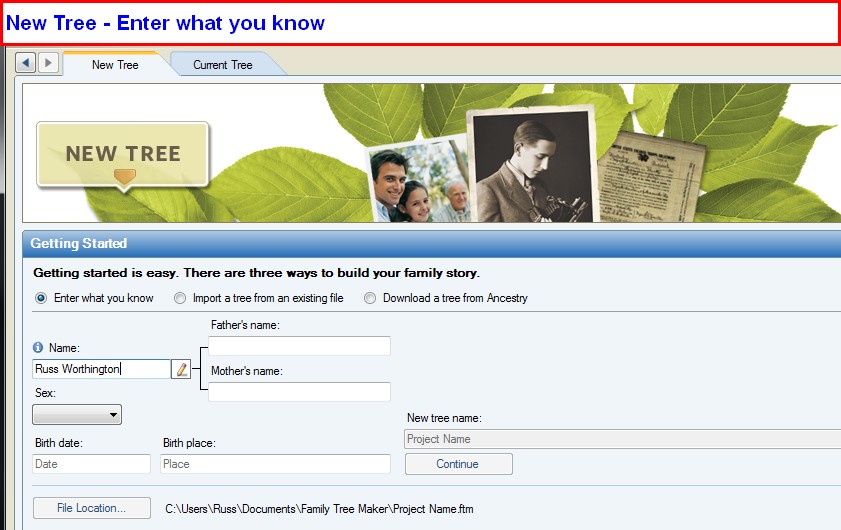
One way to start a New Tree, is to Enter the information that you may have.

Enter What You Know

In the example below, only the Name is entered, as Source-Citation will be added for each FACT entered, including the name, but that will be in a different workspace.


The Project Name field would become the Filename, so enter the name of this Family File. The File Location is near the bottom of this screen. Where on your hard drive is this file located.

Other ways to start a new Tree or File will follow.


Copyright © 2010 by H R Worthington

Thursday, August 12, 2010

Family Tree Maker Verison 2010 - Web Search Workspace

If you have an Internet connection and Ancestry.com account, you can search the vast store of databases at Ancestry.com to find more information about the people in your tree. With an Internet connection you can also search other sites that are part of Ancestry.com or other independent genealogy sites.

Copyright © 2010 by H R Worthington

Print Friendly