Are you backing up your Family Tree Maker File?
Are you backing up your important files that are on your computer?
Many Genealogy Bloggers have a monthly "Event" to do a Back Up of their important information.
The Family Tree Maker program, no matter which version, have a Back Up utility / command. Most recent versions have the capability to Back Up your Family File to a CD, local Hard Drive, and to the Internet.
A couple of things to consider:
1) How Often?
2) Where to Back Up to?
3) What to do with the Media Used?
Each of these, WE, the users need to address. The first question is answered, for me, with a Question, "How Much time do I have to Re-enter what I have entered since the Last Time I backed up this file?" The answer to this question is important. The Once a Month Reminder for the Genealogy Bloggers is Monthly. But, what if I spend a weekend updating my Family File. I might back up that file at the end of each day. What if a Storm is coming? I usually back up my file IF I suspect that there might be a power outage. I'll just back Up that file then. Don't wait.
The second question is similar, but has the added question of "What if my Hard Drive were to crash?" This would indicate that I probably do not want to back up to the Hard Drive on my Computer. My choice is a CD.
Continuing in the What If question, what IF something happens to my home or room where my computer is? I will take my most recent back up and put it into my safe deposit box. I have also taken a copy of my Back Up CD to my daughter's house. The important thing is to send it somewhere else.
There are Online Back Up Services available as well.
One Important note about the Family Tree Maker program, specifically. Version 16 and earlier has an "Automatic Back Up" feature. Please, Please, Please, do NOT consider that feature a Back Up. The file that is automatically generated is a COPY of your Family File. If there is a problem with the Family File, it will be in this "copy".
For those of you who know the Three Character File Extensions that Version 16 and earlier use, the FTW file, it the Working Family File, the FBK file is the Copy of the FTW file and the FBC file is a Compressed Back Up of the FTW file. This last one (FBC) is a Back Up. The process of creating the FBC file contains some file maintenance in it.
As a rule, I run these two Famliy Tree Maker Utilities BEFORE I do the File, Back Up command:
Go to any Family Page and run these two Utilities:
CTRL+ALT+C = FileCompression
CTRL+ALT+SHFT+UpArrow = FileChecker
Are there any Errors? If the answer is no, continue with the File, Back Up.
If there are errors: Run this Utility from any Individual's Family Page:
CTRL+ALT+SHFT+LeftArrow
Please go to this website:
http://pastftm.custhelp.com/
Enter 1396 into the "Keyword Search" box and read that Knowledge Base Article. It should help you with this Error Message, and describe how to use the LOG file.
With Family Tree Maker version 2008 and 2009, there continues to be a Back Up command, and it does generate a complete back up. However, there is an option to include or exclude Media files. There will be a Blog Article on how to do this in the future.
There are several normal commands, where the program will ask IF you want to Back Up your file BEFORE continuing. I recommend that you take advantage of that Back Up.
As with the older versions, there is an automatic back up feature within 2009. That file (ftmb) is a back up, but it does NOT contain the Media folders.
As this posting is a more generic message, you might consider backing up more then just your Genealogy Program files (Family Tree Maker Family Files).
I back up my Desktop computer Weekly with Cobian Back Up 8 from http://www.cobian.se/
I also back up my Laptop, two different ways: 1) Microsoft's Windows Live OneCare, and 2) a Back Up utility that came on an External USB Hard Drive. Over cautious on the Laptop? You bet. I know that this PC needs to be replaced AND its "on the road" a lot. The OneCare Back Up is do an External Hard Drive off of my Desktop (via a network connection) and the other Back Up is to the portable USB Hard Drive.
What I back Up are ALL Files and Folders in my My Documents and My Photograph Folders.
One final recommendation. Check your Back Up's.
I test my Family Tree Maker Back Up files at least monthly. Again, there will be a specific Blog entry on how to do this in the near future. Briefly, its File, Restore from Back Up.
Coping files to a USB Drive are also helpful. BUT, I have had two fail on me, over time. So, I don't rely on these drives as my Back up.
Back Up Now !!!
Sunday, March 1, 2009


Wednesday, February 18, 2009
How to Re-Order Spouses
When you have multiple marriages, Family Tree Maker version 2009 (18.0.0.305) has a feature to allow the user to re-sort the order of Marriages.

Figure 91
You will notice that Helen Hammond was the first spouse. However, for descendant reports, Comfort Hammond (yes, they were sisters) is the Preferred Spouse. Comfort is marked as Preferred, but is listed first.
Select one of the spouses, in this case, Helen was selected and RIGHT CLICK on that line.
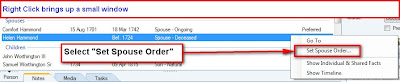
Figure 92
Select Set Spouse Order. The next window will appear.
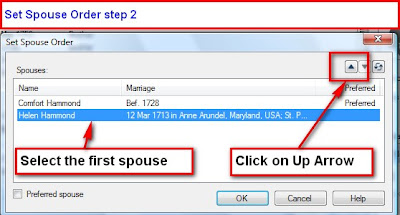
Figure 93
Click on the Up Arrow to move Helen above Comfort and click OK.

Figure 94
The order is in Marriage Order, but has the second spouse as Preferred.
This is is especially helpful is the Marriage Dates are Unknown, but the Marriage Order IS know.

Figure 91
You will notice that Helen Hammond was the first spouse. However, for descendant reports, Comfort Hammond (yes, they were sisters) is the Preferred Spouse. Comfort is marked as Preferred, but is listed first.
Select one of the spouses, in this case, Helen was selected and RIGHT CLICK on that line.

Figure 92
Select Set Spouse Order. The next window will appear.

Figure 93
Click on the Up Arrow to move Helen above Comfort and click OK.

Figure 94
The order is in Marriage Order, but has the second spouse as Preferred.
This is is especially helpful is the Marriage Dates are Unknown, but the Marriage Order IS know.
Monday, February 9, 2009
Import an Old Version of Family Tree Maker into Version 2009
There are two limitations for importing or opening a Family Tree Maker file in 2009.
1) 2009 does not recognize the Compressed Back Up (FBC) created by Version 16 of Family Tree Maker and earlier
This is covered Transfer Old Computer to New, Version 16 to 2009
2) 2009 will not open older versions of Family Tree Maker directly
One option is to generate a GEDCOM file, from your Previous Version and open that file in 2009. However, a GEDCOM file will NOT include any Scrapbook Items that may be in that file. Also, earlier versions of Family Tree Maker generate an OLD version of the GEDCOM format. If this old format is what is exported, you will receive an error message that indicates that 2009 requires "GEDCOM 5.5 and higher".
These steps will allow you to get your old Version of Family File to open in 2009 without using a GEDCOM file, but will let you import your Family File.
Before proceeding, make a Copy of your Family File and put it in a safe place on your Computer. You can do this with Windows Explorer.
Then Download and Install the Family Archive Viewer (its free) from this website:
http://www.genealogy.com/abtffiv.html
That download site has been removed. However, this download will also work:
http://c.ancestry.com/Affiliate/Knowledgebase/Images/Ftm/ftm2005se.exe
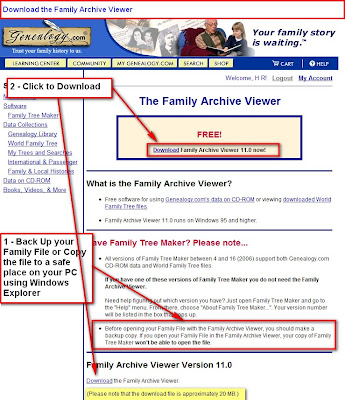
Figure 84
The file size of the FAV is 20 MB, as noted above.
When the FAV is open, click on [ 1 ] File, Open, and [ 2 ] Open window will appear. Navigate to where you have Saved your Family File. The file [ FAV.FTW ] is located in the FAV11 Folder [ 3 ] on my computer. Selecting FAV.FTW will put the filename in the Filename field [ 4 ]
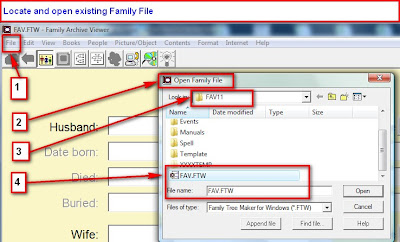
Figure 85
You will open your old Version of Family File with the Familiy Archive View (FAV) (Version 11) then Close the FAV down. Your Family File is now up to Version 11 which can be opened with 2009.
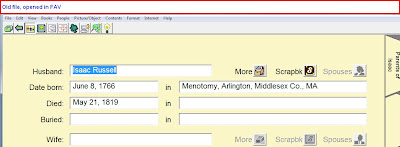
Figure 86
Next, close the FAV program as usual. Open 2009, then click on File, Open.
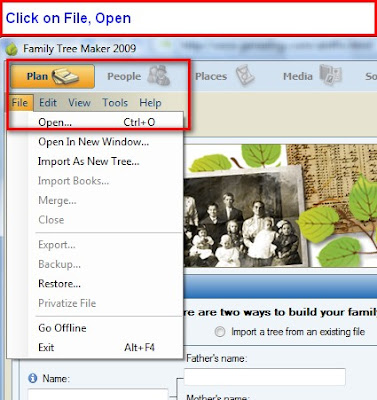
Figure 87
After you click on File, Open [ 1 ], and locate your Family Family File (Version 11), hi-light the filename (FAV.ftw) [ 2 ], then filename will populate the filename file, and it will open that file in 2009.
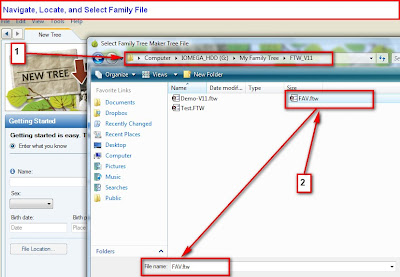
Figure 88
The Plan screen will show you the Path and File Name of the file being imported into 2009 [ 1 ], and the Location and File Name of the New 2009 Family File. [ 2 ]
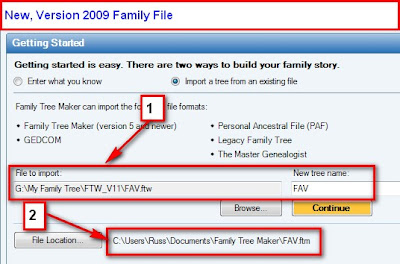
Figure 89
Clicking on Continue will have several importing screens and will take you to the People screen. Navigating to the person that was seen in Figure 86 you will see the same information in 2009.
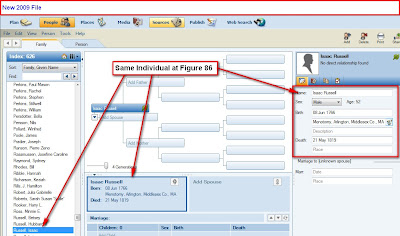
Figure 89Importing an Existing File in Family Tree Maker 2009 can be found on the Knowledge Base website: Please go to this website:
http://ftm.custhelp.com/
1 - Enter 3673 into the Keyword Search box and read that Article for another way to get the same result.
2 - Enter 4363 into the Keyword Search box and read that Article about importing a file directly into 2009 with out the GEDCOM 5.5 warning on import..
There is a downloadable PDF file with more details about the update for 2009 here:
http://www.familytreemaker.com/content/FTM2009/FTM2009_SoftwareUpdateGuide.pdf
1) 2009 does not recognize the Compressed Back Up (FBC) created by Version 16 of Family Tree Maker and earlier
This is covered Transfer Old Computer to New, Version 16 to 2009
2) 2009 will not open older versions of Family Tree Maker directly
One option is to generate a GEDCOM file, from your Previous Version and open that file in 2009. However, a GEDCOM file will NOT include any Scrapbook Items that may be in that file. Also, earlier versions of Family Tree Maker generate an OLD version of the GEDCOM format. If this old format is what is exported, you will receive an error message that indicates that 2009 requires "GEDCOM 5.5 and higher".
These steps will allow you to get your old Version of Family File to open in 2009 without using a GEDCOM file, but will let you import your Family File.
Before proceeding, make a Copy of your Family File and put it in a safe place on your Computer. You can do this with Windows Explorer.
Then Download and Install the Family Archive Viewer (its free) from this website:
That download site has been removed. However, this download will also work:
http://c.ancestry.com/Affiliate/Knowledgebase/Images/Ftm/ftm2005se.exe

Figure 84
The file size of the FAV is 20 MB, as noted above.
When the FAV is open, click on [ 1 ] File, Open, and [ 2 ] Open window will appear. Navigate to where you have Saved your Family File. The file [ FAV.FTW ] is located in the FAV11 Folder [ 3 ] on my computer. Selecting FAV.FTW will put the filename in the Filename field [ 4 ]

Figure 85
You will open your old Version of Family File with the Familiy Archive View (FAV) (Version 11) then Close the FAV down. Your Family File is now up to Version 11 which can be opened with 2009.

Figure 86
Next, close the FAV program as usual. Open 2009, then click on File, Open.

Figure 87
After you click on File, Open [ 1 ], and locate your Family Family File (Version 11), hi-light the filename (FAV.ftw) [ 2 ], then filename will populate the filename file, and it will open that file in 2009.

Figure 88
The Plan screen will show you the Path and File Name of the file being imported into 2009 [ 1 ], and the Location and File Name of the New 2009 Family File. [ 2 ]

Figure 89
Clicking on Continue will have several importing screens and will take you to the People screen. Navigating to the person that was seen in Figure 86 you will see the same information in 2009.

Figure 89Importing an Existing File in Family Tree Maker 2009 can be found on the Knowledge Base website: Please go to this website:
http://ftm.custhelp.com/
1 - Enter 3673 into the Keyword Search box and read that Article for another way to get the same result.
2 - Enter 4363 into the Keyword Search box and read that Article about importing a file directly into 2009 with out the GEDCOM 5.5 warning on import..
There is a downloadable PDF file with more details about the update for 2009 here:
http://www.familytreemaker.com/content/FTM2009/FTM2009_SoftwareUpdateGuide.pdf
Saturday, February 7, 2009
Descendant Chart - Page Breaks
One topic that comes up, from time to time, is the ability to print Descendant Charts. They generally are long (wide) when they are to be printed. There are at least two ways to print this type of chart. One is to print individual pages then tape them together. The second is to print the Chart on "Banner Paper" or Continuous Form paper. Version 2009 has the capability to do both.
The first step is to select the Individual that is the focus of the Chart.

Figure 78
Then click on Pubish, where all of the Reports and Charts can be found. Will select Descendant Chart

Figure 80
There are other options in the creation of a Descendant Chart that will be covered elsewhere, but details will be provided in a link to a Knowledge Base Article at the end of this post. The purpose of this Blog entry is for dealing with page breaks.
It's important to look at the Check Marks in the red box on the Right. No Check Mark in the Boxes overlap Page Breaks. You can visually see the changes. The Figure below would be used if you are going to tape the pages together.

Figure 81
Another way to control this, is by using the Advanced Button to the Right of the Layout Poster field, under the Chart Title. This figure is the Default with Page Overlap. The screen gives you an idea of what the pages will look like.

Figure 82
Clicking on the No Page Overlap is seen below. This would be used for Banner Paper. To return to the previous view, click on the Reset Button.

Figure 83
Note where the page breaks are.
Details on how to change the Formatting of a Chart in Family Tree Maker 2009 can be found here:
of by going to this website:
http://ftm.custhelp.com/
Enter 4303 into the Keyword Search box and read that Article.
The first step is to select the Individual that is the focus of the Chart.

Figure 78
Then click on Pubish, where all of the Reports and Charts can be found. Will select Descendant Chart

Figure 80
There are other options in the creation of a Descendant Chart that will be covered elsewhere, but details will be provided in a link to a Knowledge Base Article at the end of this post. The purpose of this Blog entry is for dealing with page breaks.
It's important to look at the Check Marks in the red box on the Right. No Check Mark in the Boxes overlap Page Breaks. You can visually see the changes. The Figure below would be used if you are going to tape the pages together.

Figure 81
Another way to control this, is by using the Advanced Button to the Right of the Layout Poster field, under the Chart Title. This figure is the Default with Page Overlap. The screen gives you an idea of what the pages will look like.

Figure 82
Clicking on the No Page Overlap is seen below. This would be used for Banner Paper. To return to the previous view, click on the Reset Button.

Figure 83
Note where the page breaks are.
Details on how to change the Formatting of a Chart in Family Tree Maker 2009 can be found here:
of by going to this website:
http://ftm.custhelp.com/
Enter 4303 into the Keyword Search box and read that Article.
Thursday, February 5, 2009
FTM2009 - Update Web Site
As the Update patch for Version 2009 is available using the Help, Check Update menu, I thought I would post a link to a more detailed website provided for Family Tree Maker Version 2009.
Family Tree Maker 2009 - Program Updates Help <== Click on this link
Are you having trouble installing the new update? Help is on the way!
There is a downloadable PDF file with more details about this update here:
http://www.familytreemaker.com/content/FTM2009/FTM2009_SoftwareUpdateGuide.pdf
Family Tree Maker 2009 - Program Updates Help <== Click on this link
Are you having trouble installing the new update? Help is on the way!
There is a downloadable PDF file with more details about this update here:
http://www.familytreemaker.com/content/FTM2009/FTM2009_SoftwareUpdateGuide.pdf
Tuesday, February 3, 2009
Online Subscription DataBases
The Family Tree Magazine has posted an interesting Blog entitled:
Which Genealogy Database Site Is Worth Your Money?
Good overview of what is available to us
Which Genealogy Database Site Is Worth Your Money?
Good overview of what is available to us
FTM2009 - Patch about ready
Please visit the Ancestry.Com Blog for Family Tree Maker Version 2009. The article provides more details about the upcoming patch.
Wednesday, January 28, 2009
How to create a Bow Tie Chart
One of the new Features of Family Tree Maker version 2009, is the Bow Tie Tree. This tree also has the capability to put an image behind or as background to the tree.
To do this, select the individual (one person) to be the focus of the tree. Select, from the People button (1), and select the Individual (2)
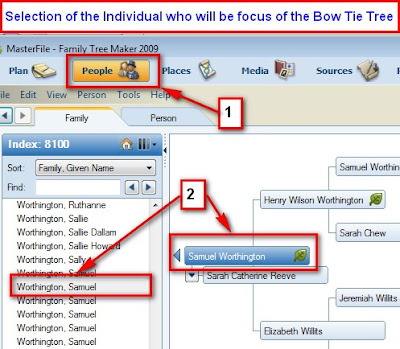
Figure 69
Now select the Publish button (1), and the desired Chart. In this case, the Bow Tie Chart (2) from the Collection and click on Create Chart/Tree (3)
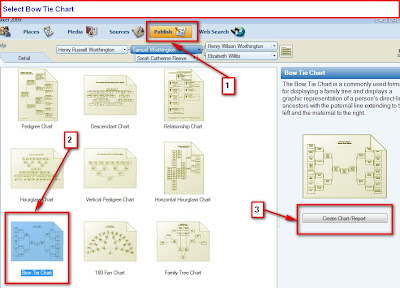
Figure 70
The first version of the Bow Tie Chart indicates 2 Pages. For this example, a One Page Chart is what is needed. The 2 pages are indicated on the top part of the Chart and the bar across the screen (2 pages). Will reduce the Number of Generations from 4 to 3 (1) and will add the Background (2).
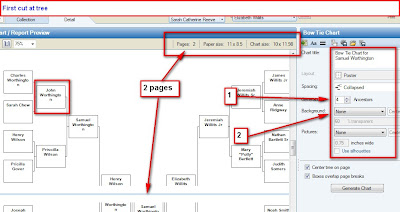
Figure 71
Reducing the number of generations allowed the Chart to be on one page.
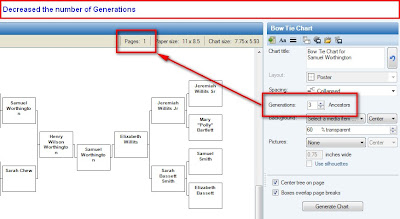
Figure 72
Clicking on the "Aa" ICON at the top of the Right Pane will bring up a Font screen. as indicated below. Please note the "n" not being on the same line as the rest of the surname.
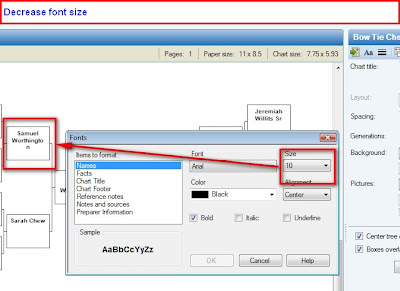
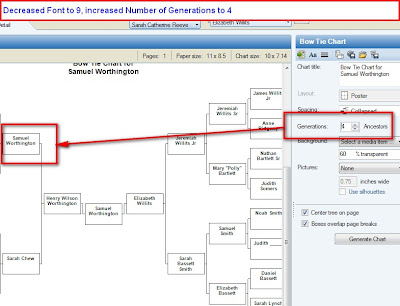
Figure 73
Figure 74
Reducing the font size to 9, allowed the number of Generations to be reset to 4. The changes continues to allow the Chart to be on one page..
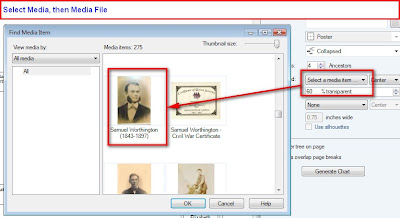
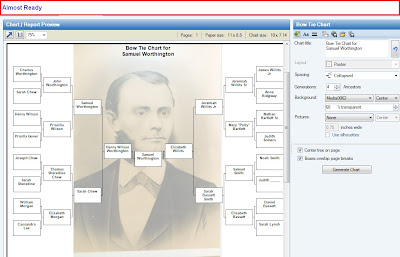
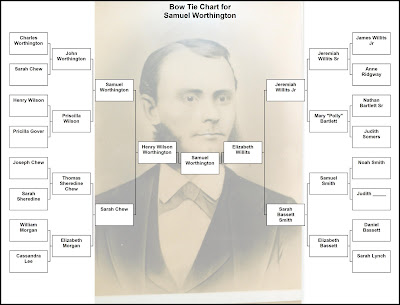
By selecting the Background button, a pull down menu will appear. There are background options available. The last menu option is Select Media. The media files, pictures will be displayed from which to select.
This can be Printed by clicking on the Print ICON. There are Share options available to Export the Chart in a number of formats. The final images is a JPG file.
To do this, select the individual (one person) to be the focus of the tree. Select, from the People button (1), and select the Individual (2)

Figure 69
Now select the Publish button (1), and the desired Chart. In this case, the Bow Tie Chart (2) from the Collection and click on Create Chart/Tree (3)

Figure 70
The first version of the Bow Tie Chart indicates 2 Pages. For this example, a One Page Chart is what is needed. The 2 pages are indicated on the top part of the Chart and the bar across the screen (2 pages). Will reduce the Number of Generations from 4 to 3 (1) and will add the Background (2).

Figure 71
Reducing the number of generations allowed the Chart to be on one page.

Figure 72
Clicking on the "Aa" ICON at the top of the Right Pane will bring up a Font screen. as indicated below. Please note the "n" not being on the same line as the rest of the surname.


Figure 73
Figure 74
Reducing the font size to 9, allowed the number of Generations to be reset to 4. The changes continues to allow the Chart to be on one page..


By selecting the Background button, a pull down menu will appear. There are background options available. The last menu option is Select Media. The media files, pictures will be displayed from which to select.
This can be Printed by clicking on the Print ICON. There are Share options available to Export the Chart in a number of formats. The final images is a JPG file.
Monday, January 26, 2009
Viewing a Time Line
Family Tree Maker 2009 has a feature to View a Timeline for an Individual.
To do this, go to the Individual you want to see this timeline. Click on the People button on the tool bar and select the Individual and the Person tab for that individual. Once there, click on the Timeline button. See below:
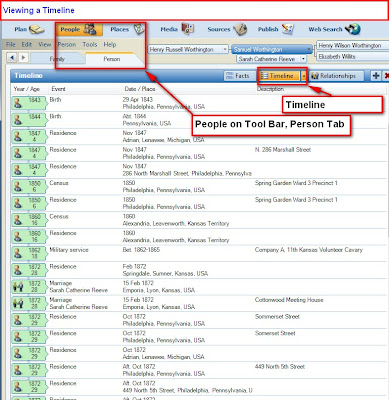
Figure 66
To view any Historical Events, click on the Timeline button and you will see a pull down menu. Select "Show Historical Events". See below:
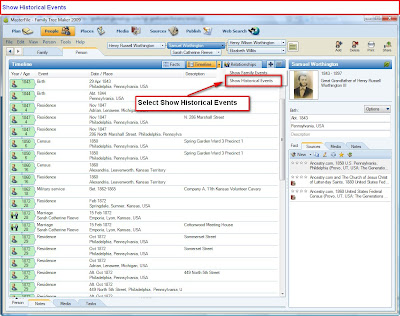
Figure 67
The results are below:
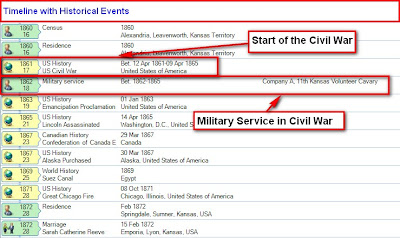
Figure 68
For more details, please visit the Family Tree Maker Knowledge Base website, Article 4216.
To do this, go to the Individual you want to see this timeline. Click on the People button on the tool bar and select the Individual and the Person tab for that individual. Once there, click on the Timeline button. See below:

Figure 66
To view any Historical Events, click on the Timeline button and you will see a pull down menu. Select "Show Historical Events". See below:

Figure 67
The results are below:

Figure 68
For more details, please visit the Family Tree Maker Knowledge Base website, Article 4216.
Tuesday, November 11, 2008
Family Tree Maker Blog
There is a very helpful Blog at Ancestry.Com on where to Get Help for Family Tree Maker Version 2009.
Please visit this resource as is shows various Help options available to us.
http://blogs.ancestry.com/ancestry/2008/11/11/getting-help/
Please visit this resource as is shows various Help options available to us.
http://blogs.ancestry.com/ancestry/2008/11/11/getting-help/
Subscribe to:
Posts (Atom)