Showing posts sorted by relevance for query sources. Sort by date Show all posts

Tuesday, September 25, 2012

FTM2012 - Source and Citation Clean Up

Genealogy Blogger, and friend, Randy Seaver put another challenge out:

Creating a Source List Report in RootsMagic 5

I guess, that since he named be as part of a challenge, I thought I better reply. Afterall, I have committed to myself, in 2012, to clean up all of my Sources (488) and Citations to get them into the Family Tree Maker, Evidence Explained! Template format.

I have been working on the clean up and I have blogged about this in that past. I take a few "extra" steps when I create the Source Template. What I did, was to break down, so that I could understand, what comes from the Source Template Fields, and what information comes from the Citation Detail, and what comes from the Citation Text to create the EndNote or Reference Note.

Looking at the report for Randy's challenge that little extra step really helped.

Note: I keep the term SOURCE as one thing, while CITATION is something else. I have a number of Sources, without Citations. I have NO Citations without a source. Together the Source and Citation information makes up the Reference Note or EndNotes as they are created in a genealogy report.

The Publish Workspace has a Source Collection of Reports. The first one I am going to select is the Source Bibliography. That will give me a list of my Sources.


This will generate a list of all of my Sources. I will be able to tell which Sources are in the Template Format and which are not. I will use one of my 1940 U.S. Federal Census Record Sources for an example:


The data in the Yellow hi-light is text from the Comments field for that Source. That is my first indication that this Source is in the Template format. Reason: I added the information that will be needed in the Citation Detail, and the Citation Text. The items in brackets are "fill in the blank" reminders for me, what data do I get from the Source for the Citation Detail. then some text, etc.

For example: [ civil division ] is what I need to pull from the 1940 Census, like the Town Name. That is followed by "enumeration district" followed by [ _-_ ] which is taking from the the Census Sheet.

In this template example, that is all of the data that is required for the Reference Note, so nothing in the Citation Text box will be used. I enter "Record for ......", and naming the Head of Household into that field, but do NOT put a check mark in the Show in Reference Note. That is information that I want to see easily. That is already in the [ person of interest ] household entry in the Details.

From this report, on this Source, I see that I have forgotten, actually want to go back an add, the "accessed: dd mmm yyyy" in the Citation Details field, at the end of the information in the Citation Detail screen. I can get that date from the date on the Census Record, media file, linked to this citation.

There may be additional information that I will enter, IF I have the data, like Microfilm Number. My 1940 Census Records all came from BEFORE they were indexed, so some of that data was not available.

That is the Sources Report. Now for the Citations.

Publish Workspace, but Source Usage Report.


I selected Show Facts, and Show Citations, as the report was being generated. I had selected a number of pieces of information from each Census Year. I have a blank census form, with the data hi-lited, for what facts I want to capture. This will help be review that as well.

The Citation now reflects what was put into the Citation Detail field, and the Citation Text field as well as the facts. Remembering that the Citation Text should not be shown. But the Citation here is as it should be, minus the Date Accessed.


 Since I know what information I want in the Citation is in the Source Comments field, I can tell that this Citation is good. Because the order of the report would be in the Source Order, followed by the Citation Order, I found that I can get through these pretty quickly because of the pattern of data that I am looking for.

I can see when I forgot to uncheck the Include in the Reference Note, for a Census Record.

It is very obvious, in these two reports, when I haven't transitioned a Source to a Template. I am only doing this review AFTER the Source and it's citations are in the new format.

Lots of work yet to do, but these two reports are helping me clean up my Sources and Citations.


_______________________________________________________________

Copyright © 2012 by H R Worthington

Thursday, April 1, 2010

How To: Source a Book

So, you found and purchased a book that has genealogical information about your Family. How do you Cite your Sources from this book.

When I pick up a book, for the first time, I start at the Sources Workspace. This same process can be done from the People Workspace, Person Tab, and selecting a Fact. But I will start in the Sources Workspace to enter the information about this book. Will add Source-Citation information later.

Going to the Sources Workspace, selecting Add, on the Right side of that screen, an Add Source window will open. For this example, a Keyword will be used to locate the correct Template. "Book" is entered:


Below is the types of Books that have specific Templates.


The Book is a Print Publication. So that entry is selected:


Selecting that will bring up the Add Source Screen to be filled in. All of this information is in the front cover of the book. There is no call number or an ISBN number.


Clicking OK will bring up a completed Source Citation screen.


As it appears that there is a lot of information in this book, the other fields will be left blank, at this point.

Since some of the following steps have been covered in other blog posts, screen prints won't be here.

Going to the People Workspace, Person Tab, the information about the individual is entered. In this case, the Name is Ellwood Palmer Strode. The Name Fact is selected, at the top of the list of Facts, the Right Hand (RH) Panel will present his name and under the name is the Fact, Sources, Media, Notes line. Selecting New and select Use Existing Source-Citation selection, which will bring up a screen, where you select a New Copy. Keep in mind that earlier, the Source-Citation was left blank, but want to use that same Source-Citation for specific information about this person and fact.


The new (copy) of the Source-Citation screen is presented and is filled in. In this specific book, each individual has a Number followed by the name. In addition to the number and name, the page number is entered. Since there is more information on this page, the details of that information will be put into the Notes section for this individual. That is noted in the Citation text, for clarity in End Notes.


Going to the notes section for this individual, specific information is recorded. Because there are written notes in the book, they are also noted. Also, there is some missing information in the book. For clarity, the Text in this paragraph are marked in Bold, as a reminder to pick them up as Facts for this person and other people in this family.


Since this has his Birth Date, that Fact is entered, with birth date and location.


This time, since the same source-citation is going to be used, the New pull down menu, and the Use Existing Source Citation and the Link to Citation option is used. Since there may be multiple 'existing' Source-Citations, placing the mouse cursor over the specific Source-Citation will bring up more details on that Source-Citation. The screen capture would not show in the following screen. The right Source-Citation entry is selected AND the Link to Citation button is used this time.


Let's see what we have so far. Going to the Publish Workspace, Individual, Individual Report, the following Report is generated. The Items to include ICON, in the RH Panel, is verified to Include Sources in the Report. The Birth and Death Facts were entered and Cited. There are subscript number at the end of the Facts with Source-Citations and the Source is shown at the end. The text from the Notes section is also included.


After entering more information from what is indicated in the Notes, return to the Publish Workspace, Relationship Collection and the Family Group Sheet to see the current statue of this Family. As above, each fact indicates that a Source-Citation is associated with it, and is presented at the end of Family Group Sheet.


Going back to the Source Workspace, each Source can be Rated. In the Center panel, at the bottom, is a list of people using that Source-Citation. on the tool bar between the top and bottom of the center panel is a Start. Clicking on that Star will allow the user to Rate the Source. Selecting the "Use standardized ratings" check mark, there are four questions that you select and the details are on the Right. In this case, there are primary sources needed and needs some follow up. As noted above, some of the information on the page about this person are hand written. You can note your justification at the bottom of that screen.


Closing that window, with the OK button, the Source-Citation screen appears. So see details about that specific Source-Citation, hi-lighting it will provide the details on the Right and who is using that Source-Citation on which Facts.


Selecting the "[no source-citation information]"  link shows blanks on the right and the indication that no one is using it. This is there so that it can be selected for the next person listed in the text from the book. It is basically a blank Source-Citation and not being used. Because there is much more information, that [no source-citation information] line will remain.


Returning to the next person mentioned, selecting the name, or other Facts, the New Source, Link to Existing Source-Citation menu is uses, and Create New Copy


Returning to the updated Family Group Sheet, in the Publish workspace, Relationship Collection, the second Source-Citation appears. What was added, based on the text in the notes, the Birth Date and location was added, with it's source-citation.


These steps are repeated until the information in this book are entered and cited. 


© 2010, copyright H R Worthington

Wednesday, April 25, 2012

Which Citation ?? - a trick

Some colleagues on FaceBook presented a problem they were having with Family Tree Maker and Selecting an Existing Citation. (my understanding of the issue). Believe me, I understand, especially when dealing with Census Records.

You know you have an Existing Citation for the 1920 Census, in Chester County, Pennsylvania. You realized that you miss entering a fact from that record, know that you created the Citation, and want to link to it.

Looking at the screen below, there are a number of 1920 and 1930 Sources. Just by looking at the screen, on the right, there are a number of Citations for the hi-lighted Source. Which one do I select?


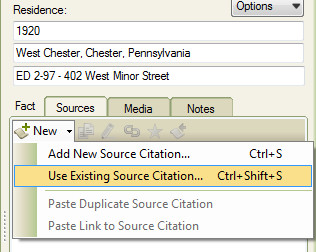
For my example: I forgot to enter the Residence Fact for this person. I entered the data, but now I want to "Link to an Existing Citation:. I am in the People Workspace, Person View, and just added the Residence Fact, for this record. You can tell that there are No Citations, nor media files because of the -0's in that first column of three numbers AND with the Source Tab selected on the Right, there is no Citation.


Selecting the Down arrow, to the Right of "New", the Use Existing Source Citation option is selected.

Selecting that option, a new screen is presented. It's much like the first screen in this blog post. I think that trick here, is to NOT use the Default Setting, of All Source Citations, but select the 2nd choice of Source Title. With the All Source Citations, default, choice all of your Sources are in the Right Column and you can't see the Citations at all.


 By selecting the Source Title option, this will put the list of Sources in the Left Panel and the Citations for those Sources in the Right panel.


Looking at the data in the Residence Fact, I am working with a 1920 Census Record for Pennsylvania, Chester County, and the "ED 2-97 - 402 West Minor Street" and the Head of Household, Wilmer Cheyney.


With the 1920 Census Source, for Chester County, the list of Citations are in the Leftt Panel,


Selecting 1920 Chester County on the Left, will bring up all of the Citations for that county. The bottom Citation is for that Fact.

For me, it was easy to spot, but looking at what information was in the Residence Fact, having the Sources in the Left Column and Citations in the Right.


Making that choice, will now put the Citation where it belongs.


Lesson Learned: These Sources are using the Census Template, in FTM2012, by Census Year AND Location. I chose to use that option, instead of the Census Year only, so that the list of Citation by Source was reduced. Yes, there are more Source, but that turned out to work better for me. I had it the other way (Census year) and had pages of Citations. This just worked out easier. The Template feature is very helpful for me.

________________________________________________________________  

Copyright © 2012 by H R Worthington

Saturday, September 21, 2013

FTM2014 - Database Clean Up (?)

I was working with another user of Family Tree Maker and thought I would share a couple of thoughts about cleaning up your FTM2014 database to take advantage of some new features in FTM2014.

If you have been following this blog, I spent most of 2012 cleaning up my Sources and moving them into the Source Template feature. Up until FTM2014, the only way that you could easily tell if the Source was using a Template, was to look at the Ancestry Member Tree (AMT), if you had your file online.

Now, we have a visual indication that a Source is using the Template. That, along with the ability to have a Web Address on the Citation screen, I thought that maybe a blog about the approach I took last year, and continue to work on it now, especially since I don't have to work so hard to see if I am using the Template Feature.

The Sources Workspace has the new Indication, "Template" below. That is the indication that the select Source is using the Template. This example is the first Source in the Left Hand Column.

This example is a Census Record, where the Template format I chose was Year and Location, or State. The Template will get you to the County level. I have many people in Pennsylvania, so I want it broken down to the County Level. I made that my "standard" way to handle Census Records.


There are two indications on the right, that some folks have missed, or may not know are there. The most important one to me, is the ability to View the Source Online. That active link is the result of using the Web Merge Feature. I did a series of blog posts on what that means and how to do it. Clicking on that link will take you directly to the page on Ancestry. At the same time, there is a place to put a Web Address. That is especially helpful if the Source is on another website. Just copy the Web Address (URL) from your browser and paste it into this field.

I don't normally include that link in the Reference Notes, but I have it at my finger times, if I need to.

During my continuing project, I am going back to make sure that I have the Web Address and where appropriate the View Source Online.

Now, HOW to track that. When I first received FTM2014, I looked for a report that would help me, it's not there, so I immediately submitted Feedback link in the Online Help Center or on Ancestry.com

I am tracking the work using the Bibliography Report. To the Publish Workspace, Sources Report, and selected Bibliography Report.


I then printed that report.


So as I go down the report, I mark off that I have the Sources in the Template feature:


Just to get a handle on where I was, I looked at the first 5 (of 13) pages. 436 Sources, of which I had list 125 Sources 27 have not been put into the Template format. I figured that if I started with the Census Records, I would get the biggest bang for my time and it worked.

The EndNotes for the reports are so much cleaner. But that's another blog post.
_______________________________________________________________

Copyright © 2013 by H R Worthington

Thursday, April 6, 2017

Time out for a little Database Clean Up

While we await the arrival of FTM2017, I am taking some time to do some database clean up. I do a lot of file clean up and file management all of the time. For example, I run the Undocumented Fact Report daily. I want to make sure that ALL of my Facts have a citation. I run the Data Error Report frequently, usually daily, I want to keep that clean. I make sure that ALL of my Source Groups are using the Template Feature. Of course, Compacting and Backing Up my file frequently.

I am thanking this down time to go a little deeper into the Sources Workspace. It was a long time before I found this, and I am guessing that others have missed it as well.

To start with, I went to the Plan Workspace, and clicked on the More Button for more File Statistics.

There are two items here that I want to talk about. There are 36 Sources in this file, but am only using the Template in 35 of them. I missed on. Will fix that shortly. This means that when I add information into Family Tree Maker, I put the Source of the information into one of the Template features in the Source Workspace and this is one of the areas I really focus on when I merge records into the program. Many blog posts on this topic. I will deal with that source group at another time.

When I look at the Sources Workspace, All source citations in the List By, 


I have 521 Citations. These two numbers match up, as expected.

There is a dropdown menu where we  have 4 choices. The All source citations, Source Title, Repository, and Person.


When I am working in the Sources Workspace I select and use the Source Title option. It's easy for me to find the Source Group I want to work on.

I want to look at all of the Source Groups by PERSON. I then can look at what Source Groups are Linked to that person. For this Clean Up, I want to scroll down to the Bottom of the list to find the UnLinked Source Groups.


When I select that, I see that I have 0 (zero / no) Source Groups not linked to a Person. That is what I want to see ALL of the time. All of my Sources are linked to someone's Fact.


One down, two to go.

Now I selected List By Source Title, scroll down to the bottom, again to Unlinked, This will give me a list of any Source Titles, and again All Source Groups have Citations.


2 down, 1 to go

The List by Repository has a problem, or ate list one problem.

This specific database had totally relied on Online Records. Any Record found Online, should NOT have a Repository. This List By should not have any repositories listed. There are two Source Groups and the first one has three Citations that have a Repository of Ancestry.com.


I won't go into this now, but when I looked at the Source Group, Template, I determined that I had selected an Incorrect Template, one that called for a Repository. I will blog about how I resolved that in the near future.


Also,that "FamilySearch" Repository, when I looked at it, was NOT using a Source Template. That is the difference of 1 in the File Statistic screen at the top of this blog post. 

I have two clean up items to do:

  • Select the correct Source Template for the Ancestry.com Source Group
  • Put the FamilySearch Source Group into a Source Template


_______________________________________________________________
Copyright © 2017 by H R Worthington

Tuesday, April 15, 2014

Notes, Notes, Notes and more notes

As a follow up to an earlier blog post, I had to go look at some statistics about my file. That has caused me to go do some clean up work. Specifically, to get ALL of my Find-A-Grave Sources into the Template Format.

With 8,937 people in my file, with 448 Sources only 197 of them were in the Template format. That is a long term "work in progress". I have always thought that my 2nd most used Source was Find-A-Grave memorials. Sure enough, 55 of the 448 were Find-A-Grave sources accounting for 334 Citations and 2,572 Facts.

So I decided to spend some time evaluating how many of the Find-A-Grave Sources were in the Template format. Very quickly into this project, I realized that over time I had entirely too many notes. Actually, not enough notes, but the notes were not in the right place. That was caused because we didn't have some of the notes, and we were not always able to do anything with the notes.

We have the Person Notes, Sources Notes, Fact Notes, and Research Notes, to mention a few.

What I had been doing early on was the put notes from a Find-A-Grave Memorial into the Person Notes pages.


Some time AFTER I did this work I figured that these notes really needed to be in the Fact Notes field. In the Person Notes field I want the stories that I create or newspaper articles, letters, not "data" that I put into the database.

What I want to do, is to CUT (CTRL+X) from the Person Notes field, and Paste (CTRL+V) that information into the Fact Notes field. I keep my Find-A-Grave Notes in a Find-A-Grave Fact. I have talked about that here, but I created a Find-A-Grave Fact, that is Private, that only I can see them. They won't appear in a report unless I specifically ask for Private Notes. This information is helpful to me.


Because I had done some formatting of the information in the Notes field, so it looked nice, I will see a pop-up message on the way.


It's asking me if I want to keep the formatting of the information. I do, so I select the 2nd option.


I Paste (CTRL+V) (CMD+V for the Mac) that information into the Find-A-Grave Fact Notes field.

BUT, I still have something in the Person Notes field. It is a reference number that I had used for my Research Notes. This doesn't belong here. It belongs in my Research Notes.

Like before, I Cut (CTRL+X) from the Notes and Paste (CTRL+V) it into the Research Notes field.


The Research Notes is that 2nd ICON, and the Toggle Research Notes On or Off is next to it, or the 3rd ICON. Like the Fact Notes, my Research Notes are for my information.

I will take me a couple of hours to do this clean up, but it will be worth it "at the end of the day".

The Find-A-Grave project was put on hold, as I found some interesting issues that have come up, but will blog about that here shortly.
_______________________________________________________________
Copyright © 2014 by H R Worthington
Monday, January 2, 2012

FTM2012 - Sources Clean Up - Sources without Citations

Every once in a while, I find it helpful to Clean Up information that I in my family file. My main research file was started with Family Tree Maker Version 3.4. It's been through each version and patch since. Not to mention, the learning curve in learning how "the new version" works. Things like doing a Merge of two files, before I knew what I was doing.

My goal for 2012 is to clean this file up. It will probably take a year to do so, but it needs to be done.

 A short time ago, I talked about a new feature that was added in a Patch for FTM2012.  FTM2012 Patch - New Feature - Undocumented Facts in which you can generate a report for all Facts that do not have a Citation linked to them. Its a very handy report. My smaller files are very clean. Running that report on this file is 462 pages long. Not going to print that. To get that report, go to the Publish Workspace, Sources Category, and select Undocumented Fact.


There is another way to do the same thing, but in smaller pieces, like in Surname Order / by letter. By going to the Sources Workspace, there are several ways to list the Sources as seen in the pull down menu under Source Grouping, Listed by: The choices are Source Title, which is the default listing, by Repository, or by Person.


We're going to start with the default, or Source Title: Notice the ICONS or lack of ICONS to the left of the Source Title. If there is NO ICON, there is not Citation. Basically, that Source is not being used in this file. By looking to the right, you will see Source Citation: 0.

That Source can be deleted by Right Clicking on the Source Title:


There are other options there as well, but we will Delete that Source.

Lesson Learned: Clean Up your Source Title Listing from time to time.

Copyright © 2011 by H R Worthington

Print Friendly