What do I want YOU to see VS What do I need to see
I recently create a "Book", using the
Family Book Creator plugin for the Family Tree Maker program (FTM2019).
It was a draft to show a class what an "end result" might be for our research. The book was about 120 pages, with charts, stories, Pictures, records, and a Place and Person index.
This book was created from a file that I have been using, in an "in person" class, based on some research for one of the students. The research has been shared with the class, over the past several months, some of the material has been used on this blog.
I gave one copy of the book to the student two weeks ago. This past class, the student gave me a stack of pages, all marked up. The details of the comments were awesome. Lots of "red marks" in the Footnotes. Someone actually read the footnotes, I said to myself.
As it turned, most of the comments are GREAT teaching moments for the next class. Presentation already done.
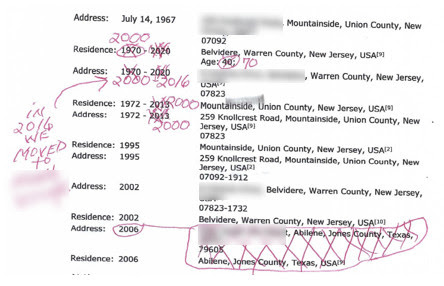
Here is an example of one of pages:
Lots of red marks and "corrections".
This file (and book) is being used to prepare for the 1950 Federal Census, for the USA, later this year (04/01/2022 to be exact). So the Residence Fact and Addresses are important. All well and good.
BUT
I knew where this information came from, after all everything has a Citation. All of this information was helpful for me, but what I had not thought about, is what about a reader of the information provided in this book. The comments made it very clear to me, that everything had been read and thought about.
Most of the information with the red marks came from 3 Sources or Record Groups on Ancestry. All very helpful for the 1950 Preparation work, but not so much for the reader of the book. Understanding those 3 sources, and what they contain, I have marked any information, that were turned into Facts, in FTM2019, I marked as Private, so they will not appear in the Ancestry Member Tree (AMT) nor will they appear in the next printing of the Book.
I want to see those Facts in FTM2019, and I want the Online Tree (AMT) to have a link to the Record, but ONLY for the Name and Birth Date FACTS, that were on the Record. I want the reader to see the record, just not the other FACTS that the record provided.
A review of ALL of the Citations from those three (3) record groups. There were 27 Citations, so far, for those three record groups, and all of the "Residence" Facts have been marked private.
Original data: Voter Registration Lists, Public Record Filings, Historical Residential Records, and Other Household Database Listings.
That is from the Source Information from Ancestry. An Index, with no image, nor real information about the source of information.
No wonder the student marked it up.
There was also an upside to this review,
New Information that I did not have before.
____________________________________________________________
Copyright © 2022 by Cousin Russ