Saturday, December 3, 2011

File Sharing and Brick Walls - Part 18 - Research Log

As you may have noticed, I am a follower of many blogs, but for working with genealogy software, Randy Seaver of Genea-Musings is on my list. He had a posting on Research Logs in Genealogy Software

I made an attempt to respond: FTM2012 Research Log I wasn't really happy with that post. Today I thought that I would take a little closer look at FTM2012 for a Research Log. I haven't really used this before, but I was doing some research finding a lot of Negative results. In that past, if I didn't find anything the first time, I would probably go back and research again. Today was one of those "but I already looked there and didn't find anything". So, I went to the People Workspace, Person View, Note Tab, but selected the 2nd ICON, which is the Research Log for that person. Here is what I entered:


I entered the Date, the Website and how I did the search, with the results. Although this example was all negative, I did have some positive results which I also recorded.

That's the input, but how does that help? What does the output look like?

Went to the Publish Workspace, Person Collection, Notes Report. Selected All Individuals and put a check mark in the Research Notes item on the right.


The blue box shows the positive result, and the red box the negative. I will save this report as a Research Log and refer to it from time to time.

Lesson Learned: This is a Research Log in FTM2012.


 Thank you Randy for the Challenge.

Copyright © 2011 by H R Worthington

File Sharing and Brick Walls - Part 17 - Merge Clean Up

In File Sharing and Brick Walls - Part 15 - Merge Files


I mentioned an issue that needed to be addressed. When merging files, that have a common source, there may be duplication of information in the Notes section for a person. (People Workspace, Person View, Notes Tab.

The two files that were merged in Part 15, came from a common source, that is Randy's main file. A review of the Notes of each person, I found this. (as an example)


The information in Red is a duplicate of that in Blue. So any one that was in both files and have notes, may have this duplication of information in those notes.  Each of these notes will need to be edited to remove the duplication.

A Custom Report for everyone with Notes can be created to identify people with Notes. The problem in the custom report is that Fact Notes and Person Notes are included in that Custom Report.

Going back to that Merge Screen, talked about in Part 15: (below, left column, either To Review or Merged), a review of each of them against the Custom Report will show whose Notes need to be reviewed for duplication.


This is not a new issue when Merging files.

Lesson Learned: Review the Notes for each person involved in the merging of two files.


Copyright © 2011 by H R Worthington

File Sharing and Brick Walls - Part 16 - Notes to Description

Discovered another Clean Up issue, when importing a GEDCOM file into FTM2012. The issue is the difference of opinion on where certain information goes and how many fields are associated with a Fact or Event. I will NOT get into any finger pointing, only that when a GEDCOM file is imported, and the probably goes between any genealogy software program receiving or sending a GEDCOM file.

The specific issue here is a Burial Fact. In Family Tree Maker there are three fields. Date, Place, and Description. The GEDCOM that was imported had another field, apparently, called Address.

Family Tree Maker wants us to enter the Cemetery Name into the Description field. This has been true for many previous versions of FTM, probably back to version 4, when we separated the Place and Description with a slash. Place / Description.

When reviewing the file, there were a number of Facts with Notes. Opening the Notes as a note like: Address Woodlawn Cemetery.


There is a "1" in the third column on the Left and selecting the Notes tab, is the "Address: Woodlawn Cemetery.

In this Blog Post: How to create a Cemetery Listing. I showed how to create a Cemetery Report and that the Cemetery Name comes from the Description field. So, it is important to me to move that Cemetery Name from the Burial Notes field to the Burial Description Field.

Copy and Paste Cemetery Name and remove the word Address from the notes field, as, in this specific case, want the Notes number to be zero.


Now the Cemetery Report will provide the cemetery name.

Lesson Learned: Check the Notes following the importing of a GEDCOM file as there may be information that needs to be moved into the Description field for a Fact in Family Tree Maker.


Copyright © 2011 by H R Worthington

Friday, December 2, 2011

File Sharing and Brick Walls - Part 15 - Merge Files

Continuing this File Sharing and Brick Wall theme, Genea-Blogger Randy sent me an Email with a GEDCOM file attached, of the Ancestor's of William Knapp's wife, Sarah Cuter. I had spend the afternoon on a road trip to where William and Sarah where married, and many Cutter's are buried.

As is my practice, I do not JUST merge files. I take a little time to "get a handle" on the new file. I did the same "clean up" on this new file as I did with the first file, documented in this series.

The next thing, in preparation for Merging of these two files, is to do a File, Back Up on both files. From the Plan Workspace, I clicked on the More button to get the Statistics on both files.

This is new New file.


This is the file that I have been using for my research:


I kept this working file (GEDCOM for Blog) file open and clicked on File, Merge.


 The next screen is a suggestion to Back Up your file.


Since I had just backed up both files, I clicked on No. But I suggest that if you are merging files that you Back Up your file using the YES on this screen. Then you will see the files starting to be merged. They HAVE NOT been merged yet. You must select the file that you want merged into the currently open file. The File is selected.


The next screen is asking if you want to Merge the two files, OR Append this 2nd file to the currently open file. I chose to Merge the files.


The next screen is the MERGE WIZARD screen. What is important on this screen is to completely review each entry in the Right Hand Panel, for each Person in the Left Hand Panel.

In the RH Panel, you will have three choices, Select the Preferred Fact, you can Discard an item, or you can choose the item to be set at an Alt. Fact. You select the Preferred fact like the Birth Fact, below, where I selected the Birth Date and Place. That made the Birth Date become Discard but I changed that to Alt.

The LH Panel, has three sections: For Review, Merged, and New. Each person SHOULD be selected and the data reviewed BEFORE the Merge Button is selected. The Merge Button on this screen is to Merge everyone in the LH Panel. I do NOT recommend that you do you that until you have reviewed all of the data.


.

Clicking on the Merge button will cause the two files to be merged.


The Plan Workspace, MORE button shows that some new people have been added, as expected.


A quick review of the file does not show too many issues, so I did a SyncNow to update the Ancestry Member Tree.

What was really nice is that ALL of the Tasks that I had entered into the new file came through into the Merged File.

Lesson Learned: Back Up your files before any Merge and check the results before moving one.

There will be a follow up post on one issue that w.s observed.


Copyright © 2011 by H R Worthington

Thursday, December 1, 2011

File Sharing and Brick Walls - Part 14 - Maps

So, I continue to track William Knapp, in hopes of finding his parents.

The more I look, the question list gets longer.

Decided to use the Map feature, within the Places Workspace, and selecting a Person, rather than a Place to track William's Journey. Consider the Map:

The record that have have found, shows that he was born in Dutchess County, New York. After considering that what is not Putnam county was also Dutchess County when he was born. It wasn't until 1812 that Putnam County was created.

Looking at where he was born, with the little detail that we have, and where he died, it's a pretty straight line between Dutchess County and Newton, Sussex County, New Jersey. In fact, there is a road that pretty much connects those two places. Along that road (Rt94) you'll pass through Goshen, New York on your way to Newton. Having driven that road, stopped at a couple of cemeteries, I found Knapp's along the way, with several large families in and around Goshen, part of my wife's ancestry.

But, now let's through in where William Knapp was Married.


 Again, this was generated by FTM2012, just added the boxes to see the three points a little clearer.  By car today, that would be about a 5 hour trip, mostly interstate. Remembering this is between 1775 and 1804, and adding a "what if" here, What IF "Dutchess County" was really closed to Poughkeepsie and there was more "commercial" boat traffic on the Hudson River connecting Albany, north of or upstream from Poughkeepsie down to New York City, or over to Newark or another New Jersey landing, what does that do?


That changed the "distance" issue that was in my mind, back into reality. Another mode of transportation, the Hudson River, makes the trip so much easier.

OK, so far, just now need to find the reason for the move, remembering that he was a Shoemaker.

Lesson Learned: Use the Map feature to see the migration path of the person, or people you are researching. But, keep history in mind. I was stuck in the reality of today (car) verses the mode of transportation of the late 1700's in mind.


Copyright © 2011 by H R Worthington

File Sharing and Brick Walls - Part 13 - To Do List

Took a couple of days to actually do some research and to give a presentation on Family Tree Maker 2012 to a local Family History Interest Group. The great thing about working on this Brick Wall, is that I was able to share some of the experiences of the Brick Wall as part of the FTM2012 presentation. Use of some of the new features, as shared here, were examples for this group.

My colleague and friend is exploring Roots Magic 5, specifically, in the area of the Research Manager. Exploring RootsMagic 5 - Post 2: The Research Manager

Earlier, I posted about File Sharing and Brick Walls - Part 5 - Task List. 

I am afraid, from what I have read, they aren't quite the same. That is, Research Log and a Task List or To Do List.

This post will talk about the Task List.

Instead creating a bunch of screens on the Task feature, a screen capture of what is in the Help Menu might be helpful. To get there, click on Help, select the Index Tab, then scroll down to Tasks. The View selection provides some details on how to use the Task List.


When I am working with Tasks, I keep in mind a couple of things: 1) Tasks for a Person, 2) Generic Tasks for the File, and 3) File Notes.


File Notes: These notes are for generic notes that I want to include about the file, so that if I were to share the file with another researcher, it might answer some of the "why did he do that" questions. An example for this file is: Identify Parents

Another is: If document says "of" a place, will be reflected with a Residence Fact

I make all of my File Notes High Priority Tasks. No specific reason, but what them visible when I open the file.


What I am trying to relate in the first Task is that when I seen a reference to a person, and the reference says [ person's name ] is "OF" [ place ] that I will put that place name into the Residence Fact. That has helped me, in the past, to track where a person lived over time.

The second task here, is assigned to William Knapp (on the right side of the screen), as the Task is Identify Parents, of William Knapp. That Task will appear on the Task tab, in the People Workspace, Person View for William Knapp.

There are also Task Categories / Locations. The First Task is in a Category of File Notes, so that all of the File Notes can be seen by selecting that Category, and the Identify Parents has a Category of Locate. I keep these, as High Priority. Any other File Notes, will end up in the High Category, but I will have other "locate" items, but with a lower priority, as with trying to locate a document, or a book.

Right now, and this will certainly change, I have the following Categories.

  • Census - Census Related
  • Clean Up - To clean up an item for the file or a person
  • Conflict - Need to Resolve conflicting information
  • File Note - Notes about the file
  • Locate - Find a item
  • Review - Review data already entered, or another document
To see this list, I clicked on the Filter ICON


This ICON allow me to select only those Tasks for a select(ed) Category. Clicking on that ICON will bring up this screen.


 Here is a couple of examples of the Tasks:

You will notice check marks in a number of these items. That means that they are one. I reviewed the Birth notes for David Auble, and the Residence notes for him. I cleaned up a couple of times, one for the file, where I removed all of the Death Description = Y from the GEDCOM, and I cleaned up Burial Notes for William Knapp.

There is one Conflict list above, where I need to resolve some conflicting information about Sarah Smith.

This task list helps me understand the work that needs to be done, or the work that HAS been done in this file. Again, generically or for a specific person.

A couple of days ago, I sent Randy an update on the work that I had done. I did that from the Publish Workspace, Person Category, Task List report.


Here is a sample of that report.


The two High Priority items are listed first, and that conflict is the 4th item. If an Item is complete, there will be a check mark in the Status Box.

There are controls over what is in this report, as with other reports and charts in FTM2012.

One of the nice features about the Task List, from the Plan Workspace, is that you can get to a specific person's Task, but high lighting that person's name, and clicking on the GoTo button in the upper right corner of the Plan Workspace.


People Workspace, Person View:


Copyright © 2011 by H R Worthington

Sunday, November 27, 2011

File Sharing and Brick Walls - Part 12 - Research Begun

Just an update. The clean up of the database is done. Really happy with the information that was provided. Great research has been documented, as I expected. But, now to get to this brick wall.

There are some hints for me to look at a little deeper. I find that the Find-A-Grave website can provide some hints. Some times the headstones have more information then what might be on Find-A-Grave, but there are hints.

Recently, I discovered a way to keep track of relationships that might be clear in Census Records and Find-A-Grave information. How? With the use of the Name Fact Notes screen. It's in the People Workspace, Person View. I have been putting these Notes in the Preferred Name Fact. An entry might look like this:

  • Find-A-Grave links William Knapp to Sarah Cutter as wife
  • Find-A-Grave links David Auble to spouse Sarah G Knapp, and her parents William Knapp and Sarah Cutter
  • 1880 Census links David Auble to Parents Birth States; Spouse; Sarah G Auble; Children: Charles Auble; Fannie Auble; Katherine Auble; Anna M Auble
This shows two Find-A-Grave findings and an 1880 Census Record. In the Find-A-Grave pages, the relationship was noted. In these two examples, the Headstone was NOT on the page. I visited the Cemetery, but it was locked. I will re-visit the burial ground to take pictures.

It also shows a possible Task / To Do List item. In this example, David Auble has a daughter, in the database of Frances M, while I have now seen twice a reference to Fannie. Could the Census Record be wrong? But, I have found that my having a note dedicated to tracking relationships has been very helpful.

These notes are NOT available in the Ancestry Member Tree (ATM) screens. That's good, as they are my notes. BUT I can pull a report on Notes.

There was a reference to an old Book for the Cutter Surname. That is of interest, at the moment, because Sarah Cutter is William Knapp's wife's name. What brought William Knapp and Sarah Cutter together, one from Dutchess County, New York and the other from Woodbridge, New Jersey. Perhaps there is a hint in that book. I found it as a Google Book and have been reviewing what was provided. I am able to put Sarah's family together, with an ancestor who was in the Revolutionary War. There appears to be a pull back to that part of New Jersey once William dies. There may be a couple of other surnames in the book that has connections to William.

Several times, looking at some census records, Shoemaker, as a trade shows up.

In an earlier post by Randy, he brought up the topic of a Research Journal. It's not clear to make that Family Tree Maker has a good way to do this, but what I started to do, is to Share, using Dropbox, the Status of my ToDoList. The ToDo / Task List is not part of the TreeSync™ feature of FTM2012. But it does indicate what has been done, and what needs to be done. The other view, is to look at the Sources list. Glancing down the Source Workspace, it is already showing the number of Citations that are in the Source Group list. If there is a Source with very few, or no Citations, that indicates one of two things. 1) haven't looked at it, or 2) nothing found in it. Adding those Sources to the Task List, not assigned to a person, will show what has been looked at and what hasn't.

But, the search has begun. Randy's research log and notes are pretty clear that records may be few and far between. So the search has to be broader.. Will be looking at that Revolutionary War ancestor of Sarah my give a clue.

The next task will be to look at the history of Dutchess County, to see what was going on in the late 1700's that would cause William to head "south" to New Jersey.

Lesson Learned: Broaden the research, step sideways then back. Check out some history.

The "sideways" in this context is looking at his wife's ancestry.


Copyright © 2011 by H R Worthington

Saturday, November 26, 2011

File Sharing and Brick Walls - Part 11 - Comment and Status

 I want to make a couple of comments, as the Clean Up is almost complete.

The file that I received has 86 People in the file. All 460 Facts have now been documented at least once, with where and when the GEDCOM came from. So, the Search can begin.

My comments about "clean up" are NOT a reflection on anyone, nor any software program. The GEDCOM file was generated by Roots Magic 4, and Family Tree Maker Version 2012 opened that GEDCOM file.

It is NOT my intent to say one program is right nor wrong, only that the End User may have work to do, on that GEDCOM file before merging that information into their own file. And, don't forget to Back Up the file as you go. Don't rely on any "automatic" back up that any program does. That is my own opinion. The Back Up feature, from what I have seen over the various versions of Family Tree Maker includes some file maintenance that the automatic back up doesn't do.

Each of us, over time, create our own way of using what ever program we use for our Family Research. I certainly have, and change frequently, as I may find a "new" or different way to find what I am looking for. This "clean up" is of my own doing, to bring the file to what I am comfortable in working with it.

Now that the file is pretty clean, still have a couple of things to do, I have posted this FTM2012 file into an Ancestry Member Tree, that is Private, and not searchable, and have Invited Randy to the AMT as Editor.

After reviewing the comments on Randy's Blog and this one, I chose to delete any Death Facts that only carried the "Y" in the Description field. It doesn't contribute to the Brick Wall that is the Task at hand.

For those interested in the overall GEDCOM Issues, please visit the BetterGEDCOM Blog and the BetterGEDCOM Wiki. You might want to get interested in this activity, to share your experience and to help with a solution. Links are:


http://bettergedcom.blogspot.com/

http://bettergedcom.wikispaces.com/


Copyright © 2011 by H R Worthington

File Sharing and Brick Walls - Part 10 - Burial Fact Report.

In the continuing effort to clean up this file, the Burial Fact "problem" was identified here:

File Sharing and Brick Walls - Part 9 - Burial Fact


The problem now is to determine how much work is this and is it worth the  time to clean this up. For me it is, especially so that Cemetery locations and what information might be on a Headstone may be important in breaking down a brick wall. (probably not in this case) but the family patterns might be important. The Cemetery Report that was mentioned in that lost blog post is nice in that you can see multiple cemeteries based on the Place Name.

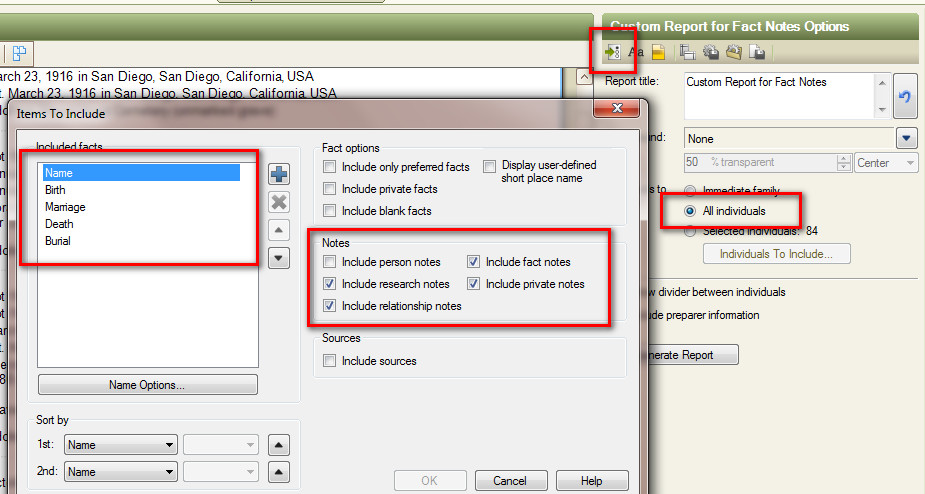
Need another Custom Report to see what work needs to be done. Will go to the Publish Space, Person Collection, and select Custom Report.

The first ICON in the Right Hand Panel, left end of that panel is the Items to Include ICON. Clicking on that will bring up the Items to Include Screen. In this case, the "default" Fact, Birth , Marriage, and Death facts will be selected, but will add Burial. To the right, the Fact Notes are checked. So, if there are any Name, Birth, Marriage, Death, and Burial Facts that have NOTE's will be included in the Report.


It may be overkill for this issue, but, I want to see all of the notes. In order to see the Notes in the  Fact information will be displayed.


The above example show some additional Notes, which is why I made the selections that I did. May have to review other facts later on, but this is still in the Clean Up mode.

This report was 7 pages long, but I know who I have to look at a little more closely for this, not so obvious, information.

Since this report appears to be of use, I want to Generate this Report later on to see how the Clean Up is doing.

With the Report still on the screen, looking in the RH Panel, far right ICON, is the Save Report Option. This will save this report in the Saved Report Menu. I named this report "Custom Report for Fact Notes, and the report name is in the bottom field, and added to the list of Saved Reports.


Lesson Learned: If you create a Custom Report or any Chart or Report that is helpful, use the Save Report Feature. 

Note: if Selected Individuals are part of the set up of the Report, remember to bring up again,port again, and re-do the Filtering that was done the first time. The key for me, is in the Naming of the Saved Report.


Copyright © 2011 by H R Worthington

File Sharing and Brick Walls - Part 9 - Burial Fact

While cleaning up the import of the GEDCOM file, I noted that there were not Cemeteries Listed. There were hints in the notes, that there were some Burial's where the cemetery was known. I for one, use burial information, as some headstones can provide clues to my research.

There was also a number of persons who had Notes for the Burial Fact.

Having done some testing in this area (GEDCOM between Roots Magic 4 and Family Tree Maker) I thought I knew what the problem was.

Take for example this entry:


It is noted that in the third column of numbers on the Burial Fact, there is a "1". That means that there is a Note for this Burial Fact.

Secondly, the Burial Fact, in the RH Panel only shows two fields, Date, and Place. Looking an the Help Menu in Family Tree Maker, it says:

If you have imported all or portions of your tree, you may need to edit many facts to correct information. For example, you may have recorded cemeteries in the Place field of the Burial fact. You can easily move the cemetery information to the Description field using the Fact Data Options dialog box.

So, we need to look at or Add the Description field for the Name of the Cemetery.

The advantage here is the ability to generate a Cemetery Report. I talked about there here:

How To Generate an Address Report

To change the Fact Properties, select the Fact, then Options, and in the Drop Down menu, Fact Properties.


The current Burial Fact Properties only will display Date / Place. Selecting Date / Place / Description will add the Description field.

Please note, that within FTM2012, the ability to Edit the Fact Sentence was added. Will leave that along for the moment.


The Description field was added, but there was no information in that field. Remembering my experience with Roots Magic 4 last year, I remembered that RM4 and FTM2011 don't "agree" on what do do with the Name of the Cemetery. RM4 uses an Address Field, while Family Tree Maker, according to the Help Menu uses the Description field for that. The Cemetery Report shows the advantage for that.


Noting that there is a "1" in the Notes column and selecting the Notes Tab, the "address" field and cemetery name is listed. Another Clean up task for this person. That is, moving the Nates information into the Description Field. Copy and Paste will do that.

A follow up post will describe how to generate a Custom Report to Identify what needs to be cleaned up.

Lesson Learned: How different genealogy programs handle the Burial Fact and where the Name of the Cemetery will appear.

I'll let Randy show the Roots Magic 4 View of the Burial Fact, if he so chooses.

Copyright © 2011 by H R Worthington

Print Friendly