This Blog entry is an update to one previously posts, with another way to Identify the Individual causing the problem on Import from Version 16 into Version 2009.
This blog entry is to help document a problem that was observed and resolved. The issue is that a Family File that was created in Version 16 could not be Imported into Version 2009. However, that same file WAS able to be opened in Version 2008. When attempting to open the Version 16 Family File, a noticeable slowness in the Analysis process was observed, then the Error message: #1 - Import Error failed because an unknown error occurred.
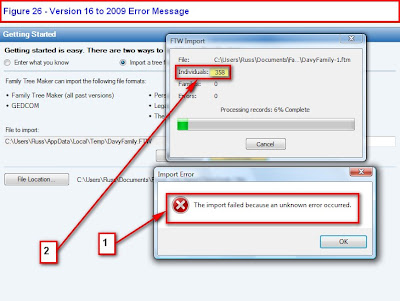 Figure 26
Moving the Error Message revealed that the process stopped at Individual 358. The normal process would be to run the Control (CTRL) + Alt + C (CA+C) File Compression utility would be run in Version 16 on this Family File, from any Family Page, and the CTRL+ALT+SHFT (Shift) + UpArrow (CAS+UpArrow) File Checker Utilitiy would be run. In this case, there were NO Errors. At this point, since there are no errors in the file, the need was to Identify the Individual #358.
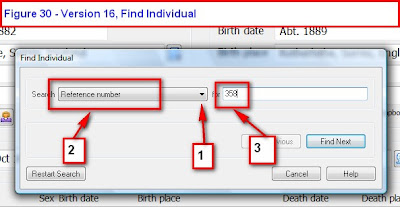
The Reference Number feature of Family Tree Maker will help you identify this individual. Since Version 16 is open click on Edit, Find Individual. A Find Individual window will open. #1 points to the Search Pull Down Menu. Select Reference Number (#2). Then enter the Individual number as indicated in number 2 of Figure 26 in the Right field (#3) on the window and click on Find Next.
 If you do NOT have the Reference Number feature turned On, you will see:
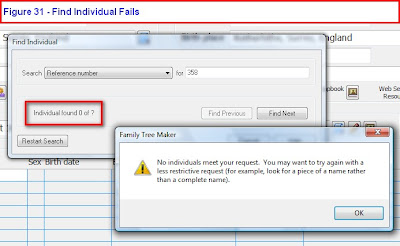 Figure 31
To Turn the Automatic Reference Number ON, click on File, Preferences, the Reference Numbers Tab and put a Check Mark next to Individuals. You may also want to put a check mark into Marriages as well.
Figure 31
To Turn the Automatic Reference Number ON, click on File, Preferences, the Reference Numbers Tab and put a Check Mark next to Individuals. You may also want to put a check mark into Marriages as well.
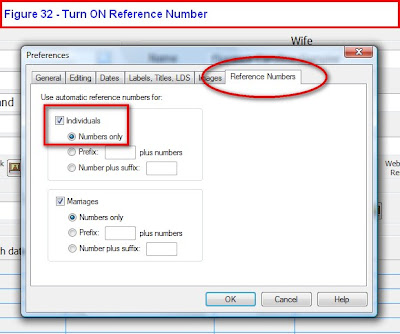
Figure 32
Return to the top of this article and repeat the steps. The result will be the individual's record that has a problem. If the Individual is found, please continue to the information below Figure 28.
Alternate Solution if the first doesn't work.
From Version 16, a GEDCOM file would need to be created to Identify that Individual. The File, Export File, Entire File and selecting a GEDCOM (GED) formatted file was created. Opening the GEDCOM file in a word processor, using the Find Command, and entering 358, identified that individual.
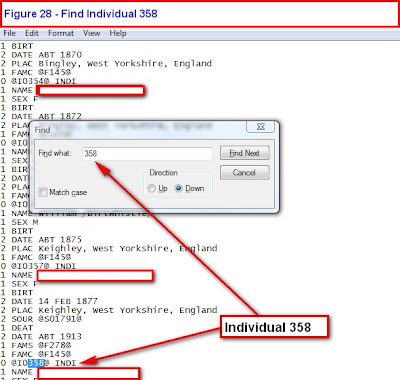 Figure 28
(note: there is no Figure 27)
For the sake of privacy, the names are not on this screen. Reopening Version 16, a Family Group Sheet for that individual should be printed. Deleting that Individual from the Version 16 Family File. This file was then re-opened in Version 2009. Reentering the data from the Version 16 Family Group Sheet completed the import of that file.
The cause of this record (Individual information) is unknown by this user.
A big thank you to a coupe other Family Tree Maker User's who have used both of these methods to resolve this problem.
To continue with Blog Entry Source-Citation figure 25 is a look at the Source Screen for the entry. Remember that this is a new file, with only one individual and information from one Web Merge.
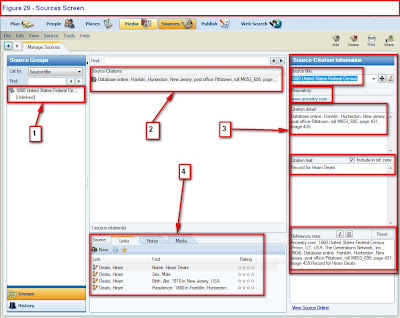 Figure 29
Note the Source button is hi-lited on the Family Tree Maker menu bar.
#1 Points to the Source. In this case, the 1860 Federal Census
#2 Is the Source-Citation that is seen in Figure 25 of Source-Citation. It further says that the 1860 Federal Census is for Franklin (Township), Hunterdon (County), New Jersey and the Source was from an Online Repository (where the source is located).
#3 Is the Source-Citation Information. The top box is the Source Title, 1860 United States Federal Citation. The Repository is at www.ancestry.com. The Citation Detail provides more details as to what the source-citation is. In this case it points to a Film, roll number, page number and Image number. The Citation text, indicates that the Source-Citation came from a search for the Hiram Deats record. The Reference Note is what will be in the EndNote when printed.
#4 Shows the 4 Facts that use this Source-Citation.
This blog entry is to help document a problem that was observed and resolved. The issue is that a Family File that was created in Version 16 could not be Imported into Version 2009. However, that same file WAS able to be opened in Version 2008. When attempting to open the Version 16 Family File, a noticeable slowness in the Analysis process was observed, then the Error message: #1 - Import Error failed because an unknown error occurred.
Figure 26
Moving the Error Message revealed that the process stopped at Individual 358. The normal process would be to run the Control (CTRL) + Alt + C (CA+C) File Compression utility would be run in Version 16 on this Family File, from any Family Page, and the CTRL+ALT+SHFT (Shift) + UpArrow (CAS+UpArrow) File Checker Utilitie would be run. In this case, there were NO Errors. At this point, since there are no errors in the file, the need was to Identify the Individual #358. From Version 16, a GEDCOM file would need to be created to Identify that Individual. The File, Export File, Entire File and selecting a GEDCOM (GED) formatted file was created. Opening the GEDCOM file in a word processor, using the Find Command, and entering 358, identified that individual.
Figure 28
(note: there is no Figure 27)
For the sake of privacy, the names are not on this screen. Reopening Version 16, a Family Group Sheet for that individual should be printed. Deleting that Individual from the Version 16 Family File. This file was then re-opened in Version 2009. Reentering the data from the Version 16 Family Group Sheet completed the import of that file.
The cause of this record (Individual information) is unknown by this user.
Documentation supporting the information in your family file is most important. After the Web Search and Web Merge was complete a review of what was added to the family file is next.
In this example, the web search included that the Birth Location was Hunterdon County, New Jersey. It had no Source-Citation in the file, as it was only the family story that said Hiram was from Hunterdon County. See Figure 18 of this post:
http://ftmuser.blogspot.com/2008/09/family-tree-maker-2009-people-person.html
Since that location was not documented, Right Clicking on the unwanted FACT and selecting Delete Fact, or clicking on the Red "X" just above and a little to the right of the word Preferred deleted that unwanted Fact.
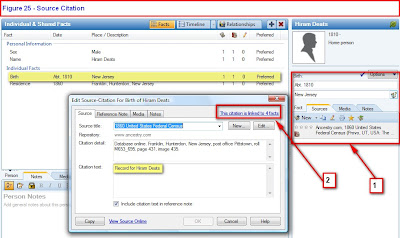 Figure 25
We will look at the new Birth Fact (hi-lited across the upper left portion of Figure 25. #1 on the Right is a summary of the Source-Citation for that Birth Fact. Double clicking on that Fact (in grey in #1) will bring up the Source-Citation screen.
In Figure 23 of article, Web Search Final, the full Source-Citation was in the bottom portion of that figure. The pop-up window (#2) here, it hnow that is presented in the Source-Citation screen for this Fact.
Two points of interest on this pop-up window, is 1) This citation is linked to 4 facts, and 2) the text that is hi-lited, which says "Record for Hiram Deats". This is mentioned because when another Individual has a FACT linked to this Source-Citation, you will see who was being searched when this Source was found. Works very nicely when an entire household is included in the Web Merge.
More on this in a later posting.
There is an Online Video on this topic on this website:
Figure 25
We will look at the new Birth Fact (hi-lited across the upper left portion of Figure 25. #1 on the Right is a summary of the Source-Citation for that Birth Fact. Double clicking on that Fact (in grey in #1) will bring up the Source-Citation screen.
In Figure 23 of article, Web Search Final, the full Source-Citation was in the bottom portion of that figure. The pop-up window (#2) here, it hnow that is presented in the Source-Citation screen for this Fact.
Two points of interest on this pop-up window, is 1) This citation is linked to 4 facts, and 2) the text that is hi-lited, which says "Record for Hiram Deats". This is mentioned because when another Individual has a FACT linked to this Source-Citation, you will see who was being searched when this Source was found. Works very nicely when an entire household is included in the Web Merge.
More on this in a later posting.
There is an Online Video on this topic on this website:
http://www.familytreemaker.com/Support/Tutorial2009/Tutorial2009.aspx
Selecting Sourcing.
Knowledge Base Article
Here is the beginning of a list of Web Pages that talk about Family Tree Maker OR are resources for this program.
- The Family Tree Maker Knowledge Base website for Versions 2008 and 2009: There are at least two ways to get there. The link at the beginning of this line and the Help, Online Help Center, within the Family Tree Maker program. There are articles are of interest. There is a Keyword search available to help locate a specific article.
- The Family Tree Maker Knowledge Base website for Versions, prior to Version 2008. This is a very good resource in the use of the Family Tree Maker program, of versions prior to 2008.
- The Genealogy.Com Learning Center. There are a number of articles dealing with the Family Tree Maker program as well as other Genealogy articles.
- The Family Tree Maker Home Page. There is a link to What is In Family Tree Maker, a link to an Interactive Training Tutorial, a link to Webinar's, and a link to purchase the program.
- Family Tree Maker Version history. This is an updated version of the next link
- Family Tree Maker version history. Of interest, this page provides the history of the various versions of the Family Tree Maker program.
- Family Tree Maker GenForums: A great place to search looking for User to User help with the Family Tree Maker program. It's important to understand that the Family Tree Maker links, on this page, will take you to specific GenForums to answer questions on specific aspects of the program. For example, if you have questions on how to use the Family Tree Maker program, the Family Tree Maker: Usage and How-To Questions Get the Most Out of Your FTM Software may be the place to start. Again, it is Users helping other Users. The first point for help, AFTER the Help Menu within the program, would be the Online Help Center / Knowledge Base website (#1 above)
- Ancestry.Com Family Tree Maker Message Board. This is another User to User message board for users of the Family Tree Maker program.
Both 8 and 9 have and option for you to be notified when someone replies to any question that you post there.
Other helpful websites will be included in this Blog as they are identified.
Now is the time to Merge the information from Ancestry.Com into the Family File.
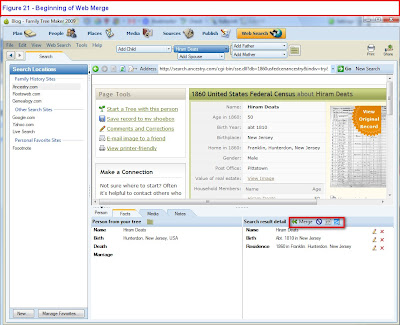 Figure 21
In the Lower Left Panel is the information in the Family File, the Lower Right Panel is the information in the Census and the information that will be merged into the Family File. (again, what is in the Right Panel is Census year specific).
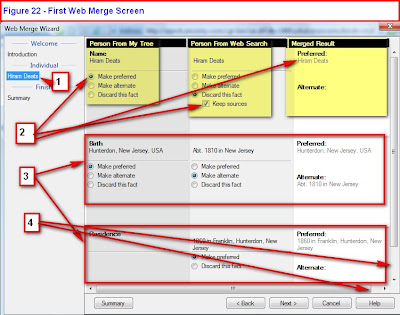 Figure 22
This is the First Screen of the Web Merge process. The Name is #1. From Figure 21, the Left and Right columns here are listed as Person from My Tree, Person from Web Search, and Merged Results. (#2) for the Name.
This continues with the Birth and Residence FACTs. There are suggestions as to what you want to do with the information. Residence (#4) is a New FACT. It will be added and marked as the Preferred FACT for Residence.
The BIrth FACT will be merged as shown in the right column of #3. This is OK for the Merge, for now.
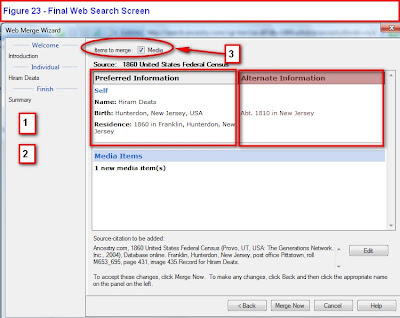 Figure 23
Depending on the number of items in the Web Merge, there may be a series of Figure 22 type of screen. Selections should be made or the default options allowed. This final screen is a summary of the previous screen, where the Preferred FACTs and the Alternate FACTs are listed. The Source-Citation information is listed there as well AND can be edited. #3 Shows that there is an image that will be merged. Clicking on Merge Now will complete this process.
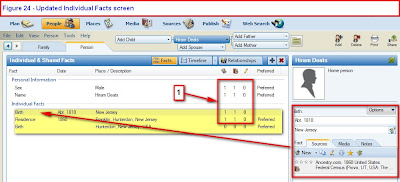 Figure 24
is the result of the Merge on the People, Person, FACTs screen. What is hi-lited is the various FACTs that were added. The Birth Fact is hi-lited (in gray) is what is in the Right Panel of this screen. Note the Source-Citation information.
#1 shows that there is 1 Source-Citation (first column), a 1 in the Image tab (second column), and no extra notes.
More details on what is here to follow.
In the first Web Search posting, Figure 15, #1, showed a View Original Image link. Clicking on that link brought up a screen, where the bottom of the page was the actual information on that image. Hiram and family are listed beginning at line 35.
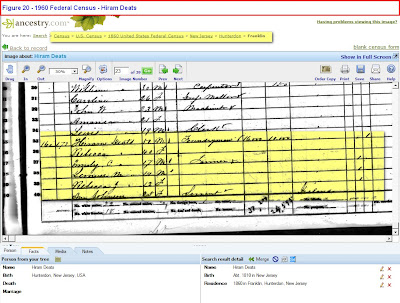 At this point,
Figure 20
Of interest is the last name, Johnson, Ann is listed as Servant.
We know that Hiram Deats was a Foundryman, Emily O. Deats a Farmer. Ages and other information are on the image.
This is the correct household for the Hiram Deats of this example. Using this Census, the Deats household will be merged into the Family File.


