With all of the talk about Ancestry Search, I thought I would share my experience with the features in the "new" search at Ancestry. I did this a while ago, couple of months perhaps, so that was before the new sliders.
I was trying to find Halsey C Brewster, born about 1897 in New York City. That is ALL I knew. My normal search strategy is to see if I can find my person in a Census Record, to help be identify the family and to help create a F.A.N. club. (Friends or Family, Acquaintance, and Neighbors).
Here is the "old search" settings where I entered what I knew.
That's what I knew. Yes, the screen is new, but I don't have an old search screen capture.
Here are my results from the Search.
Nothing. I normally don't use an exact year when I search, so I took advantage of the new Slider and loosened the Year.
There was one Census Record for him but when I looked at it, not my person.
What I like about the New Search is the ability to look at neighboring Counties or States. For example, those places where the County Line changed. Since my first search was all New York City county and boroughs, I selected adjacent States.
And the result was:
There he is in the 1900, 1910, and 1920 Census. His family had moved across the river some time between 1897 and 1899. Hadn't found his birth year yet, but looking at the census record, this was my person.
I do not think I would have found him in the old search. I can't prove that, but I have experienced this in the old search, where I couldn't find the person, because a border changed, or the family moved.
Needless to say, I like the new search. With the sliders on the results screen is a bonus. But, I like the control we have in the Edit Search screen.
One users opinion.
_______________________________________________________________
Copyright © 2014 by H R Worthington
These are notes from a Family Tree Maker User. With FTM2017 and FTM2019 the blog posts will apply to both the PC and the Mac Versions of the programs. Any differences will be noted
Sunday, March 9, 2014
Saturday, March 8, 2014
A Week Without Ancestry.com Challenge
My friend Bill West made this blog post and challenge the other day
A WEEK WITHOUT ANCESTRY.COM CHALLENGE
I like his idea, but more specifically what he has suggested in what you do in the mean time. Or what to do while you are not using Ancestry.com for that week, or as Michael John Neill suggests, a month.
Taking the time to clean up your database, using other web sites, Google Books, are great ideas.
I am, and have been for the past months, going back and doing just what you have suggested. Two major areas, Cleaning up my Citations to bring them into the Family Tree Maker template feature so they are Evidence Explained format. I have been blogging about that.
I have used another genealogy program, Evidentia! and have blogged about it in another blog
I mention this, because it is Evidence based and you start by really looking at your research material. For me, it was relooking at what I already have and taking the time to Cite my sources correctly. A couple of examples of taking this time are here.
That last one, I had nicely cited, but in reviewing the citation, I realized that there should have been two images.
As I am teaching at two local adult care centers in my area, I have shared with them my search strategy. In one case, I am doing a "Who Do You Think You Are?" type of class, BUT they get to help me with the research or final product. The real life version of WDYTYA.
Because I use FTM2014, have an Ancestry Member Tree (AMT), AMT's in my clase, I am very closely linked to Ancestry.com. BUT, I also use the other suggested sites that Bill West talked about.
As the image at the top of this blog post shows, I have 6,000 hints to work on. One at a time, gives me a little more information to fill in missing information. However, Ancestry.com doesn't have everything. Many times I find information on Ancestry, but need to look elsewhere to help fill in the blanks.
Unless Bill West will allow me to use the two weeks last year that I didn't have internet access for this Challenge, I'll have to postpone the Challenge until this summer, when our grandkids come to visit. Afterall, he didn't put a time frame on this Challenge.
_______________________________________________________________
Copyright © 2013 by H R Worthington
Thursday, March 6, 2014
FTM2014 - How to include a 2nd Image for a merged Record with two pages.
In an earlier blog post:
I verify that my household is on lines 1 - 6 and see that I am on the next image. I had also verified that I was on the correct page number from the Citation, in the upper right of the image.
At the top of the image is a Save button, clicking on that will allow me to Download that image to my computer.
I note the filename of that image, so I can find it on my computer. That isn't hard because I have my default download location in my Browser to be a Download Folder on my computer
The media file is now on my computer in the Download Folder.
Back to Family Tree Maker, still on the Citation, I click on the Media Tab, and the New button to add that new media file.
I navigate to my Download Folder and select that image I just downloaded
_______________________________________________________________
Copyright © 2014 by H R Worthington
FTM2014 - What goes where in a Source Template?
I had this in the Citation Details field.
Baltimore Ward 11; Page 79 and 80; dwelling number 436; family number 546; Lines 39 and 40, 1 - 6; William Howard household; Image: 83; Family History LIbary Film: 552075; accessed 01 Jul 2011That indicated that there were TWO (2) pages or Media Files (Census Images). In this blog post
FTM2014 - Webmerge, Citation Clean Up
Only ONE media file was included in the Web Merge. One of the reasons for spending time with the Citation (Citation Details) is to pick up the fact that the Household was on two pages or two Media files. That is probably a negative for working with the Household and a Citation. The next step is to go back and get that 2nd image.
In the Sources Workspace, and the Citation for that Census record, in the bottom right is a View Source Online. This is where that link comes in very handy. There is another link in the Web Address as well, but I really like the View Source Online. That tells me that I used the Web Merge feature in Family Tree Maker and that it wasn't a hand entered Citation.
This will return me to the Source in a browser window. Since I have the information I need or want, from the first time I looked at the image, I clicked on the View Original Image link.
At the bottom of this image is the image number and arrows that will let you go back an image or on to the next image. I want the Next image.
I verify that my household is on lines 1 - 6 and see that I am on the next image. I had also verified that I was on the correct page number from the Citation, in the upper right of the image.
At the top of the image is a Save button, clicking on that will allow me to Download that image to my computer.
I note the filename of that image, so I can find it on my computer. That isn't hard because I have my default download location in my Browser to be a Download Folder on my computer
The media file is now on my computer in the Download Folder.
I navigate to my Download Folder and select that image I just downloaded
An window opens to ask what you want to do, and into what category do you want that media file to be put in.
I use the COPY option for two reasons. 1) all of the media files into ONE Folder that I have in my Family Tree Maker file, and 2) I have a back up of that file, that I will move to a Surname folder, elsewhere on my computer. I will deal with that later. The "Link" option just creates a link that media file. If you were to Move that media file, Family Tree Maker would loose the link to that media file.
Note: If I were to share this file, and had to use the GEDCOM option to share, I could Zip the Media Folder where all of the media files are for this family file, send the GEDCOM and the Zipped file to the other person. The GEDCOM had links to those media files, so the receiving genealogy database management program could open the GEDCOM file, and the Zipped file gets unzipped by that person, the file and media files would be in that other program.
Now this Citation has both pages of that Census Record.
Copyright © 2014 by H R Worthington
Wednesday, March 5, 2014
Find A Grave App Now Available in the Apple Store
An announcement from Ancestry.com
As promised, we have recently released the first version of the Find A Grave mobile app.
First of all, it’s free, just like Find A Grave. With the app, you’ll
be able to bring the most important aspects of Find
A Grave with you. You can see cemeteries near you or around the world,
search for loved ones by name, take photos for existing memorials, or
add new ones right from the app. The app is beautiful and contains rich
photos, and all of the memorial details that
the website has, but with a modern view of the Find A Grave brand. One
aspect of Find A Grave that I’ve always loved, is the ability to
request photos and take photos for others. Not strictly required, I
think this aspect of Find A Grave captures some of
the best community spirit, and so we made sure to get this in our first
release. As a logged in user, you can request photos for memorials,
just like on the website, and the network of volunteers can see those
requests and fulfill them directly, or claim
them, in order to help plan their next cemetery outing.
For a list of features, I’d direct you to our
glossy product page,
but I did want to point out a few things before I go. First, this
release is just the beginning and we have a road map of features for our
users which will
keep the Find A Grave mobile app improving over time. Second, we’re
linking the Find A Grave mobile app to Ancestry’s peerless support team
to make sure our users get the help they need in a timely fashion.
Finally, we are planning our Android App as well,
and though I don’t have a release date Android is certainly not
forgotten.
Visit our product page for more information:
http://www.findagrave.com/mobileapp
Try the app today and let us know what you think!
https://itunes.apple.com/app/id732952190?mt=8&&referrer=click%3D2589a04c-c533-4180-a4a0-dc061d0af633
Find A Grave App Team
Note: I have downloaded the APP and it works as expected. Haven't gone to a cemetery yet, as we still have about a foot of snow on the ground, but I found the navigation was easy and screens clear. Can't wait to get out and take some pictures.
Tuesday, March 4, 2014
FTM2014 - What goes where in a Source Template?
I am going to try to explain what information goes where, using the Family Tree Maker Template Feature.
The first item that I had to learn is that a Source and a Citation are two different things. The program, and many others, "Source Citation" as a term. But to understand the Template feature, we need to break them apart.
My understanding of these two terms is that a Source is a container of Information. A book, a record, a picture. The Citation provides more detailed information about the Claim or Assertion that is made within that Source. Family Tree Maker uses the term "Fact" to represent the Claim or Assertion.
This Source claims that something happened on this date at this place and is found on page ### of this Book.
Lets take an 1870 Federal Census Record that was found on Ancestry.com. Where the Source is found and what exactly I am looking at, plays a role in defining the "Source".
Here is a link to the Evidence Explained website, for the QuickCheck Model for Microfilm: Population Schedules, 1850 - 1870.
It has the First (Full) Reference Note in the center of that page. Within Family Tree Maker, there is also a field called Reference Note. The trick, for me, is to get those two "Reference Notes" to have the same information in them.
We are trying to fill in these blanks:
The First Full Reference Note has more information which more clearly defines the claims (Facts) that I got from that Source.
Here is the same information from Ancestry.com, that I need to fill in those other 4 fields. (in red)
To help me fill in those blanks, I put in the Comments of that Source (Template) screen this information.
That is the information in the Citation Detail field.
Since the Head of Household is already in the Citation Detail, I also enter it into the Citation Text field and other notes that I might want to make. BUT, I remove the Check Mark to the right of the Citation Text field and since I usually pick up the Web Address, I also do not include that in the Reference Note.
Here is what the Reference Note looks like.
Please note that the order of the location is not the same, but the information is the same. The Census ID and the Schedule are not in the same order, but it is there.
The beauty of the Template feature is the consistency of the EndNotes or Reference Notes.
I go through this same process for each type of record that I use in Family Tree Maker. Look at the First Full Reference Note in Evidence Explained. Look at that record (Source) screen and understand what is Source Information and what is Citation (Citation Detail) information. Then create that short cut that I copy and paste from the Source Comment field, to update the Citation Detail field to complete the Family Tree Maker Reference Note.
Lesson Learned: Spend time understanding Evidence Explained, by Elizabeth Shown Mills and the Family Tree Maker Template Feature.
The book, Evidence Explained has been a very worthwhile investment to have on my desk. The Evidence Explained website and Facebook Group page are very worthwhile resources on this topic.
_______________________________________________________________
Copyright © 2014 by H R Worthington
The first item that I had to learn is that a Source and a Citation are two different things. The program, and many others, "Source Citation" as a term. But to understand the Template feature, we need to break them apart.
My understanding of these two terms is that a Source is a container of Information. A book, a record, a picture. The Citation provides more detailed information about the Claim or Assertion that is made within that Source. Family Tree Maker uses the term "Fact" to represent the Claim or Assertion.
This Source claims that something happened on this date at this place and is found on page ### of this Book.
Lets take an 1870 Federal Census Record that was found on Ancestry.com. Where the Source is found and what exactly I am looking at, plays a role in defining the "Source".
Here is a link to the Evidence Explained website, for the QuickCheck Model for Microfilm: Population Schedules, 1850 - 1870.
It has the First (Full) Reference Note in the center of that page. Within Family Tree Maker, there is also a field called Reference Note. The trick, for me, is to get those two "Reference Notes" to have the same information in them.
We are trying to fill in these blanks:
- Census ID
- Jurisdiction
- Schedule
- Civil Division
- Page ID
- Household ID
- Person(s) of Interest
- Film ID
For me to understand this, the first four items (in blue) define the Source. The last four items (in red) define the Citation. (Container and where the information came from)
So, what does this look like in Family Tree Maker?
I selected the Template for the US Population Schedule for 1850-1870, by Census Year and Location. This example has been filled in:
- Census Year = 1870
- State = Maryland
- County = Baltimore County
- Publication number = M593
- File roll number = 576
- Website title = Ancestry.com
- Database publisher = Ancestry.com Operations, Inc
- Publisher location = Provo, Utah
- Database year = 2009
- URL = http://www.ancestry.com
All of this information came from the Ancestry.com website:
Source Citation: Year: 1870; Census Place: Baltimore Ward 11, Baltimore, Maryland; Roll: M593_576; Page: 40A; Image: 83; Family History Library Film: 552075.
I picked up the data in blue for the Source fields above. The template tells me what I am looking at and where I got it from much like the First Full Reference Note.Source Information:Ancestry.com. 1870 United States Federal Census [database on-line]. Provo, UT, USA: Ancestry.com Operations, Inc., 2009. Images reproduced by FamilySearch.Original data:1870 U.S. census, population schedules. NARA microfilm publication M593, 1,761 rolls. Washington, D.C.: National Archives and Records Administration, n.d.
The First Full Reference Note has more information which more clearly defines the claims (Facts) that I got from that Source.
Here is the same information from Ancestry.com, that I need to fill in those other 4 fields. (in red)
That is the information that needs to be entered into the Citation Detail of the Citation screen in Family Tree Maker.Source Citation: Year: 1870; Census Place: Baltimore Ward 11, Baltimore, Maryland; Roll: M593_576; Page: 40A; Image: 83; Family History Library Film: 552075.Source Information:Ancestry.com. 1870 United States Federal Census [database on-line]. Provo, UT, USA: Ancestry.com Operations, Inc., 2009. Images reproduced by FamilySearch.Original data:1870 U.S. census, population schedules. NARA microfilm publication M593, 1,761 rolls. Washington, D.C.: National Archives and Records Administration, n.d.
To help me fill in those blanks, I put in the Comments of that Source (Template) screen this information.
[ civil division ]; Page __; dwelling number _; family number _; Lines _ - _; [ person of interest ] household; accessedI need to pick up:
- Civil Division = Baltimore Ward 11
- Page = 79
- Household ID = dwelling number 436, family number 546
- Person of Interest = William Howard
That is the information in the Citation Detail field.
Since the Head of Household is already in the Citation Detail, I also enter it into the Citation Text field and other notes that I might want to make. BUT, I remove the Check Mark to the right of the Citation Text field and since I usually pick up the Web Address, I also do not include that in the Reference Note.
Here is what the Reference Note looks like.
1870 U.S. census, population schedule, Maryland, Baltimore County, Baltimore Ward 11; Page 79 and 80; dwelling number 436; family number 546; Lines 39 and 40, 1 - 6; William Howard household; Image: 83; Family History Libary Film: 552075; accessed 01 Jul 2011; NARA microfilm publication M593, roll 576; digital image, Ancestry.com (www.ancestry.com).You will notice that this household was on two pages, 79 and 80, lines 39 and 40 on page 79, and lines 1 through 6 on page 90.
Please note that the order of the location is not the same, but the information is the same. The Census ID and the Schedule are not in the same order, but it is there.
The beauty of the Template feature is the consistency of the EndNotes or Reference Notes.
I go through this same process for each type of record that I use in Family Tree Maker. Look at the First Full Reference Note in Evidence Explained. Look at that record (Source) screen and understand what is Source Information and what is Citation (Citation Detail) information. Then create that short cut that I copy and paste from the Source Comment field, to update the Citation Detail field to complete the Family Tree Maker Reference Note.
Lesson Learned: Spend time understanding Evidence Explained, by Elizabeth Shown Mills and the Family Tree Maker Template Feature.
The book, Evidence Explained has been a very worthwhile investment to have on my desk. The Evidence Explained website and Facebook Group page are very worthwhile resources on this topic.
_______________________________________________________________
Copyright © 2014 by H R Worthington
Monday, March 3, 2014
FTM2014 - Webmerge, Citation Clean Up
Clean Up work is what I do following a Web Merge from Ancestry.com, specifically in the area of the Citation. The results in the Source Workspace and the specific Citation, does not meet the Evidence Explained format. At least in my opinion.
I have blogged about this before, but it's confusing so I am going to take another stab at it.
Family Tree Maker has a Template Feature that will have an Evidence Explained citation or Reference Note that is very close to the Reference Note from Evidence Explained. So here is what I do.
Here is a 1940 Census Record that is for a person in my family file. I look at the transcribed information to make sure that it is correct. I compare the lower Left and lower Right boxes to make sure that I am going to merge this record (lower Right) to my person (lower Left)
Looks good so far.I want to look at the image and gather MORE information from the image that won't appear in the merge, so I click on the Print Friendly Link on the Left.
I Print, on paper, that screen. I then look at the image, collect ALL of the information that I want and WRITE it on the printed sheet. I especially write the information at the top of the IMAGE, Enumeration District, Page number, Date that the Census was taken AND the LINE Number(s) for the person or household. I will use that hand written information later.
I walk through the Merge Process (NOT covered in this blog post, but elsewhere) and look at the Summary screen,, to make sure that there is a check mark in the Include Image (top of that screen), then click on Merge.
When the merge is complete and after I close the small window at the end of the Web Merge, I immediately click on the Sources Workspace.
This is the Ancestry Citation for that merge.
The Reference Note would look like this if I uncheck the Citation Text and the Web Link on the right.;
In the upper right, is an ADD ICON, which will bring up an Add Source screen. That pop up window is the Free Form Source screen.
We then need to select the Template that we want. Clicking on New on the above screen will bring up a window where you can enter 3 Characters for the type of document you have in your hand. In this case, we want to move a free form Census record to a Template for a Population Schedule, United States, 1880 - 1940 Census Record. I have chosen by Census Year, and by Location.
This will bring up the screen to "fill in the blanks" that is required for the SOURCE.
The only comment about this screen is that I add "County" on the County field on this screen. The other information is on that printed sheet of paper that I wrote on. When you click OK, this next screen appears.
I want to CANCEL this screen because I already have a Citation (the one from Ancestry.com that is not in the right format).
In the Sources Workspace, I now have two 1940 Census. I selected the one from Ancestry on the Left, and on the right, there is a pull down arrow which is where I select the newly created Template Source and select that.
This MOVES the free form citation into the template format. The upper right will give you an indication that this citation is in the Source Template. On the Right, there is a Gold Star also showing that this source is using a Template.
BUT we are NOT done. The SOURCE is in the right format, but the Citation is NOT.
When I created this Census Source, I pasted this information in the Comments for that Source:
I uncheck the Citation text and uncheck the weblink as I don't want that in the Reference note.
One of the reasons for doing this is, as that View Source Online link in the lower right corner of that Citation. I can click on that link and go directly to that Citation online at Ancestry.com. Yes, I also have the Image of that Census Record in my file, in the Citation Media tab.
The real reason for this extra work is the Output, or End Notes in any report or chart.
Here is the Ancestry version if the End Note:
_______________________________________________________________
Copyright © 2014 by H R Worthington
I have blogged about this before, but it's confusing so I am going to take another stab at it.
Family Tree Maker has a Template Feature that will have an Evidence Explained citation or Reference Note that is very close to the Reference Note from Evidence Explained. So here is what I do.
Here is a 1940 Census Record that is for a person in my family file. I look at the transcribed information to make sure that it is correct. I compare the lower Left and lower Right boxes to make sure that I am going to merge this record (lower Right) to my person (lower Left)
Looks good so far.I want to look at the image and gather MORE information from the image that won't appear in the merge, so I click on the Print Friendly Link on the Left.
I Print, on paper, that screen. I then look at the image, collect ALL of the information that I want and WRITE it on the printed sheet. I especially write the information at the top of the IMAGE, Enumeration District, Page number, Date that the Census was taken AND the LINE Number(s) for the person or household. I will use that hand written information later.
I walk through the Merge Process (NOT covered in this blog post, but elsewhere) and look at the Summary screen,, to make sure that there is a check mark in the Include Image (top of that screen), then click on Merge.
When the merge is complete and after I close the small window at the end of the Web Merge, I immediately click on the Sources Workspace.
This is the Ancestry Citation for that merge.
The Reference Note would look like this if I uncheck the Citation Text and the Web Link on the right.;
Ancestry.com, 1940 United States Federal Census (Provo, UT, USA, Ancestry.com Operations, Inc., 2012), Ancestry.com, Year: 1940; Census Place: Sutton, Merrimack, New Hampshire; Roll: T627_2294; Page: 2B; Enumeration District: 7-67.This, I don't think, meets the Evidence Explained format. I need to MOVE this Free Form Source to the Template Source screen, remembering that the Template only deals with the information about the SOURCE.
In the upper right, is an ADD ICON, which will bring up an Add Source screen. That pop up window is the Free Form Source screen.
We then need to select the Template that we want. Clicking on New on the above screen will bring up a window where you can enter 3 Characters for the type of document you have in your hand. In this case, we want to move a free form Census record to a Template for a Population Schedule, United States, 1880 - 1940 Census Record. I have chosen by Census Year, and by Location.
This will bring up the screen to "fill in the blanks" that is required for the SOURCE.
The only comment about this screen is that I add "County" on the County field on this screen. The other information is on that printed sheet of paper that I wrote on. When you click OK, this next screen appears.
I want to CANCEL this screen because I already have a Citation (the one from Ancestry.com that is not in the right format).
In the Sources Workspace, I now have two 1940 Census. I selected the one from Ancestry on the Left, and on the right, there is a pull down arrow which is where I select the newly created Template Source and select that.
This MOVES the free form citation into the template format. The upper right will give you an indication that this citation is in the Source Template. On the Right, there is a Gold Star also showing that this source is using a Template.
BUT we are NOT done. The SOURCE is in the right format, but the Citation is NOT.
When I created this Census Source, I pasted this information in the Comments for that Source:
[ civil division ]; enumeration district [ __ - __ ]; sheet number [ ___ ]; house number _; [ street name ]; family number _ ; Lines _ - _; [ person of interest ] household; accessedAfter studying the information that is needed from Evidence Explained, I have determined that the above information needs to be entered into the Citation Detail. I copy and INSERT that information into the Citation detail box and edit it based on that printed piece of paper and hand written notes.
I uncheck the Citation text and uncheck the weblink as I don't want that in the Reference note.
To help me out, I copy the information from the Web Search Window about the Ancestry citation information into the Citation Notes tab.
This information is just for me. It does help me fill in the "blanks" in the Citation Detail field.Source Citation: Year: 1940; Census Place: Sutton, Merrimack, New Hampshire; Roll: T627_2294; Page: 2B; Enumeration District: 7-67.Source Information:Ancestry.com. 1940 United States Federal Census [database on-line]. Provo, UT, USA: Ancestry.com Operations, Inc., 2012.Original data: United States of America, Bureau of the Census. Sixteenth Census of the United States, 1940. Washington, D.C.: National Archives and Records Administration, 1940. T627, 4,643 rolls.Description:The 1940 United States Federal Census is the largest census released to date and the most recent census available for public access. The census gives us a glimpse into the lives of Americans in 1940, with details about a household’s occupants that include birthplaces, occupations, education, citizenship, and income.
One of the reasons for doing this is, as that View Source Online link in the lower right corner of that Citation. I can click on that link and go directly to that Citation online at Ancestry.com. Yes, I also have the Image of that Census Record in my file, in the Citation Media tab.
The real reason for this extra work is the Output, or End Notes in any report or chart.
Here is the Ancestry version if the End Note:
Ancestry.com, 1940 United States Federal Census (Provo, UT, USA, Ancestry.com Operations, Inc., 2012), Ancestry.com, Year: 1940; Census Place: Sutton, Merrimack, New Hampshire; Roll: T627_2294; Page: 2B; Enumeration District: 7-67.Here is the Evidence Explained or Template Reference Note
1940 U.S. census, population schedule, New Hampshire, Merrimack County, Sutton; enumeration district 7-67; sheet number 2B; house number not listed; street name not listed; visit number 45; Lines 72 - 73; Nathan A Sterns household; accessed 03 Mar 2014; NARA microfilm publication T627, roll 2294; digital image, Ancestry.com (http://www.ancestry.com).There are a couple of minor differences between Evidence Explained and this Reference Note and that is the order that some of the information is presented. BUT the information is there. The other benefit is that the Citations / Reference Notes will be consistent.
_______________________________________________________________
Copyright © 2014 by H R Worthington
Wednesday, February 19, 2014
FTM2014 - Update Patch
FTM2014 has a new patch to Product Version 22.0.0.1260 for me 64 bit computer.
Before I accept the patch, I do a Tools, Compact File, including creating a Back Up, then click on the Help Menu, select Check Updates and follow the screens for the update.
You will note that the Software Registration screen will automatically appear, and you should follow those instructions. Once updated, Family Tree Maker will close and automatically re-open to where you left off.
Clicking on the Help Menu, then About Family Tree Maker you will see the Product Version number.
NOTE: About this update
This update contains important improvements to Family Tree Maker 2014 (64-bit).
This important update includes the following in response to reported issues:
1. TreeSync improvements
2. General bug fixes
It is important to install this update.
_______________________________________________________________
Copyright © 2014 by H R Worthington
Before I accept the patch, I do a Tools, Compact File, including creating a Back Up, then click on the Help Menu, select Check Updates and follow the screens for the update.
You will note that the Software Registration screen will automatically appear, and you should follow those instructions. Once updated, Family Tree Maker will close and automatically re-open to where you left off.
Clicking on the Help Menu, then About Family Tree Maker you will see the Product Version number.
NOTE: About this update
This update contains important improvements to Family Tree Maker 2014 (64-bit).
This important update includes the following in response to reported issues:
1. TreeSync improvements
2. General bug fixes
It is important to install this update.
_______________________________________________________________
Copyright © 2014 by H R Worthington
Tuesday, February 18, 2014
FTM2014 - One Hint at a Time
I recently did a blog post FTM2014 - Managing Shaky Leaves / Hints - ToDo List. To follow up on that post I started with a female with a 1940 US Census Record. As I mentioned, I usually follow them first to help identify families and their relationships.
The first person with a 1940 Census was Maude H Lamar, with the Census in Kansas City, Missouri. Right of, I wasn't sure, as the family stayed pretty close to New Jersey, but I needed to follow this hint.
This record doesn't look right, as Lamar was Maude's birth Surname and this record showed a Married Surname. I had enough information in my file, (on the left) what indicated that she married a Williams, first name not known. Not going to do anything to this hint yet.
The next hint was a Church Record. This is close for the Birth year, but looking at the Parents, not the right person. Again, not going to do anything with this hint either.
No, I do have the option to Ignore these two hints, which I did in both cases. Clicking on that ICON will indicate that I looked at these two records and have determined that it's not the right record.
Back to the ToDo / Task List I want to make a note that I looked at these to hints, but am not going to do anything with them at this time.
I put a check mark in the completed check box, but did NOT make the Priority Low, as I may still want to look at these two records in the future, as more information becomes available.
I do update the Research Log for this person. This is in the Notes Tab, but the 2nd ICON that says Research Log. I dated the entry with two notes.
18 Feb 2014
HINT: Pennsylvania, Church and Town Records - Location appears to be right, but Parents Names: A C Lamar and Mary C do not appear to be correct
HINT: 1940 United States Federal Census - Does not appear to be the right Maude H Lamar - Married Name and Birth Location not consistent
Remembering that the Church Record was in the right place at about the right time, I looked to see if I have another Maude in my database, and I do. She too has Hints, but no church related hints. Then I looked at her parents names and I see A C Lamar and Mary C Strang. That looks right.
I return to the Web Search Workspace, for the Maude H Lamar and select the other Maude Lamar from the Index.
This will move this 2nd Maude into the Lower Left box (my information) so that I can compare my information with that of Ancestry.com
This is the right Maude. The spelling of her name is without an "e" in the Church Record and has a middle name of Helena. This makes some sense, as Maude H Lamar and Maude Helena Lamar are 1st cousins.
I merge the records. That is the Church Record to Maude Lamar, now Maud Helena Lamar. In the first Merge Screen, I selected the Ancestry name as the Preferred Name, but keeping Maude Lamar as an Alternate name, properly cited.
The other merge screens were followed and the Media file, the image of that page in the church record were included in the merge.
I now can go back to the Maude H Lamar with the Hint, show it complete, and change the priority to Low, as I have completed that hint.
I updated the Research log to:
Still have not completed or resolved that 1940 Census Record.
_______________________________________________________________
Copyright © 2014 by H R Worthington
The first person with a 1940 Census was Maude H Lamar, with the Census in Kansas City, Missouri. Right of, I wasn't sure, as the family stayed pretty close to New Jersey, but I needed to follow this hint.
This record doesn't look right, as Lamar was Maude's birth Surname and this record showed a Married Surname. I had enough information in my file, (on the left) what indicated that she married a Williams, first name not known. Not going to do anything to this hint yet.
The next hint was a Church Record. This is close for the Birth year, but looking at the Parents, not the right person. Again, not going to do anything with this hint either.
No, I do have the option to Ignore these two hints, which I did in both cases. Clicking on that ICON will indicate that I looked at these two records and have determined that it's not the right record.
Back to the ToDo / Task List I want to make a note that I looked at these to hints, but am not going to do anything with them at this time.
I put a check mark in the completed check box, but did NOT make the Priority Low, as I may still want to look at these two records in the future, as more information becomes available.
I do update the Research Log for this person. This is in the Notes Tab, but the 2nd ICON that says Research Log. I dated the entry with two notes.
18 Feb 2014
HINT: Pennsylvania, Church and Town Records - Location appears to be right, but Parents Names: A C Lamar and Mary C do not appear to be correct
HINT: 1940 United States Federal Census - Does not appear to be the right Maude H Lamar - Married Name and Birth Location not consistent
Remembering that the Church Record was in the right place at about the right time, I looked to see if I have another Maude in my database, and I do. She too has Hints, but no church related hints. Then I looked at her parents names and I see A C Lamar and Mary C Strang. That looks right.
I return to the Web Search Workspace, for the Maude H Lamar and select the other Maude Lamar from the Index.
This will move this 2nd Maude into the Lower Left box (my information) so that I can compare my information with that of Ancestry.com
I merge the records. That is the Church Record to Maude Lamar, now Maud Helena Lamar. In the first Merge Screen, I selected the Ancestry name as the Preferred Name, but keeping Maude Lamar as an Alternate name, properly cited.
The other merge screens were followed and the Media file, the image of that page in the church record were included in the merge.
I now can go back to the Maude H Lamar with the Hint, show it complete, and change the priority to Low, as I have completed that hint.
I updated the Research log to:
I also added a new ToDo / Task to Maud Helena Lamar to clarify her correct Name. I was given Maude Lamar but the Church Record shows Maud Helena Lamar. Will need to resolve that "conflict".18 Feb 2014The Church Record below, actually belongs to Maude Lamar, daughter of Alonzo Cordovia Lamar and Mary C StrangHINT: Pennsylvania, Church and Town Records - Location appears to be right, but Parents Names: A C Lamar and Mary C do not appear to be correctHINT: 1940 United States Federal Census - Does not appear to be the right Maude H Lamar - Married Name and Birth Location not consistent
Still have not completed or resolved that 1940 Census Record.
_______________________________________________________________
Copyright © 2014 by H R Worthington
FTM2014 - Managing Shaky Leaves / Hints - ToDo List
I have been trying to determine how to Manage the many Hints that I see in my family files. Those shaky leaves keep growing as I enter new information into my Family File. They can become overwhelming. I thought I would share the way that I am currently managing them.
It my be important to understand how I generally do research. If I am trying to re-create a Family Group or the relationships between people within my file, I generally start with Census Records; then go to Find-A-Grave, as there are dates, and perhaps relationships, and places where these people may have resided. Then I go to Military Records, Obituaries, and Newspaper articles to round out my order of records.
Starting in the People Workspace, Tree View, I see (below) 4 generations back from the Home Person.
When looking at shaky leaves, I want to capture the hints so that I can create a Research Plan for those records. Also, for the most part, I only try to capture those hints in my direct line. I have found that I can become distracted but ALL of the hints that may appear.
I have blurred the names, but this is a direct line from the home person. 4 of the people have the Shaky Leaves, so they are the people that I want to track.
Selecting the top person, in the 3rd generation, I see this:
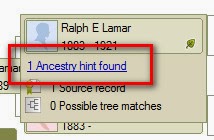
Hovering over the Shaky Leaf, I see that there is 1 Ancestry hint found, on one Source Record. Clicking on that link, I am taken from the People Workspace, Tree View, to the Web Search Workspace.
This happens to be a 1900 United States Federal Census Record. I selected it, NOT to look at the record, but to just compare MY information, in the Lower Left part of the screen, to what Ancestry has, for this person in that Census Record.
A quick glance shows that this is my person. I do NOT go any further I am just trying to develop a research plan.
I copy, by hi-lighting, the Record name and CTRL+C (to copy) that record name, then return to the People Workspace, Person View, where I see this persons Facts.
I select Tasks in the menu bar below the facts, and New, where the New Task window appears.
I then Paste (CTRL+V) that Record into the Description field. I created a Hints Category for this work, so I selected that in the "Edit" menu and leave the Priority to be Medium. and click OK.
So this person has one Task or ToDo item below the Facts.
The Categories help organize the ToDo list in the Plan Workspace for sorting and filtering.
I use High Priority for File Notes, Medium Priority for Person Tasks, and Low Priority for Completed Tasks.
This list can be Sorted by clicking on the Task Description. The above example has a series of Census Records that I want to look at, sorted by Census Year, because I did that Copy / Paste from the Web Search Workspace.
Once I have completed the ToDo / Task List, I will work down from any 1940 US Census Records down to the 1850 Census Records. Then I'll move on to any Find-A-Grave, Military, Newspaper hints as I find them. But will stick to Direct Line Ancestors.
This specific family file has a number of City Directory Hints, which I will probably work on after the Census Records.
There is another reason that I have found that is very helpful. Working with record groups makes using the Source Template feature easier for me. That is, the data entry of Citations for that type of record easier. Once that first record is entered, as a Source Template, then completing the Citation Detail and Citation Text, the next entries become easier.
If I ever run out of hints, I can then look at hints from other people in the tree.
I should point out, that I do all of this within FTM2014. That includes the Web Merging, from those hints, the clean up after that, which I have discussed before, making sure that the Sources are using the Template feature, that I have Fact Notes, captured all of the data I want from the record group, and that the Media files have citations, as described in other posts.
_______________________________________________________________
Copyright © 2014 by H R Worthington
It my be important to understand how I generally do research. If I am trying to re-create a Family Group or the relationships between people within my file, I generally start with Census Records; then go to Find-A-Grave, as there are dates, and perhaps relationships, and places where these people may have resided. Then I go to Military Records, Obituaries, and Newspaper articles to round out my order of records.
Starting in the People Workspace, Tree View, I see (below) 4 generations back from the Home Person.
When looking at shaky leaves, I want to capture the hints so that I can create a Research Plan for those records. Also, for the most part, I only try to capture those hints in my direct line. I have found that I can become distracted but ALL of the hints that may appear.
I have blurred the names, but this is a direct line from the home person. 4 of the people have the Shaky Leaves, so they are the people that I want to track.
Selecting the top person, in the 3rd generation, I see this:
Hovering over the Shaky Leaf, I see that there is 1 Ancestry hint found, on one Source Record. Clicking on that link, I am taken from the People Workspace, Tree View, to the Web Search Workspace.
This happens to be a 1900 United States Federal Census Record. I selected it, NOT to look at the record, but to just compare MY information, in the Lower Left part of the screen, to what Ancestry has, for this person in that Census Record.
A quick glance shows that this is my person. I do NOT go any further I am just trying to develop a research plan.
I copy, by hi-lighting, the Record name and CTRL+C (to copy) that record name, then return to the People Workspace, Person View, where I see this persons Facts.
I select Tasks in the menu bar below the facts, and New, where the New Task window appears.
I then Paste (CTRL+V) that Record into the Description field. I created a Hints Category for this work, so I selected that in the "Edit" menu and leave the Priority to be Medium. and click OK.
So this person has one Task or ToDo item below the Facts.
The Categories help organize the ToDo list in the Plan Workspace for sorting and filtering.
I use High Priority for File Notes, Medium Priority for Person Tasks, and Low Priority for Completed Tasks.
This list can be Sorted by clicking on the Task Description. The above example has a series of Census Records that I want to look at, sorted by Census Year, because I did that Copy / Paste from the Web Search Workspace.
Once I have completed the ToDo / Task List, I will work down from any 1940 US Census Records down to the 1850 Census Records. Then I'll move on to any Find-A-Grave, Military, Newspaper hints as I find them. But will stick to Direct Line Ancestors.
This specific family file has a number of City Directory Hints, which I will probably work on after the Census Records.
There is another reason that I have found that is very helpful. Working with record groups makes using the Source Template feature easier for me. That is, the data entry of Citations for that type of record easier. Once that first record is entered, as a Source Template, then completing the Citation Detail and Citation Text, the next entries become easier.
If I ever run out of hints, I can then look at hints from other people in the tree.
I should point out, that I do all of this within FTM2014. That includes the Web Merging, from those hints, the clean up after that, which I have discussed before, making sure that the Sources are using the Template feature, that I have Fact Notes, captured all of the data I want from the record group, and that the Media files have citations, as described in other posts.
_______________________________________________________________
Copyright © 2014 by H R Worthington
Subscribe to:
Posts (Atom)