Showing posts sorted by relevance for query notes. Sort by date Show all posts

Wednesday, June 6, 2012

FTM2012 - Research Notes Options

Genea-Blogger Randy Seaver, of GeneaMusing.com has a series of Blog Posts on the importance of Research Notes. I would encourage you to read each of his Blog Posts on this topic.

 Samples of Essential Reports for Genealogists

Creating Research Notes in RootsMagic 5 - Post 1

Creating Research Notes in RootsMagic 5 - Post 2

Do the Research Notes Transfer via GEDCOM to Family Tree Maker 2012?

Do the Research Notes Transfer via GEDCOM to Legacy Family Tree 7.5?

I found is observations very interesting. Having spent quite a bit of time dealing with the exchange of information between Genealogy Software packages, using the GEDCOM option, including the three Randy has shared,

I had made a quick blog post, earlier, but was not in a position to provide details:

Research Notes

I now want to see how I have done or am doing in the area of Research Notes, within Family Tree Maker 2012 already, as I really haven't focused on this topic, but I have been using the features, just hadn't been doing it consistently or "on purpose". More or less by accident to track what I  have or haven't done.

The first thing I did was to look at the Help file, within FTM2012. This is from the Help menu Index for Research Notes Report.


Looking at that, confirmed that we have many options, based on what level we want to keep Research Notes for. There is a place for Citation Notes, Person Notes, Fact Notes, and Research Notes for a Person.

The Person Notes, are normally where I keep and enter the "stories" of people, as I find them. Part of my Clean Up of my file, is to restoring the field for that purpose, as these Note features have not been around for that long, nor have we had the ability to Print Notes Reports.

In the People Workspace, Person View, the Person Notes are in the Left Column, near the bottom of that Panel, it's the First ICON, and the "stories" or Notes are typed into that area of the screen. (NOTE: these Notes can be marked as Private).

Also, each FACT has the ability to have notes. There are blog entries on how I have used this.


For this specific Example, I have recorded the History of the 11th Kansas Cavalry. The "story" of this Civil War unit is in the Notes section. Above the notes are the Events of this Unit in the Civil War, with Dates and Places where the battles were fought. That data will be displayed in a Timeline Report.

Researching this unit, I found some battle specific information, which I put in the FACT Notes on the Right. If I want more details about that battle, they are right there. In this specific case (the example), that data was found on page of the Citation. Having played around with the Output, that is where I thought these notes would be helpful. It more Battle Related and NOT Unit Specific. The Unit Specific notes ARE in the Notes for the unit. For me, it's two different pieces of information.

I am still searching information on this Civil War Unit, so I have entered some Research Notes for the "person" (person, in this example, is Unit).


This is the 2nd ICON, under Person Notes. (between the Person Notes, and the Private NOTEs on/off ICON).

It notes what I HAVE found, and two more places, at this point, where I want to Research. I had looked at Fold3.com before, but want to go back and look, and I haven't looked at Wikipedia yet. If I think of other places to research, I can put those Notes here. Looking at what I have and haven't done, I don't document normally what I have found and where, as I can see that based on the Facts and the Citation for those facts. BUT, I put conflicting information notes here. Open Conflicting information are in the Task List for that person (the 3rd Tab on this page). So, research notes would contain how conflicting information was solved.

Citation Notes are in the Source Workspace for the Citation.


I have lots of Citation Notes, or better said, there are not many Citations that don't have notes. This is more for me, and it helps be "remember" more about the Source and the Citation that is displayed in the Citation Details, and Citation Text.

Now, what about the Output. How is this information presented in a report?

The Publish Workspace, Person Collection is where the Notes Reports are. Now, I am taking my lead on this from Randy presenting the Research for his PERSON. That is what I am doing as well.


Bringing up that Report, here are the Options: Person Notes: Fact Notes: Research Notes:

They can be displayed in one report, but for this Blog, I'll present each separately. This is the Person Notes, or the stories. This is also available elsewhere.


The about is the basic summary for this unit and the report is 6 pages in length.

This next report is the FACT Notes, where the Military Fact Notes are presented. In this case, it's information about the Battle and not Unit Specific. Remembering the the Unit's participation in the Battle is in the above (or Person Notes) part of the report.


The Research that I have to do, or conflict resolution notes would be shown here.


Although Private Notes are available, this "person" did not have any private notes (yet) and the entire report, to date, is 11 pages.

NOTE: Randy made a number of Valid comments about Family Tree Maker: 1) Timeline does not allow for Citations, and 2) the Research Notes in Roots Magic 5 are in Chronological Order, where FTM2012 are not.

I attended a class which brought up the Chronological Order of Citations was important. I also looked at the Roots Magic Research Notes that Randy discussed but didn't have that great of an impact on me, as it might have on a very experienced researcher or a Professional Researchers.

The Research Report that I generated from within FTM2012 helped me.
_______________________________________________________________

Copyright © 2012 by H R Worthington

Tuesday, April 15, 2014

Notes, Notes, Notes and more notes

As a follow up to an earlier blog post, I had to go look at some statistics about my file. That has caused me to go do some clean up work. Specifically, to get ALL of my Find-A-Grave Sources into the Template Format.

With 8,937 people in my file, with 448 Sources only 197 of them were in the Template format. That is a long term "work in progress". I have always thought that my 2nd most used Source was Find-A-Grave memorials. Sure enough, 55 of the 448 were Find-A-Grave sources accounting for 334 Citations and 2,572 Facts.

So I decided to spend some time evaluating how many of the Find-A-Grave Sources were in the Template format. Very quickly into this project, I realized that over time I had entirely too many notes. Actually, not enough notes, but the notes were not in the right place. That was caused because we didn't have some of the notes, and we were not always able to do anything with the notes.

We have the Person Notes, Sources Notes, Fact Notes, and Research Notes, to mention a few.

What I had been doing early on was the put notes from a Find-A-Grave Memorial into the Person Notes pages.


Some time AFTER I did this work I figured that these notes really needed to be in the Fact Notes field. In the Person Notes field I want the stories that I create or newspaper articles, letters, not "data" that I put into the database.

What I want to do, is to CUT (CTRL+X) from the Person Notes field, and Paste (CTRL+V) that information into the Fact Notes field. I keep my Find-A-Grave Notes in a Find-A-Grave Fact. I have talked about that here, but I created a Find-A-Grave Fact, that is Private, that only I can see them. They won't appear in a report unless I specifically ask for Private Notes. This information is helpful to me.


Because I had done some formatting of the information in the Notes field, so it looked nice, I will see a pop-up message on the way.


It's asking me if I want to keep the formatting of the information. I do, so I select the 2nd option.


I Paste (CTRL+V) (CMD+V for the Mac) that information into the Find-A-Grave Fact Notes field.

BUT, I still have something in the Person Notes field. It is a reference number that I had used for my Research Notes. This doesn't belong here. It belongs in my Research Notes.

Like before, I Cut (CTRL+X) from the Notes and Paste (CTRL+V) it into the Research Notes field.


The Research Notes is that 2nd ICON, and the Toggle Research Notes On or Off is next to it, or the 3rd ICON. Like the Fact Notes, my Research Notes are for my information.

I will take me a couple of hours to do this clean up, but it will be worth it "at the end of the day".

The Find-A-Grave project was put on hold, as I found some interesting issues that have come up, but will blog about that here shortly.
_______________________________________________________________
Copyright © 2014 by H R Worthington

Thursday, June 21, 2012

FTM2012 Reserach Notes

Something that I have not done before, that is to watch the Video's that Ancestry.com offers and can be found on  Facebook.

I just watched this offering:

Ancestry.com LIVE: Keeping Track of All That Research: Using Notes in FTM and Trees

I found that Crista Cowan does a far better job at documenting her research notes then what I do. I would RECOMMEND that you watch that video.

I just have a couple of comments, not against what she offered, but the use of some of the features in Family Tree Maker that I use that is Different then what Crista uses.

There are a couple of options in Family Tree Maker that she doesn't use, that I do. That's not right nor wrong, but different.

1) Person Notes and Research Notes

2) Timeline Feature

3) ToDo / Task List

There are a number of "Notes" in FTM2012. Person Notes, Research Noes, Fact Notes, and Media Notes. What the video used, from the best that I can tell, is the Person Notes. The Person Notes are on the People Workspace, Person View, lower left.


The first NOTES ICON is the Person Notes, while the Second ICON (that is hi-lighted with the hover message "Research note").

This question is, Which one would I use? I would enter the data into this second ICON and not the Person Notes (first ICON). I use the Person Notes for Stories, not my research notes. However, Crista's notion of a quick biography makes some sense. I am not sure that I want to change, but I REALLY like what she did in this presentation.

The second item that I would use, that was not in the video is the TimeLine feature. I have blogged about that in the past, and how it helped me identify a research problem.

Viewing a Time Line

and

I would use the Timeline feature to review what was going on in a person life, then add the Family History to that Timeline. That 2nd link pointed what is showed me.

As for missing Census records, the positive results, would be in the Fact page for the Residence Fact. Below, it is obvious to me, that I need the 1910 Census.

Please don't get me wrong, I really liked what Crista did in the video, and it gave me something to thing about. Each of us needs to figure out what works for use, as Crista mentioned a couple of times.

The Task List for the person, is where I would put the ToDo items that she pointed out. In fact, it could be in both places, but I RELY on the ToDo list. Reason: I don't have to search for it, Its on the Plan Workspace, a reminder every time I open the program, and it's listed by person. I didn't even have to look, as here is the ToDo list


Lesson Learned: Actually, in watching this YouTube, I learned something new. I have talked about the use of FACT Notes, but had NOT looked at the Notes ICON on the People Workspace, Family View, Right Hand Panel, Notes ICON since I started to use the Fact Notes. The third ICON is ALL of the Notes (Person and Fact) for that person. The notes are labeled. This example is the Person notes, as can be seen above.


Scrolling down that column, are the other notes. The top of the image (below) are notes from the Find-A-Grave Fact notes, and below is the Notes for 1920 Residence Fact Notes.


Based on the Video, both ways of using Research Notes would work. The way I do them, and the way that was suggested by Crista.

I have mentioned before, Check the Output. When and how do you want to present this information.

In the Publish Workspace, Person Collection, Notes we have control over what notes we can include in a report.


_______________________________________________________________


Copyright © 2012 by H R Worthington

Saturday, November 30, 2013

FTM2014 - Why are Research Notes Private ?

No one may have ever asked that question but while working on my current project, I have kept all of my research logged in the Research Notes. That, in and of itself, has been very helpful.

First, here is the Person Notes for Mary:


As I have shown earlier, I have been citing my note entries below the text of the Note item.

I also have been using the Fact Notes feature. You can see IF there are notes for a specific FACT with a number in the third column of numbers on the right end of the Fact in question. Clicking on the Note Tab on the right, you can see the notes for that fact.


Back to the Notes Tab for the person is the Research Notes ICON. I have been recording where I searched, or where I found the Facts for that person. It's not detailed, for the positive searches, as there would be Citations from that search. Negative search results would also be recorded here. (where, when, search criteria, etc). Some times I will add a ToDo / Task if I want to return to that source at a later time.

I had been changing the default setting of "private" (the Lock ICON to the right of the Research Notes ICON) to not private.


The Research Notes is the 2nd ICON under the Person Notes. The 3rd ICON is, by default, marked as Private where the ICON is orange.

I was wondering why that was. 

What I normally do, when I make a change, is to check the output of any change I might make. In this case I didn't do that until now.

I went to the Publish Workspace, Person Tab, and Notes.


I may have mentioned earlier that it is helpful to read the report description on the right.

I selected only the Person Notes to be displayed in this report. In this case I ran the report for everyone.


Now to see the Fact Notes:


I selected Fact Notes on the Right. In this case, the Person Notes was still active. That can be turned on or off.

What about the Research Notes?

Here is where that feature becomes important. At first, when I selected Research Notes, none appeared. Selecting Private Notes, the Research Notes appeared.


I do have Private Fact Notes as well.

But, what about the Person, Individual Report?

From the Publish Workspace Person Report and selecting the Individual Report, and selecting the Items to Include ICON will bring up the default settings or the settings you have saved for that report. In this case only the Person Notes.


The report looks like this.


From the Items to Include ICON we make our choices. I select Fact, Research, and Private Notes. I added the Sources.


Each type of note is marked.


And the Sources are at the bottom of the report.

Bottom Line for me, is that I have complete control over what notes are seen in a report on the Output side. I can see the Private Fact Notes, and Private Research Notes on the input. Now I understand why the Default setting for Research Notes are Private. When running reports I have not wanted all of those Private Notes. I just want to see the Person Notes.

_______________________________________________________________
Copyright © 2013 by H R Worthington

Saturday, September 4, 2021

FTM2019 - Notes Clean Up Project

Clean Up Project:


What does a Family Researcher do on a Holiday Weekend ? Clean House (oops, Family File).

This all started with the change in Terms of Service by Ancestry. That wasn't a bad thing, but I gave me cause to look at my database and do some "house cleaning". 

I have made a couple of Blog Posts about this project:


During that process I wanted to do more Clean Up of my database. I have a "Notebook" in Evernote where I keep "how I do stuff" in Family Tree Maker. I have a lot of documentation in that Notebook because that is one way for me to Standardize my database. Mainly because I will Forget something. For example, how I use certain Facts.

When I Privatized the Facts, I put ALL of the Facts into an EXCEL Spreadsheet, then, one FACT at a time, entered that Fact Name into Evernote, as another Chapter.

Since all of the FACTS, with 4 exceptions, are Private, I wanted to Address NOTES. I did a blog post on Notes, Notes, Notes

I ran a report in FTM2019, from the Person Collection, Notes, and selected Research Notes. (I have blogged about that as well. Although that was back in the stone ages, (FTM2012) they work about the same.

The Report Showed that I had 742 Pages of Research Log. The good thing is that they are ALL Marked Private. That was the good news. The BAD News is that many of the Research Log had Person Notes in them. Remembering that Family Tree Maker has added and / moved features over time, and this file is the one I started with in Version 3.4. I had notes where they didn't belong.

All of the Person Notes have been privatized already. I did not get a count when I started, but when the Research Log page count was at 723 pages, I had 765 Pages of Person Notes. So I have been moving (copy / paste) the Person Notes from the Research Log to where they belong.

Taking a break from that, I looked at the FACT NOTES: There was 208 Pages of Fact Notes that were Public and 488 Pages of Fact Notes that are Private. Working on making ALL of them Private.

This is where Evernote came into plan. Over time, I have changed how I did "stuff". For example, I created a "Cemetery" database, within this SAME file. I had been entering Cemetery Information in the Burial Fact Notes. I realized that I was retyping a bunch of stuff, so that is when I created the Cemetery database (Profiles with the Cemetery Information). So rather than using the Burial Fact Notes, I created a Link from the Burial Fact to the Cemetery Profile. So I now will go back and clean that up. That is one example of Fact Notes that will clean up.

There are also Person Notes, that my "standard" is to Copy / Paste that information into Fact Notes.

One of the reason for this clean up, is because of the way that Ancestry Member Tree's make (or don't make) Notes available or how they are displayed. They certainly do NOT look like how I have them in FTM2019.

I am about 1/4 of the way through my Research Log, but needed a break from that, so I am going after the Fact Notes, to Privatize ALL of them. Then go back to clean them up.
____________________________________________________________
Copyright © 2021 by Cousin Russ

Friday, November 25, 2011

File Sharing and Brick Walls - Part 7 - Clean Up Notes

This is a continuation of what might be done when sharing information from another researcher. I am using a specific file as an example to help my colleague Randy Seaver of the Genea-Musings Blog. I encourage to follow his side of this story, as well as her other MOST interesting Blog posts.

This next task is to identify everyone in the file who has a Person Note. The issue here is caused by the way GEDCOMs are marked, sent, and received. In this case, my initial review showed extra spaces in the notes. I talked about this here: File Sharing and Brick Walls - Part 4 - Person Review

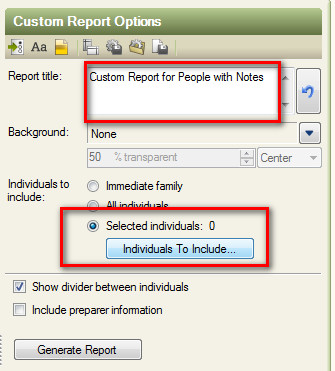
The easiest way for me to know who has Notes, would be to generate a Custom Report. This report is in the Publish Workspace, Person Collection, and selecting the Custom Report.


Then I want to Name this Report - Custom Report for People with Notes. This naming will help me remember how the report was created, as I will be Selecting ONLY those Persons with Notes. I will be selecting Individuals To Include for this report.


When that button is selected, a "filter" screen will open. There have been other blog posts on this feature. http://ftmuser.blogspot.com/search/label/Filter

On the screen that opens will select "Other", and in the Search Where, will select Any Persons / Fact Notes and keeping "exists". This will move the people who meet that criteria into the Right Hand (RH) Panel.


 In this case there will be 12 people with notes.


Now the only thing we want in this report is the Notes and the Name of the Person. In the RH Panel, there are a number of settings, but for this report, we want to select Items To Include, which is the Left most ICON in the RH Panel.


In the Left side of this screen, normally, there is Name, Birth, Marriage, Death Fact. Each with their own control. We only want the Name. To remove a Fact, select it, and click on the "X" on the right.

In the Right side of thew screen, we want ALL of the Notes that are available. There are Person Notes, Fact Notes, Research Notes, Private Notes, and Relationship Notes. We want all.


The report was generated. In this case, it is an 11 page report. 


The names are identified as well as their notes. Some people had long notes, other, not much at all.

Creating a new Task was made to "Clean up Spacing in notes", assigned it to the Clean Up Category, and made it a low priority.

While the Notes are being reviewed / cleaned up, I want to run the Spell Checker on the notes. So that was a second task added, as a clean up, and Low Priority.

There are now 42 Tasks in the List. As I added the Tasks, I cleaned up a couple, and ran the Spell Checker on that set of notes. Those that I cleaned up are marked as Complete.

Control over the Task List has been touched on for FTM2009 here http://ftmuser.blogspot.com/2008/09/family-tree-maker-2009-tasks.html


Lesson Learned: Importing of a GEDCOM may require some clean up of the data. Its so much easier to do BEFORE it is merged with your own data. Leave some time to do this clean up. Don't be in a hurry. (sounds like a voice from experience).


Copyright © 2011 by H R Worthington

Monday, September 13, 2021

FTM2019 - Master File - Clean Up Summary

A Summary of a week long Clean Up project:


A little over a week ago, I started a Clean Up project of my Master Family Tree Maker file (FTM2019). I found notes back to 1997, which reminded me of how long I have been working on this SAME File. More importantly, I was reminded of the Changes that the program has made over the years. Most of the clean up was caused by those changes, which, in fact, is a Good Thing.

The biggest push, for me, to take the TIME to clean up, is the use of the Research Log (Notes) and Person Notes. Most of the work was to take Person Notes out of the Research Notes Tab and move them into the Person Notes Tab.

I started with 742 PAGES of Research Notes and ended with 578 Pages of Research Notes.

About 800 Pages of Person Notes that ended up with 919 Pages of Person Notes.

I now have NO (0 - Zero) Notes that can be seen in the Ancestry Member Tree. Mostly because of the formatting, or lack of formatting in the AMT. It looks very bad in an AMT, so I marked them ALL Private (for now), for the AMT.

When I started this clean up, I realized that in about 2014, I changed the formatting of the DATE in the Research Log and saw where I had played around with several formats in 2014. I took this time to Reform the dates, using the Find and Replace feature in FTM2019 and updated about 1,150 Entries.

I was reminded about the amount of resource material I have in the Person Notes tab. The plan going forward is to work on those Private Person Notes. Mostly for myself, but may re-consider making them public.

The other MAJOR clean up was to Mark ALL FACTS as Private, with the exception of Birth, Marriage, and Death Facts. I now have a record of the FACTS that I use, and have already Deleted 5 or 10 Facts along the way. Mostly, early Facts that I didn't clean up earlier.

I now have an Evernote Notebook with the Facts I have reviewed already, and how I want to use them. For example, my Military Facts are out of control. I had not documented, at the time, how I was going to use them.

Also, I realized that I had some Fact Notes information in the Person Notes Tab. Again, it's one of those things I changed over time, but hadn't made time to clean up those changes.

Of the 919 Person Notes Pages, I expect that number to go down, as the 488 Fact Notes Pages, goes UP. 

My goal is to be Consistent and to document how I do "stuff" in my File.

AND, I have 1,682 Profiles without Documentation, meaning at least ONE Fact without a Citation. I know who they are, but this review have me hints that I really do have the information about where I got that information, just hadn't entered it correctly.

The Filter In, Filter Out feature is my best friend going forward. That is why the FACT Review was and IS so important, as that is what the Filters help with. Knowing who has Undocumented Facts, helps, but along the way, with earlier Do-Over's, I have notes as to where to look for the Citations for those Facts.

____________________________________________________________
Copyright © 2021 by Cousin Russ

Friday, June 22, 2012

How to document a Relationship?

Warning: This is a work in progress.

 A question that I see on the various Family Tree Maker message boards, is How do I document a relationship?

We have Facts that we record, with each Fact we Cite where we received that information from. Some of these documents reflect relationships. Within FTM2012 we have a nice Relationship view, in the People Workspace, Person View, and the Relationship Tab.


 This is a nice chart and clearly shows us the Relationships, and the types of relationships between Parents and Children, and "Husband and Wife" (I will not address the issues surrounding those two terms).

Nice chart and pretty clear. BUT, how did we get there. Of course the answer is within FTM2012.

The issue is, how did WE get to the relationship "conclusion" or how do we record that.

In a project I worked on, I used the Name Fact to record what the various sources told me about this person, and other people.

For example:

1850 Census shows Head of Household - James Howard (53);  and Cath Howard (39); Julia Howard (50); Margaret Howard (20); Nancy Howard (16); Wm Howard (13); James H Howard (11); Harry C Howard (8); David R Howard (6); Mary Brannon (17); Ann M Getzandamer (49): Augustus Getzandamer (6); Rebecca Coarley (25); Roletta Carter (35);1880 Census shows David R Howard as Brother of William R Howard (head of household)

1860 Census shows Head of Household - James Howard (63);  and Chas R Howard (38); John E Howard (34); Nannie H Howard (26); Wm R Howard (23); J M H Howard (21); Harry C Howard (18); David R Howard (16); Margt Fitzgerald (26); Ann Carroll (27)

1870 Census shows Head of Household - William Howard (33);  and Ann H Howard (36); Henry Howard (29); David Howard (27); John E Howard (42); James M Howard (31); Annie Carlin (40); Joshua William (39)

1880 Census Shows Relationships with Head of Household - William R Howard (43); Elizabeth W Howard (41), Wife; William R Howard (7m, Son); Charles R Howard (4); Ann H Howard (46), Sister; Harry C Howard (38), Brother; David R Howard (38) Brother; Sophia Johnson (55), Servant; Laura Thomspon (35), Servant; Jennie Francis (17) Servant

1900 Census Shows Relationships with Head of Household - William H Howard (66); William R Howard (63), Brother; Elizabeth M Howard (60), Sister-in-Law; Charles R Howard (24), Nephew; William R Howard (20), Nephew; Harry C Howard (58), Brother; David R Howard (56), Brother; Harriet Bolton (46), Servant; James Mch Howard (61), Brother

1920 Census Shows Relationships with Head of Household - Henry C Howard [Hardy C Howard] (77); David R Howard (75), Brother; Rosa C Howard (50), Cousin
Maryland Births and Christenings, 1650-1995 shows  David Ridgely to his parents, James Howard and Catherine _____.
You get the point. I put these notes in the Preferred Fact.


This worked pretty well. But I started this before we were provided the ability to Print Notes, including Fact Notes.

During my clean up of this file (this file started in Version 3.4), using FTM2012 for clean up, I have many more options, so how best to do them, and address this relationship documentation issue.

How about using Fact Notes?

The advantage now is, that the Citation is one tab away, on the selected Fact Display (right hand panel in the Person View.

Remembering when Census Records really spelled out relationships, besides being "in the household" I decided to record the make up of the household, in the Residence Fact Notes page.


OK, that works for me. Again, the Citation is two tabs to the right, and IF I want to see the Census Record, it is in the Media Tab. This works for me.

There are other records the show relationships, so I put them into the Fact Notes. I have been moving (Copy/Paste) old information from the Person Notes field, into the more appropriate Fact Notes field.

This has a bonus feature. For example, I don't want Social Security information "out there" so I can mark that FACT as Private, so no one can see that fact nor its details, but I can see them.

Keeping with the Census Record, comparing two census years for a household, that is the selection of a different Residence (fact) Year. It's visual, but it has worked for me.

As I try to point out, "but what does the output look like?". Hier is the Publish Workspace, Pction Collection, Notes Report options.


Lots of options. Private Notes, Person Notes, Fact Notes, Relationship Notes, etc.

Now, why didn't I choose the "Relationship Notes". That IS and option. I tried it, but I liked the ability to enter or check the Fact Notes, be able to see the Citation, AND the ability to view the Media File (Census record for this example). The Relationship Notes were "too busy" for me.

In an earlier blog post, I mentioned the Research Notes, that can be seen above.

There is one more advantage, that I learned earlier, is the Notes tent can be seen in the People Workspace, Family View, for the selected Person.


 Example:


So, I can SEE all of the notes for that person in the Family View.

This is still a work in progress, but it's the direction that I am going.

_______________________________________________________________


Copyright © 2012 by H R Worthington

Monday, June 4, 2012

Research Notes

I read Genea-Blogger Randy Seaver on his GeneaMusings Blog.  Of interest has been his series about Research Notes.


I was not going to post about this series, as this first posting was above my head, especially the reference to the work of Elisabeth Shown Mills. My needs for that level of detail was not that important, great reading, but a little over my head.

I am not been at my home PC, where I have Roots Magic and FTM2012 installed to duplicate Randy's experience.

Part 2 of Randy's Blog Creating Research Notes in RootsMagic 5 - Post 2


Got my attention, because I think Roots Magic 5 and FTM2012 handle "Research Notes" differently. In fact FTM2012 has two places for Research Notes. The People Workspace, Person View, there is a Research Notes ICON, in the Notes Tab on the Left side, bottom on this view. The normal Notes, is where stories are recorded, but there is a Research Note ICON, where you can record generic research notes for that Person.

In addition to that option, we have a Citation Note, for any Fact. I blogged about that here:

http://ftmuser.blogspot.com/2012/05/how-i-work-with-burial-fact.html

In Roots Magic 5, Randy pointed out where his Research Notes go. His example was for a specific fact. If I were to do that in FTM2012, I would record that information in the Fact Notes.

As in my earlier Blog, those notes are available in reports.

I have asked Randy to email me the GEDCOM from Roots Magic 5, so that I can see where those notes appear in FTM2012.

With the current state of the GEDCOM format and with the advanced settings of both programs, it will be very interesting to see where those notes will appear in FTM2012.

I'll post a follow up when I get back to my home PC and/or receive Randy's GEDCOM file.
________________________________________________________________  

Copyright © 2012 by H R Worthington

Friday, August 27, 2021

FTM2019 Clean Up

After I Privatized my Media Files, I thought I would do some File Clean Up.


This is work on my own File, with 12,661 profiles. I have two questions in my mind as I have been doing this clean up.

What do I need / want to see
What do I want YOU to see

Those two questions have been on my mind when I give presentations on Family Tree Maker or when I blog, here, about the program. I have implemented these questions in a couple of smaller files, but not on my own file. I have been cleaning up a lot of information, like Citations in my file, but not really spent some time making this file public. Too messy, and needed to be cleaned up.

Thinking through the Media file issue, those two questions returned to this file and the related, linked Ancestry Member Tree (AMT). In an earlier blog post I figured out a way for someone finding the AMT, to communicate that I had images for the Profile. I can do that with my Master File.

But what about other information, like Facts, Notes, those stories. I know what I want to handle the Person (Profile) Notes. Each Note will have a Citation, keeping in mind that may be many notes in one persons Notes, but each one will have a Citation and that citation is in Bold. I have been doing that. The bolded Citation is a visual for me, that there is the "next" note, in the person note Tab. So, IF I have notes and I have not put the Citation, in bold, I just Privatize that Persons Notes. Looking at what I had left, not made private, I just privatized that note and moved on. I realized that the notes, with citations, were not consistent. So, I went through almost 200 pages of notes and made them Private. I want to see consistent notes, with Citations, but don't want anyone else to see them YET. Also, Ancestry AMTs do not present the Notes with the formatting (like bold Citations) that I have in my version of the Notes. Remember that those notes may appear in a Book that I may create from this file. That Formatting WILL remain in that Book. I can also unprivatize those notes for that book.

All Notes are not marked as Private.

I already have a number of FACTS that I have marked as Private, like Current Place Names for a Historical location (see earlier blog posts on that), but when I was looking at the 200 Facts that I have in my database, again my use of those Facts were not Consistent.

I did two things with the Facts. Marked ALL but Birth, Marriage, and Death Facts as Private, but Default, AND those existing, as Private. I can see that ALL. As I did this, I created an EXCEL spreadsheet with each Fact and the Number of times that Fact was used. As I went along, I made a quick notation that I needed to fix my usage of that Fact, in EXCEL.

What I also have, is an Evernote (another program) Notebook on how I use Family Tree Maker. I have used that for a long time, especially for Citations. So my next task, and I may blog about this, is to put all of those Facts in Evernote, and describe how I use that Fact and Where I get it from.

In EXCEL, I made a couple of Notes. Self, Records, System. Where did that fact come from. Very high level, but I did this to give me a clue as to the Order in which I want to work on those Facts. Some are easy, some, not so much. My Military FACTS are out of control.

Going forward, my workplan is to make those Private Facts public, as appropriate. Keeping in mind those two questions.

What do I need / want to see
What do I want YOU to see

I have not forgotten my prep work for the 1950 U.S. Federal Census project, as I will switch between the two projects from time to time, probably one day with one project the next on the other.

I probably will share some of this work in this blog, if there is any interest. But I want my file to be the way it should be. I have learned a lot of information since I started AND Family Tree Maker has many new features that make it easier to accomplish my goal.

____________________________________________________________
Copyright © 2021 by Cousin Russ

Saturday, November 30, 2013

FTM2014 - Clean Up Research Notes

I posted earlier: FTM2014 - Why are Research Notes Private ?

Now to clean up "the mess". Not really a mess but thought I would share HOW I made sure that all of my research notes are marked as private. In reality, this review also made sure that I have Research Notes for everyone. (That is the intent of the file I am using for this blog post)

When I start this review, I would create the report, return to the People Workspace, select the "next" person from the Index on the Left, then select the Person View to make my changes. 

Then I remembered that I could access that same information from the Report itself.

Publish Workspace, Person Reports, Notes Report, as described in the last blog post (link at the top of the page) and selected All Individuals, No Check Mark in Show Private Notes and had Research Notes selected. 


18 Pages of people where their Research Notes were NOT marked private.

Selecting the Name (double clicking) will open the Person Edit screen.


From that window I selected Notes, then the Research Notes ICON, and clicked on the Private Notes ICON.


This allowed me to see everyone's research notes and that they had one, and make them private at the same time. Clicking OK at the bottom of that window, returned me back to the Report AND that person was removed from the list.


That's what I wanted. An Empty Report for Unprivatized Research Notes. I saved this report in the Saved Reports list as part of a series of reports to be run from time to time.

_______________________________________________________________
Copyright © 2013 by H R Worthington

Print Friendly